
An AI company is easy to draw and hard to follow. Once a team holds other teams, and those teams hold specialists and workflows, a simple question becomes difficult: who actually does the work, and where do the tokens go?
The Observation tab of the Studio answers it on one screen. You start from the whole organisation, then go down department by department until you reach the member that consumes.
This article shows that path, then the gestures, step by step. Observation is available on the Pro, Business and Enterprise plans.
The whole organisation on one screen
Here is Northmoor Coffee Roasters, our example of an AI company: a CEO, six departments, 34 agents and 5 workflows.
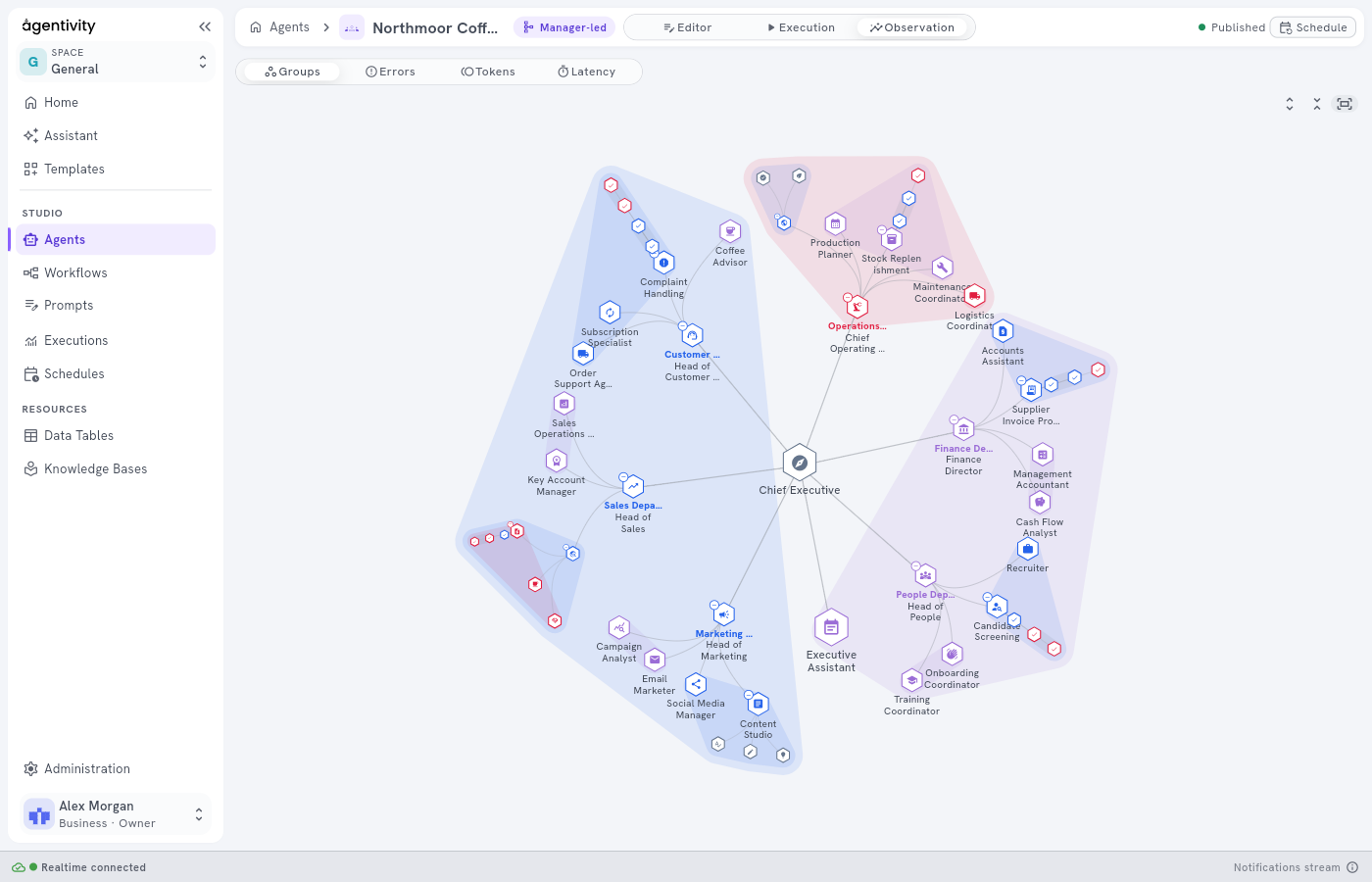
A team that holds teams opens in rings around its first manager. The Chief Executive stands in the centre. The heads of department form the first ring, and what each department holds goes on outward in its own direction: agents, sub-teams, workflows and their steps.
The colours are groups and nothing else. The red of Operations is not an alert, it only tells you where Operations begins and ends.
You read this image the way you read an organisation chart, with one difference: it is the organisation as published, down to the steps of each workflow.
Going down, department by department
From there, you go closer. In the Groups reading the zoom drives the levels: from far away you see the departments, closer you see their teams, then their members.
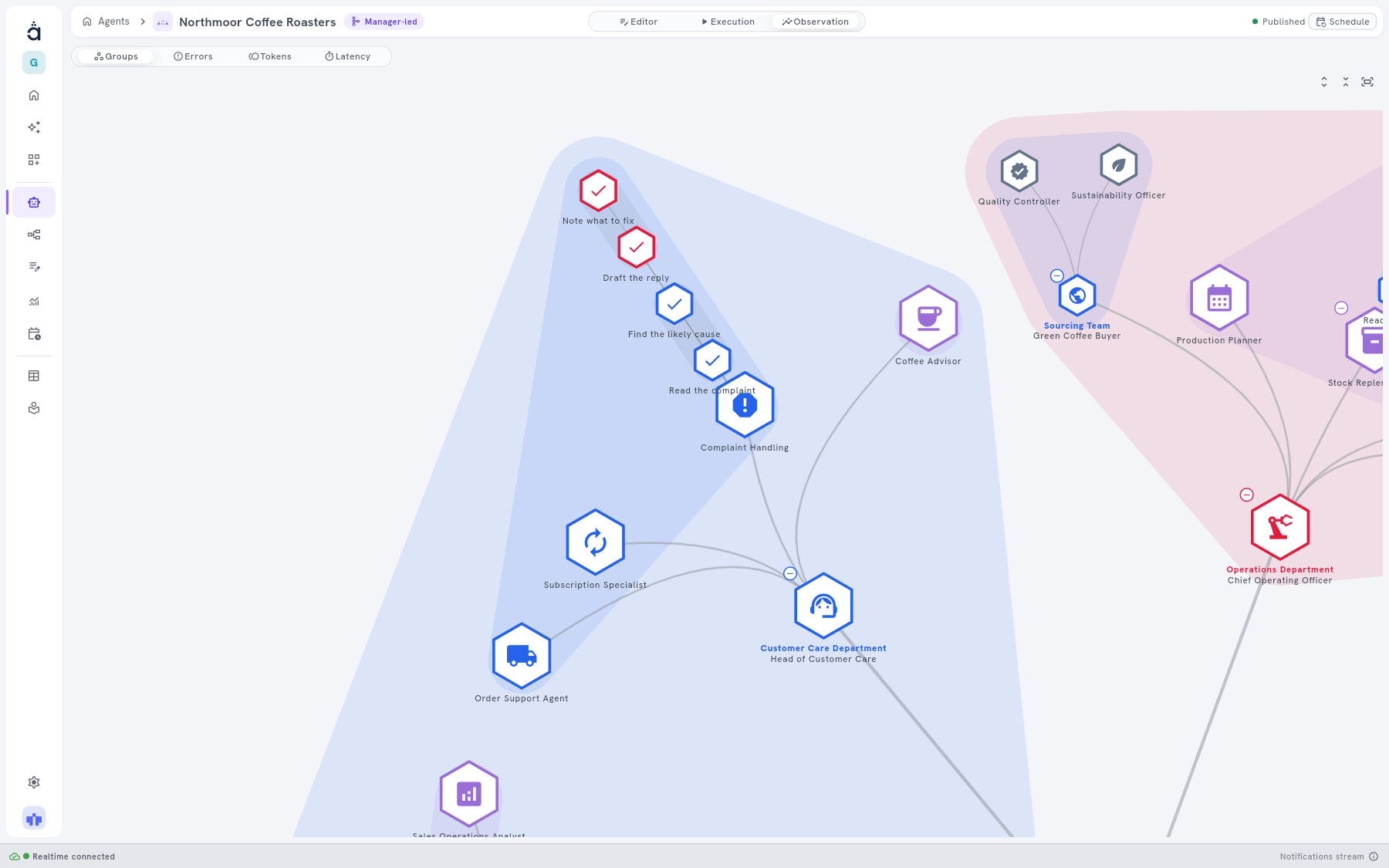
Nothing moves while you zoom. A level fades in where it has always been, so you do not lose your place.
The same goes for the question of tokens. With Tokens, the organisation starts on its first level, and each branch shows the total of everything below it. You see at once which department stands out. You open that one, see which of its teams stands out, open that one in turn, and so on down to a single member.
Where the tokens go
At the bottom of that path you are looking at one team, and each member carries its own figure. This is Shopping Lab, a team of nine specialists that compares products across online stores.
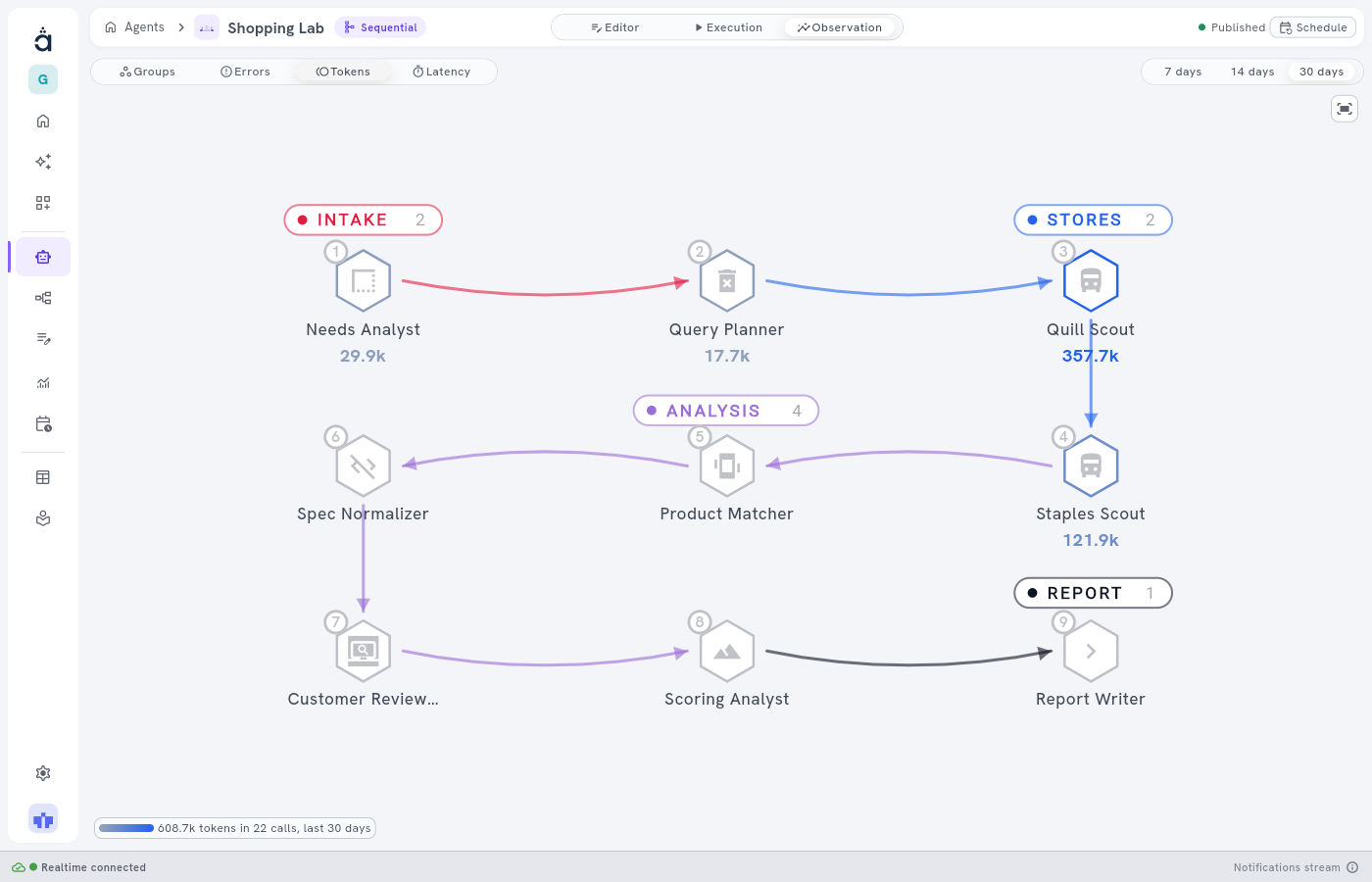
The figure sits under the name, and the colour follows it: the more a member consumes compared with the others, the stronger its blue. You find the member that stands out before you have read a single number.
The Tokens reading counts tokens only. That is what you read here, on every level.
A figure that stands out is a question, not a verdict. Click the member and read what it is for. A member that reads long pages will consume more than one that writes a short plan. The reading shows you where to look, and you judge whether it is right for the job.
Same graph, four readings
The graph does not move. You change what you read on it with four buttons.
- Groups: who belongs where. This is the structure, without figures.
- Errors: which members and steps have calls that failed.
- Tokens: which members and steps consume.
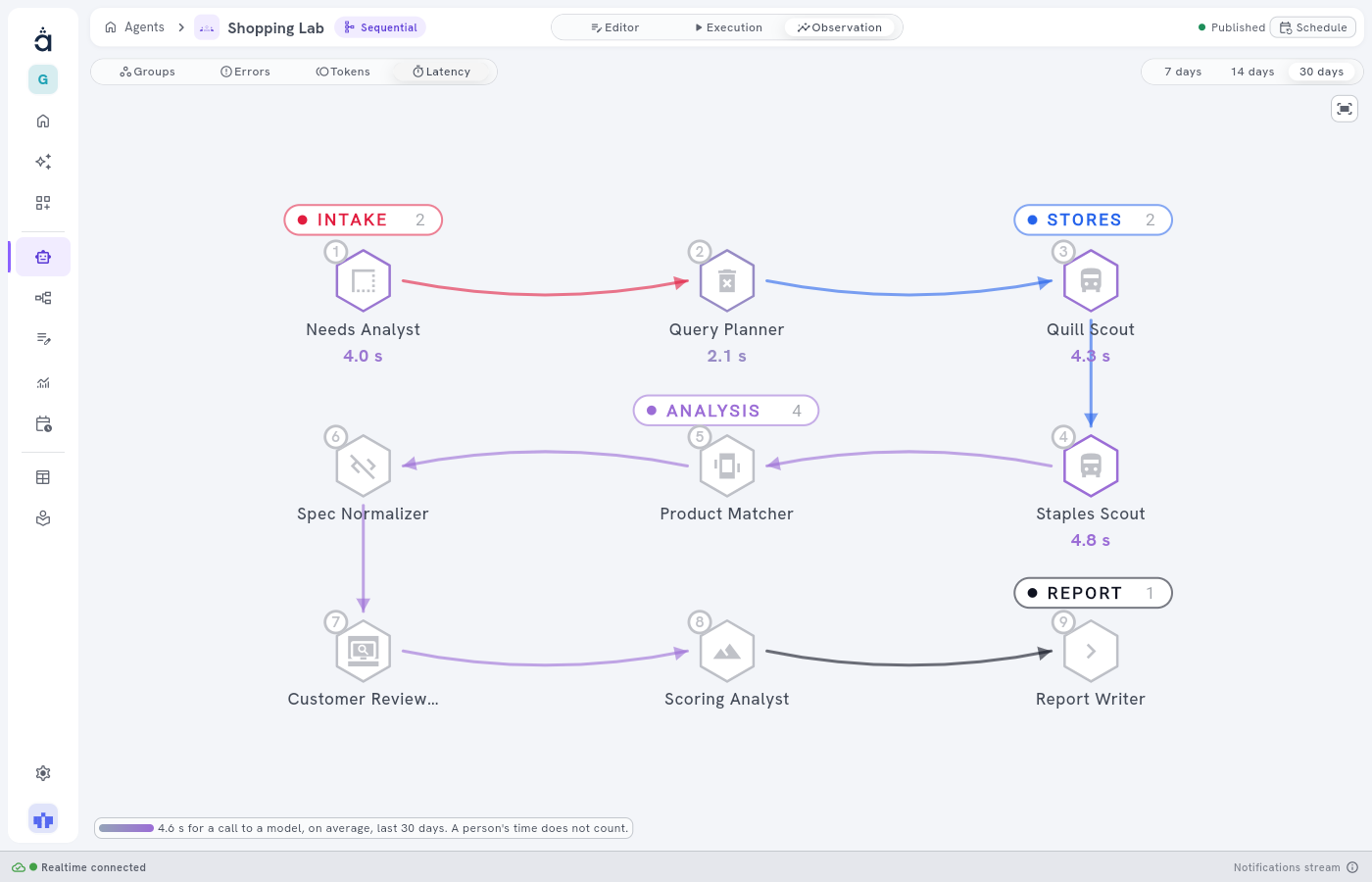
- Latency: how long a call to a model usually takes, member by member.
Errors, Tokens and Latency read over 7, 14 or 30 days. A period longer than the history of your plan shows what is kept.
Latency measures the usual time of a call to a model. A person’s time never counts, so a team that waits two days for someone’s approval does not look slow because of it.
Observation or Execution?
Observation is the third tab of the team and workflow editors, beside Editor and Execution. Execution and Observation are easy to confuse, and they answer different questions.
| Execution | Observation | |
|---|---|---|
| What it shows | One execution in detail | A period as a whole |
| The question | What happened this time? | What usually happens? |
| When to use it | You follow a case | You want to understand the whole |
How to use it, step by step
1. Open the tab. In the Studio, open a team or a workflow and choose Observation, beside Editor and Execution.
2. Look at the structure. You start on Groups. A team that holds teams is shown all open, as in the first image. Scroll to zoom: going out closes the levels one after the other, going in brings them back. Click a closed team and the view goes to it. The Back to the whole company icon, at the top right of the graph, returns you to the full view.
3. Choose a reading. Click Tokens, Errors or Latency. The organisation now starts on its first level, with one figure for each branch: its total, or its usual time in Latency. A plain team or a workflow has no levels: everything shows at once, as with Shopping Lab.
4. Choose a period. At the top right, pick 7 days, 14 days or 30 days. A summary of the reading stays in the bottom left corner.
5. Open by hand. Find the small round + button on a team, usually the one that stands out. Click it: the team opens where it stands and the view makes room for it. The same button, now a −, closes it. Repeat on the next level until you reach a member. The Open all and Close all icons, at the top right, work on every level at once.
6. Change the reading, keep your place. Errors, Tokens and Latency share what you opened. Having found the member that consumes, click Latency: you stay in the same place and read the same member for another measure.
7. Click to read the card. Click a member or a step, and a card opens over the graph.
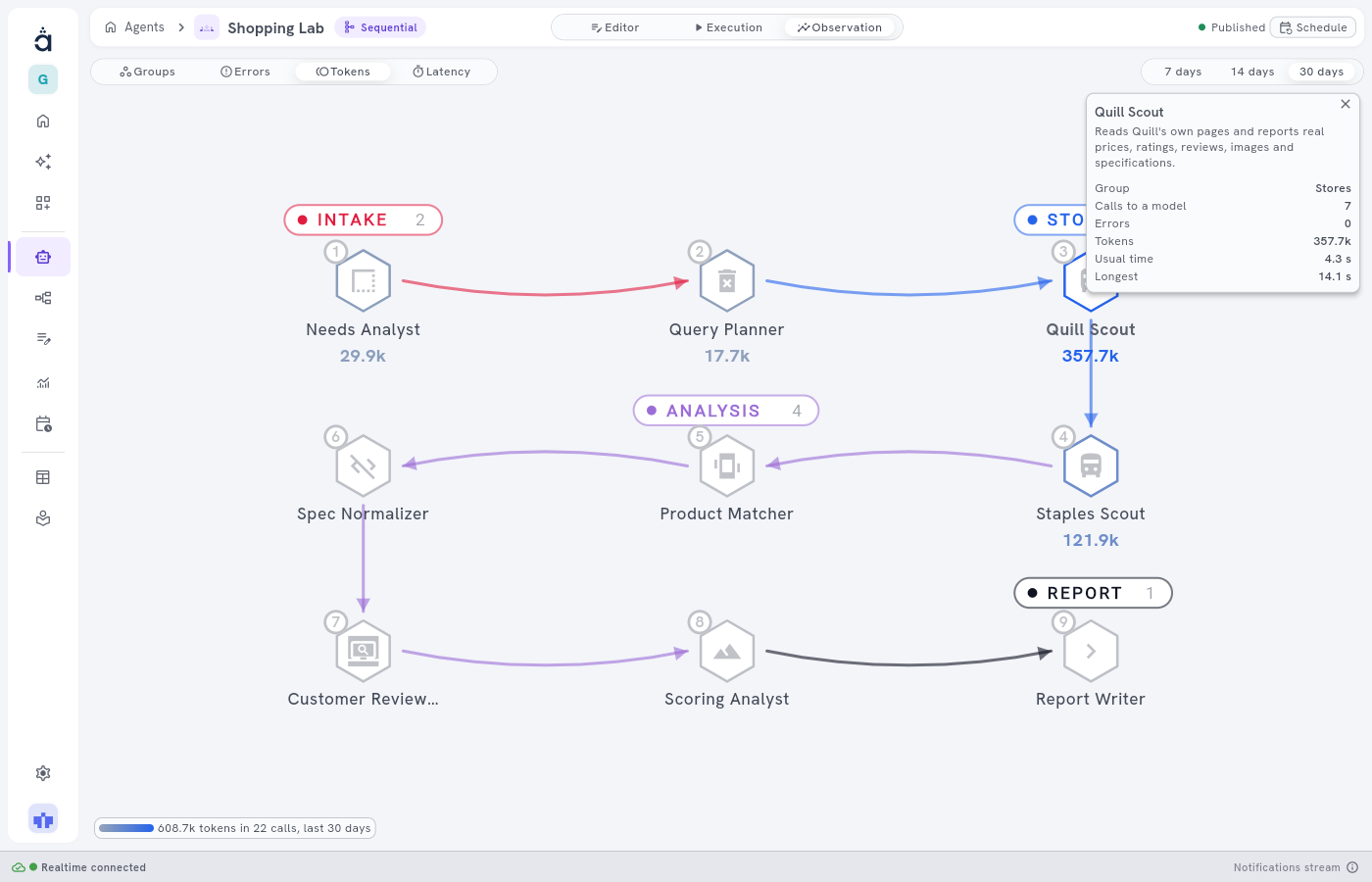
It gives the group, the calls to a model, the errors, the tokens, the usual time and the longest time. On a closed team, the card speaks for its whole branch. The cross closes it.
What Observation is not
- It is not in the apps you publish. Observation is in the Studio only, not in VibeApps or SDKs. It is for the people who build and follow the teams.
- It is not in every edition. It comes with Pro, Business and Enterprise. It is not in Personal or Community.
- It does not change anything. You read here. You change a team in the Editor.
In short
Start from the whole organisation, read Tokens on the first level, open the branch that stands out, and repeat until you reach the member. Then click it and read the card.
You can see how a team is built on how it works, and how groups give a graph its shape in our article on groups.
Start a free trial: 14 days, no card.
Questions people ask
What is the difference between Execution and Observation?
Execution shows one execution in detail. Observation shows a period as a whole: 7, 14 or 30 days, on the same graph.
Does Latency include the time a person takes to answer?
No. Latency is the usual time of a call to a model. A person's time never counts.
Why do I see only the first level in Tokens?
Because a team that holds teams starts on its first level in Tokens, Errors and Latency, with one figure for each branch: its total, or its usual time in Latency. You open a branch by hand with the + button.
Can I see this in a VibeApp or through an SDK?
No. Observation is in the Studio only, in the team and workflow editors.
Which editions have Observation?
The Pro, Business and Enterprise plans. It is not in the Personal plan or the Community edition.