
Repeat steps for each item of a list
Ce contenu n’est pas encore disponible dans votre langue.
You have three unpaid invoices, and you want one reminder for each. You do not draw the same steps three times: a For Each step runs them once per item of a list.
What you need
Section titled “What you need”- A workflow open in the editor. See Create a workflow.
- A list of items. In the example, three invoices.
How a loop is drawn
Section titled “How a loop is drawn”In the example workflow Reminder Batch, the upper exit of For Each goes to an Agent step that calls Reminder Writer, then to a Console step. The lower exit goes to another Console step.
A For Each step has two exits on its right side:
| Exit | Where it is | What starts from it |
|---|---|---|
| Loop | The upper dot | The steps to repeat. They run once per item. |
| Out | The lower dot | What comes next. It runs once, when every item is done. |
Add the loop
Section titled “Add the loop”- Open the Nodes catalog and search for
For Each. It is in Core > Control Flow. - Drag For Each onto the canvas, and link the step before it to its left dot.
- Right-click the step and select Edit.
- In Node name, type a short name, for example
each. You use this name to read the current item. - In the field of the group Loop, enter the list. See the next section.
- Select Apply.
- Link the upper dot to the first step to repeat.
- Link the lower dot to the step that comes after the loop.
- Select Publish.
Write the list
Section titled “Write the list”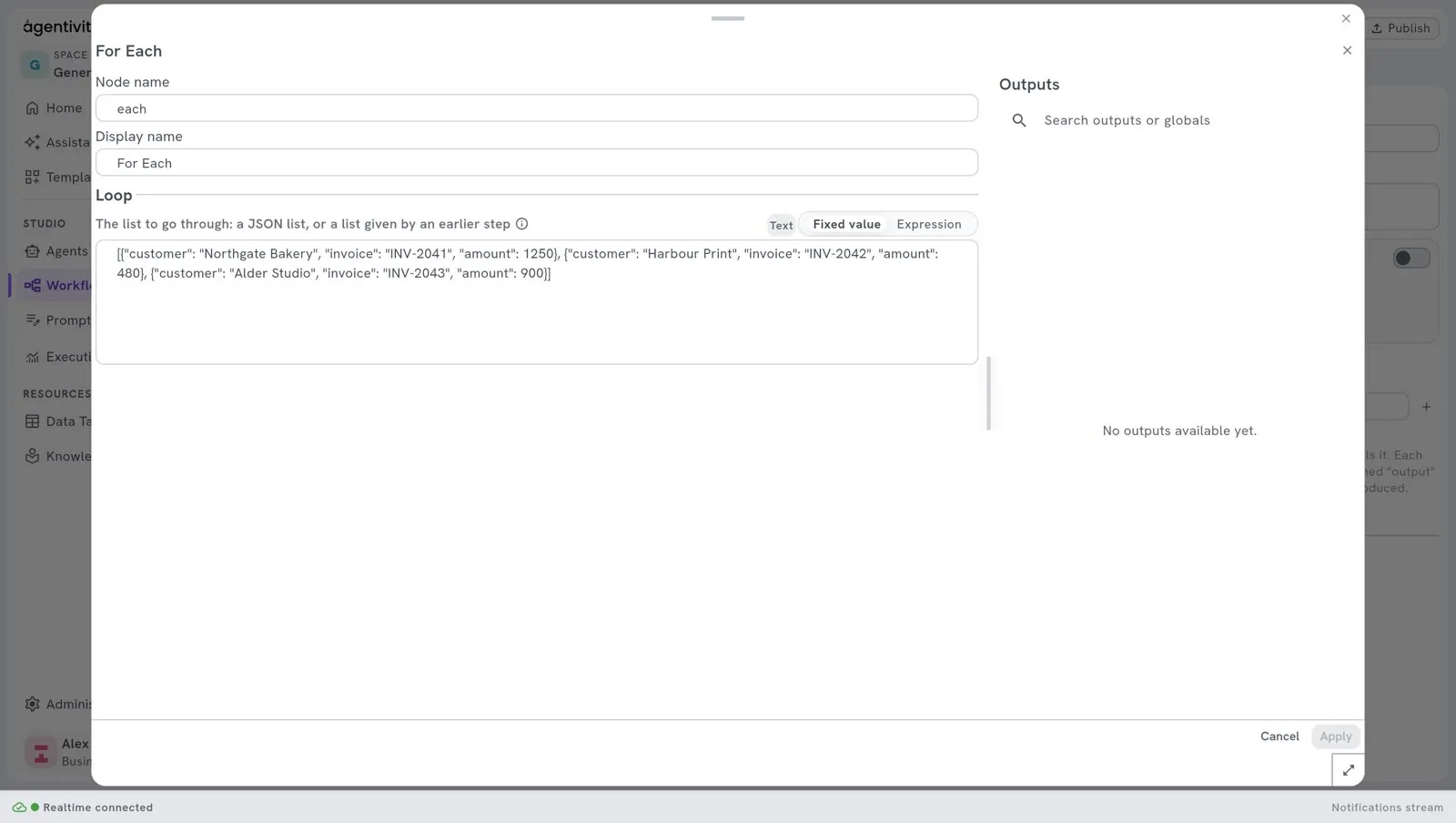
The list is written in a format named JSON: square brackets around the list, a comma between the items. An item can be a plain text, or a block between curly braces with named fields. Copy this example and change the values:
[ { "customer": "Northgate Bakery", "invoice": "INV-2041", "amount": 1250 }, { "customer": "Harbour Print", "invoice": "INV-2044", "amount": 480 }, { "customer": "Elm Street Garage", "invoice": "INV-2050", "amount": 2300 }]The list can also come from an earlier step. Select Expression above the field and write the reference of the output that holds the list.
Read the current item
Section titled “Read the current item”Inside the loop, the step For Each gives these outputs. Their names start with the node name of the step: here, each.
| Output | What it holds |
|---|---|
each.current_item | The item of this turn. |
each.current_item.customer | One field of the item. Replace customer with the name of your field. |
each.current_index | The position of the item. It starts at 0: the first item is 0, the second is 1. |
each.is_first, each.is_last | True on the first item, true on the last one. |
each.total_count | The number of items in the list. |
You use one in a field by writing its reference, between two pairs of curly braces. The panel Outputs of each step in the loop lists them.
In the example, the message sent to the agent by the Agent step is written with three references: the customer, the invoice number and the amount of the current item. See Use an agent or a team as a step.
After the loop
Section titled “After the loop”The steps linked to the lower dot run when the list is finished. The loop gives one output there:
| Output | What it holds |
|---|---|
each.count | The number of items done. It is 0 for an empty list. |
The loop itself does not give back what each item produced. Two ways to keep it: gather it into a list with a Collect step (see the next section), or handle each item inside the loop, for example by writing each result in a Data Table. See Use a table in a workflow.
Gather what each item produces
Section titled “Gather what each item produces”Put a Collect step in the loop, after the steps that work on the item. Each time it runs, it adds one item to a list.
- In the Nodes catalog, search for
Collect. It is in Core > Data. - Link the Loop exit of For Each to it, or to the last step of the loop and then to Collect.
- In its field item, write what to keep for this turn: a reference to an output, or a text built from the current item.
- After the loop, from the lower dot of For Each, use the outputs of Collect:
itemsis the whole list, written as JSON, andcountis the number of items.
In our test, with three customers and the node name collect, the item was a text with the customer and the amount. After the loop, collect.items held the three texts as a JSON list, and collect.count was 3.
The option reset of Collect clears the list before adding. Leave it off inside a loop, or the list holds only the last item.
How to know it worked
Section titled “How to know it worked”- Put a Console step in the loop, with the reference of one field of the current item as its value.
- Put another Console step after the loop, with
each.count. - Run the workflow.
- The execution ends as completed, and the second Console shows the number of items.
We ran this with the list above. The steps in the loop received each customer in turn, and the step after the loop showed 3.
Limits to know today
Section titled “Limits to know today”- Nothing that waits inside a loop. A loop runs all its items in one go and cannot wait. If a step in the loop asks a person, or calls an agent, a team or a workflow that stops to wait, the execution fails, and the message says so. Ask before the loop or after it.
- The Studio shows the last item only. After an execution, each step of the loop shows what it received and produced for the last item. To keep a trace of every item, write each result in a Data Table from inside the loop. See Use a table in a workflow.
- The loop does not collect what its steps produce by itself. After the loop,
each.countis the only output of For Each. Add a Collect step in the loop to keep what each item produces. - One failure fails the execution. If a step of the loop fails on one item, the whole execution fails.
- An empty list is not an error. The steps of the loop are skipped,
countis 0, and the workflow continues from the lower dot. - An AI step in a loop costs once per item. A list of one hundred items uses the AI model at least one hundred times. Try with two or three items first.
If it does not work
Section titled “If it does not work”- The loop runs once, with the whole list as one item. The list is not valid JSON. Check the square brackets, the commas and the quotation marks.
- A field of the item is empty. Check the spelling of the field, and the node name of the For Each step in the reference.
- The execution fails with a message about a loop that cannot wait. A step in the loop asks a person, or calls something that asks one. Move it out of the loop.
Reference
Section titled “Reference”For Each in the node reference.