
Ask a person to fill in a form
Ce contenu n’est pas encore disponible dans votre langue.
A question with one free answer is sometimes not enough. A form asks for several values at once, each in its own field. The workflow stops, a person fills in the form, and the workflow continues with the values.
For one question and one answer, use the simpler step: Ask a person to approve or answer.
What you need
Section titled “What you need”- A workflow open in its editor. See Create a workflow.
Add the step and its channel
Section titled “Add the step and its channel”- In the Nodes catalog, open Interactions and drag Form Interaction onto the canvas.
- Open AI > Interactions and drag Forms Channel onto the canvas, below the step. It appears as a circle.
- Drag from the diamond of Forms Channel to the diamond under Form Interaction.
- Link Form Interaction to the step that must run after the form.
Describe the form
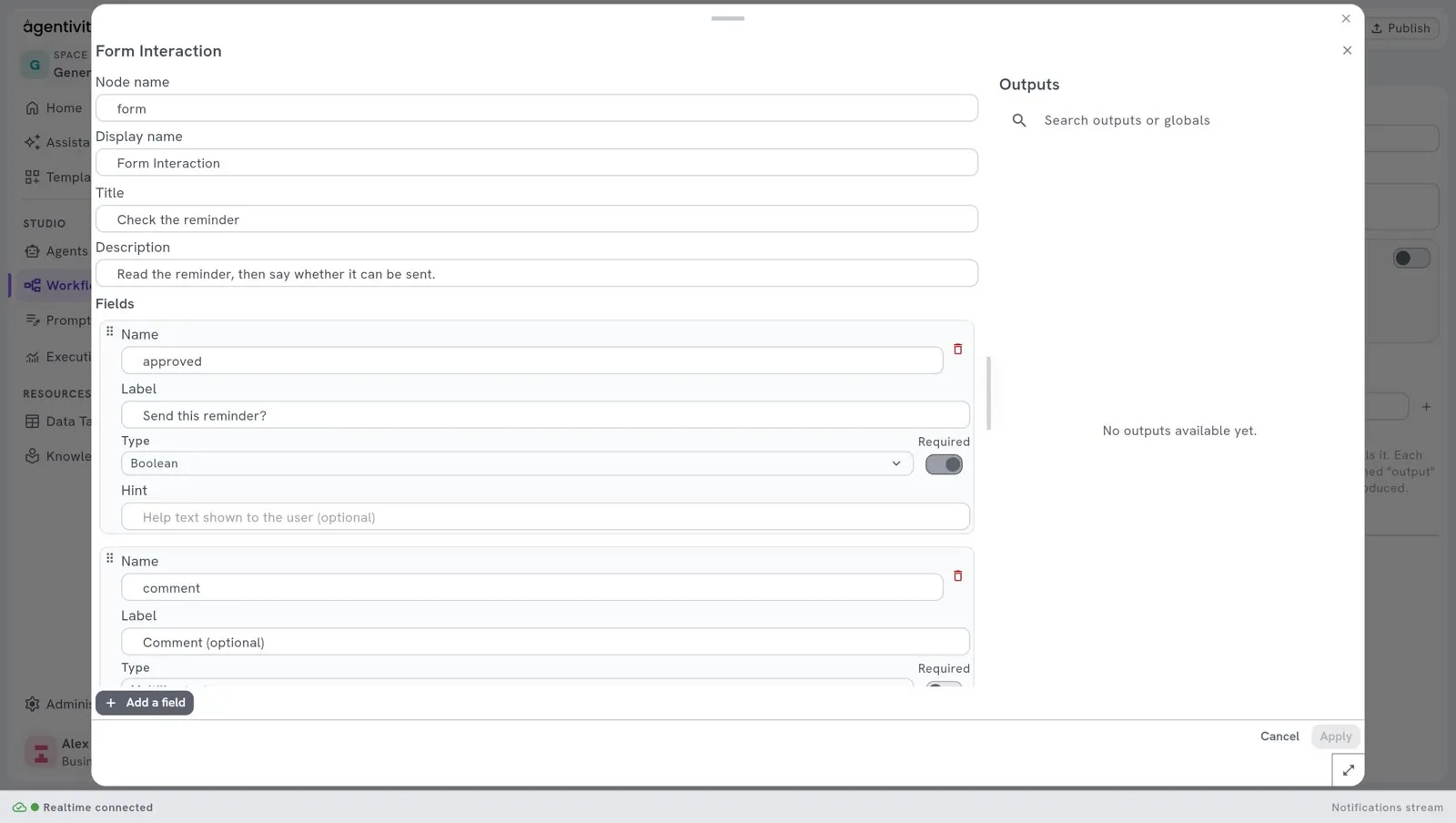
Section titled “Describe the form”- Right-click Form Interaction and select Edit.
- In Title, type the title of the form.
- In Description, say what the person must do.
- Under Fields, describe the fields: one block for each field. See the next section.
- Select Apply, then Publish.
Describe the fields
Section titled “Describe the fields”Under Fields, each field is a block with its Name, its Label, its Type (chosen in a list), the switch Required and a Hint. Select Add a field to add one, and the bin at the top right of a block to remove it.
Behind the window, the fields are saved as a list in a format named JSON, which is also the form of an API call. This example shows the same three fields as such a list:
[ { "name": "customer", "label": "Customer", "type": "Text", "required": true }, { "name": "amount", "label": "Amount due", "type": "Number", "required": true }, { "name": "send", "label": "Send the reminder", "type": "Boolean" }]What each part means:
| Part | What it is |
|---|---|
name (Name) | The name of the field for the workflow. Lower case, no space. The next steps use this name. |
label (Label) | What the person reads next to the field. |
type (Type) | The kind of value. See the list below. |
required (Required) | true if the person must fill in the field. A field with no required is required. |
hint (Hint) | A short help text. It is optional. |
defaultValue | A value already filled in, which the person can keep or change. It is optional. |
options | For a field of type Choice: the list of choices, each between quotation marks. |
The types:
| Type | The person enters |
|---|---|
Text | One line of text. |
MultilineText | Several lines of text. |
Number | A number. |
Boolean | Yes or no. |
Choice | One of the choices you listed in options. |
Date | A date. |
File | A file. |
In an API call, write the types exactly as shown, with their capital letters.
Use the values in the next steps
Section titled “Use the values in the next steps”After the person submits the form, the step produces:
| Output | What it holds |
|---|---|
| One output per field, with the name of the field | The value the person entered. In the example: customer, amount and send. |
response_data | All the values together. |
outcome | The result of the form, for example Submitted. |
responded_by | Who answered. |
For example, link an If step after the form, and test the output send. See Add a condition to a workflow.
How to know it worked
Section titled “How to know it worked”- Run the workflow. See Run a workflow and follow each step.
- The workflow stops at the form. In the section Executions, the execution has the label ACTION REQUIRED.
- In the Execution view of the workflow, open the tab Forms in the panel on the right, fill in the form and submit it.
- The execution continues and reaches the state completed.
If it does not work
Section titled “If it does not work”- The step fails, or the form has no field. Check that each field has a Name and a Type. In an API call, check the commas, the quotation marks and the curly braces of the list, and the spelling of each
type. - The workflow does not stop. Check that Forms Channel is plugged into the diamond of the step.
- A field cannot be left empty. A field is required unless you write
"required": false.
Good to know
Section titled “Good to know”- An agent can ask for a form too, by itself, when it has a Forms Channel. See Let an agent ask a person before it decides.
- In the Community edition there is no login, so Agentivity does not check who fills in the form.