
Ask a person to approve or answer
Ce contenu n’est pas encore disponible dans votre langue.
Some decisions must stay with a person. This page adds a step that stops the workflow, asks a question, and continues only when a person has answered.
What you need
Section titled “What you need”- A workflow open in its editor. See Create a workflow.
Add the step and its channel
Section titled “Add the step and its channel”The step needs two nodes: the question, and the channel that carries it to the person.
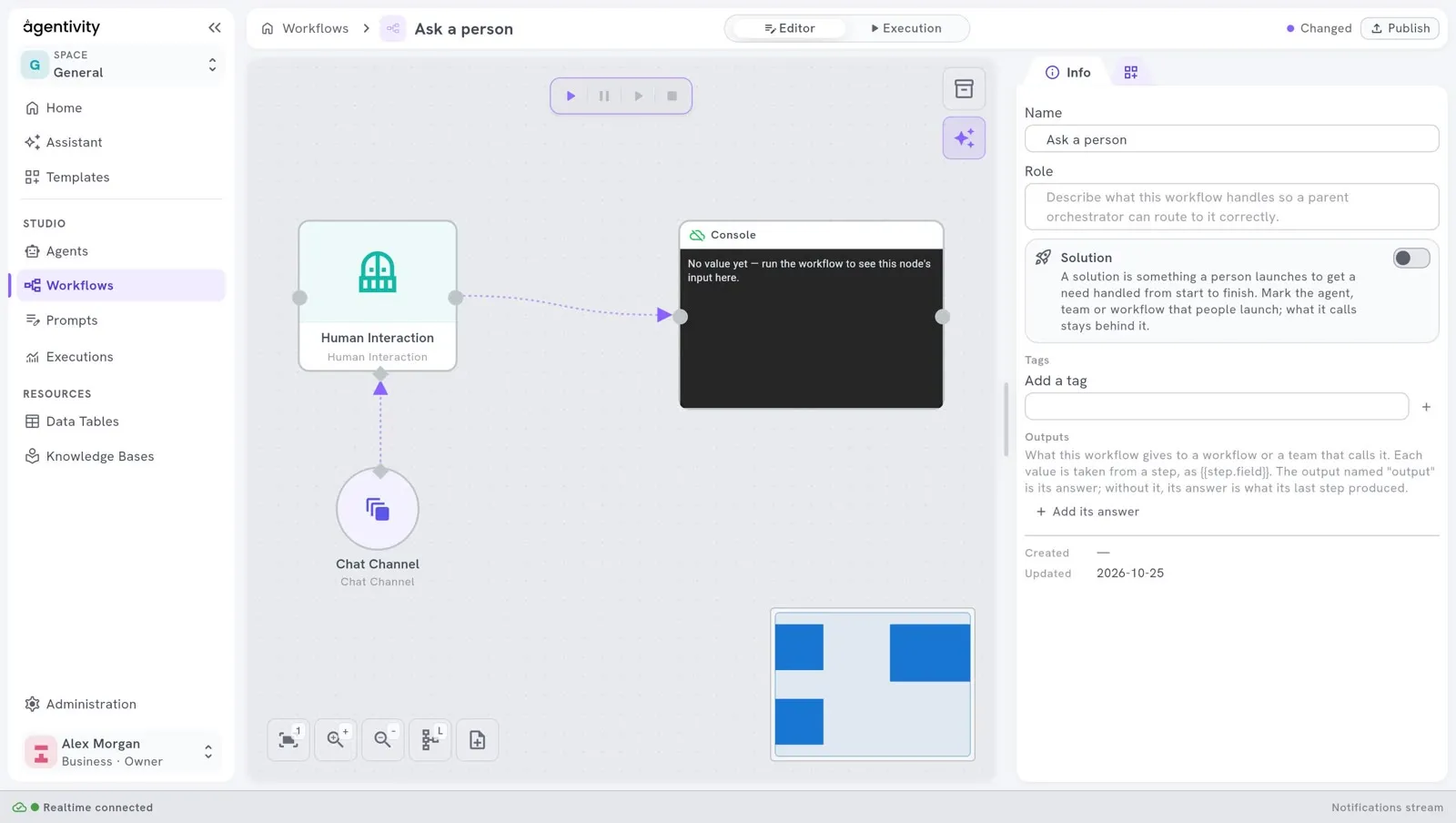
- In the Nodes catalog, open Interactions and drag Human Interaction onto the canvas.
- Open AI, then Interactions, and drag Chat Channel onto the canvas, below the first node. Chat Channel is the chat inside the Studio. It appears as a circle.
- Drag from the diamond of Chat Channel to the diamond under Human Interaction. A dotted line links them, with the label Channel.
- Link Human Interaction to the step that must run after the answer.
Write the question
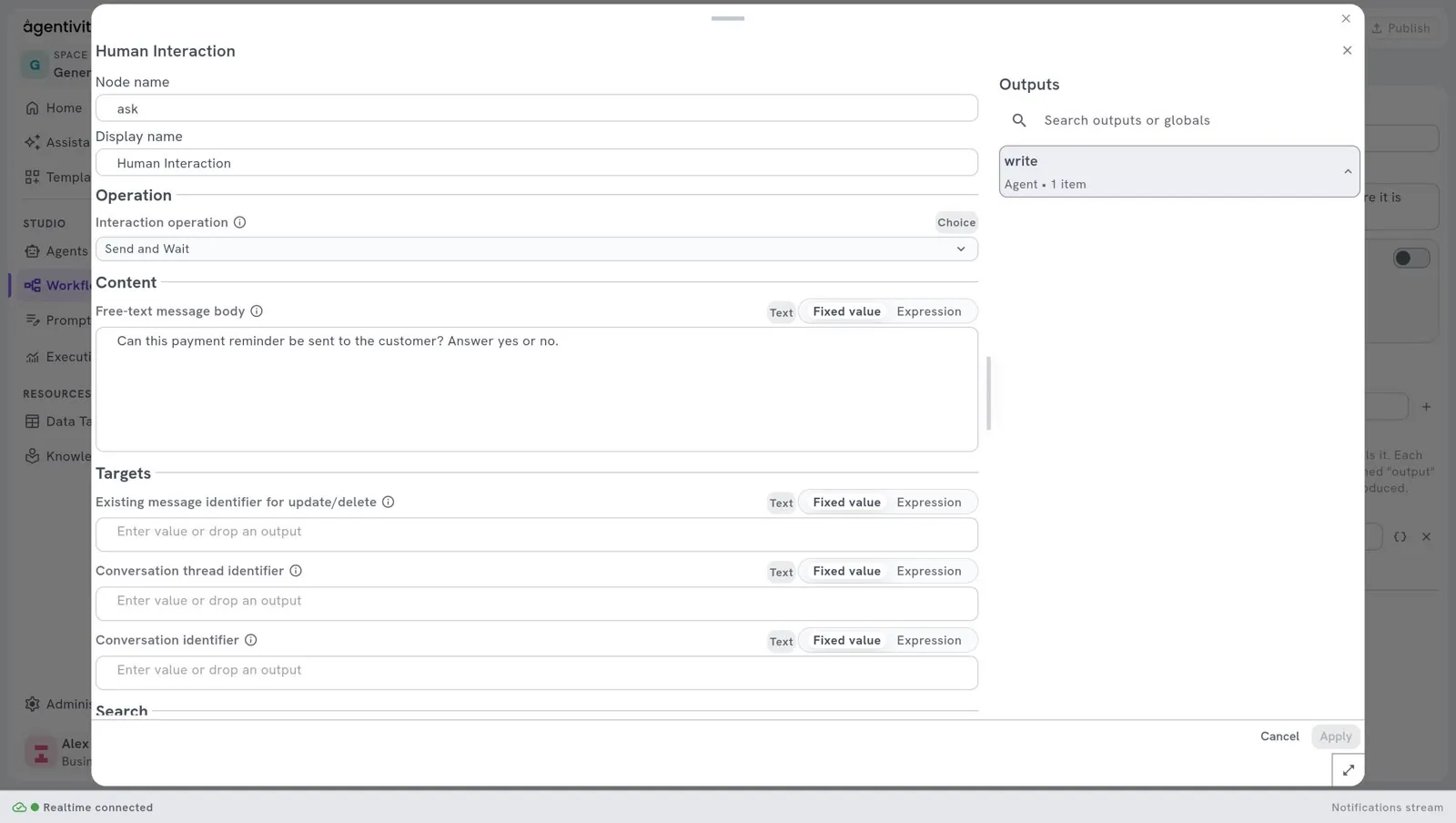
Section titled “Write the question”Right-click Human Interaction and select Edit.
In Interaction operation, choose Send and Wait. With Send, the workflow sends the message and does not wait.
In Free-text message body, write the question. For example:
Can this payment reminder be sent to the customer? Answer yes or no.Select Apply.
Select Publish.
What happens when the workflow runs
Section titled “What happens when the workflow runs”- The workflow reaches the step and stops. At the top right of the Execution view, the state is Waiting for input, followed by the name of the step, for example Waiting for input: ask.
- The question is sent to the chat of the execution. In the Execution view, open the tab Chat, in the panel on the right.
- Type the answer in the field Type your response… and select Send response.
- The workflow continues with the next step.
An execution that waits can wait for a long time: the workflow is paused, and it continues when the answer arrives.
Use the answer in the next steps
Section titled “Use the answer in the next steps”The step produces outputs that the next steps can use:
| Output | What it holds |
|---|---|
response_text | The answer of the person. |
outcome | The result of the interaction. |
responded_by | Who answered. |
For example, link an If step after it to take one path when the answer is yes and another when it is no. See Add a condition to a workflow.
How to know it worked
Section titled “How to know it worked”- When you run the workflow, the state becomes Waiting for input.
- In the section Executions, the execution has the label ACTION REQUIRED.
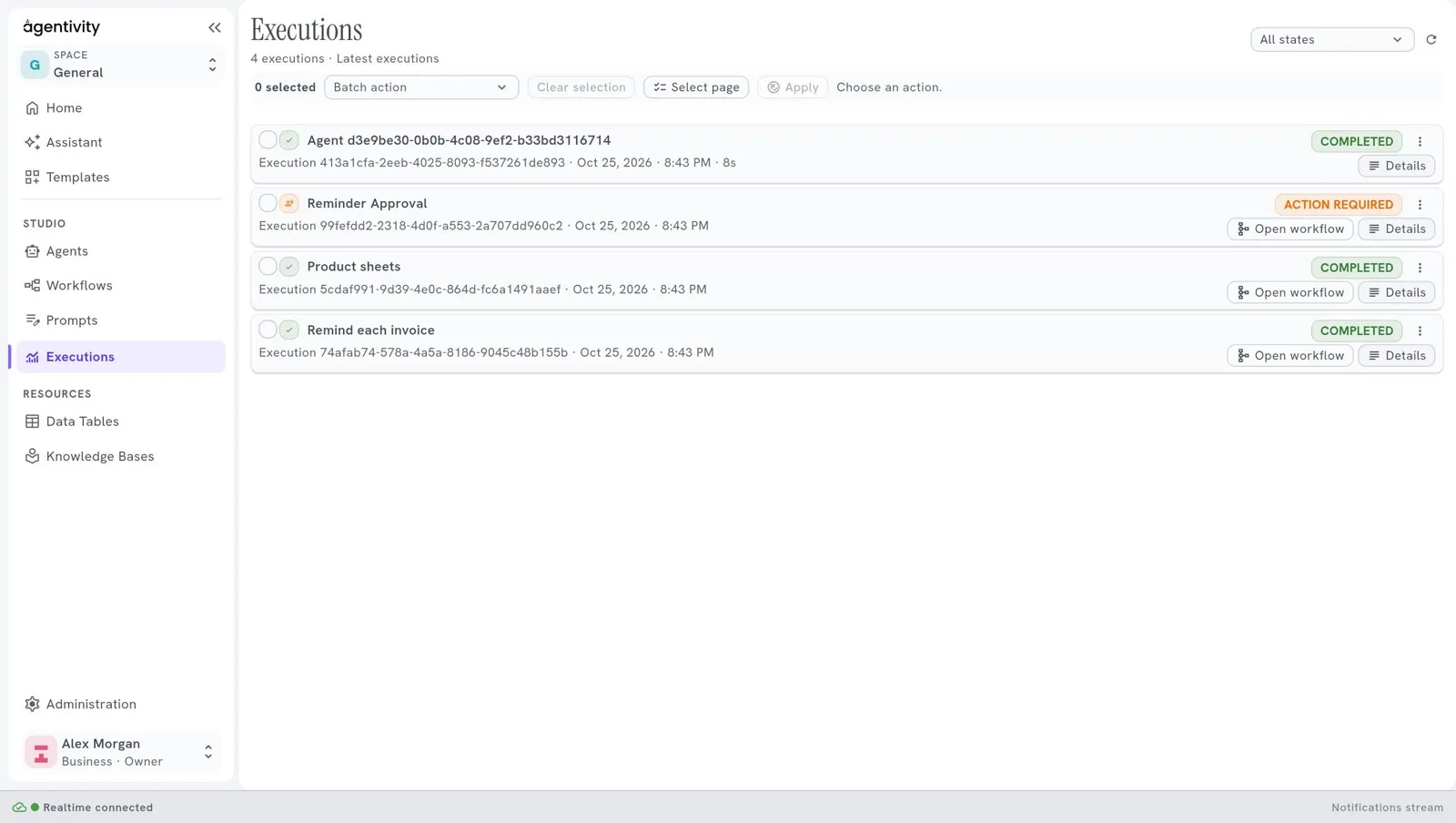
- After the answer, the execution continues and reaches the state completed.
If it does not work
Section titled “If it does not work”- The workflow does not stop. Check that Interaction operation is Send and Wait.
- The step fails. Check that Chat Channel is linked to the diamond of Human Interaction.
Good to know
Section titled “Good to know”- Other channels exist in the catalogue: Forms Channel, Email Channel and Slack Channel. This page covers the chat of the Studio only.
- Form Interaction asks for several fields at once instead of one free answer.
- Agentivity has no login yet, so it does not check who answers. Anyone who can open the Studio can answer.