
Add a condition to a workflow
Ce contenu n’est pas encore disponible dans votre langue.
A condition lets a workflow take one path or another. The rule is fixed: the same input always takes the same path. This page adds an If step.
What you need
Section titled “What you need”- A workflow open in its editor, with at least one step that produces a value to test. See Create a workflow.
Add the If step
Section titled “Add the If step”- In the Nodes catalog, open Core, then Control Flow.
- Drag If onto the canvas.
- Link the step before it to If: drag from the dot on the right of that step to the dot on the left of If.
Link the step first. The window of If can then show the outputs of the earlier steps.
Build the condition
Section titled “Build the condition”- Right-click If and select Edit.
- Under Condition, select Add condition. A condition is one row: a Field, an Operator and a Value.
- In Field, type the reference of the output you want to test. A reference is the name of the step, a dot and the name of the output, written between two pairs of curly braces. The panel Outputs, on the right, lists the outputs of the earlier steps with their exact names. For the answer of a person, the output is
interaction_human.response_text. - In Operator, keep Equals.
- In Value, type
yes. - Add more rows if you need them. The list Match says how the rows are combined: with ALL, every row must be true; with ANY, one true row is enough.
- Select Apply.
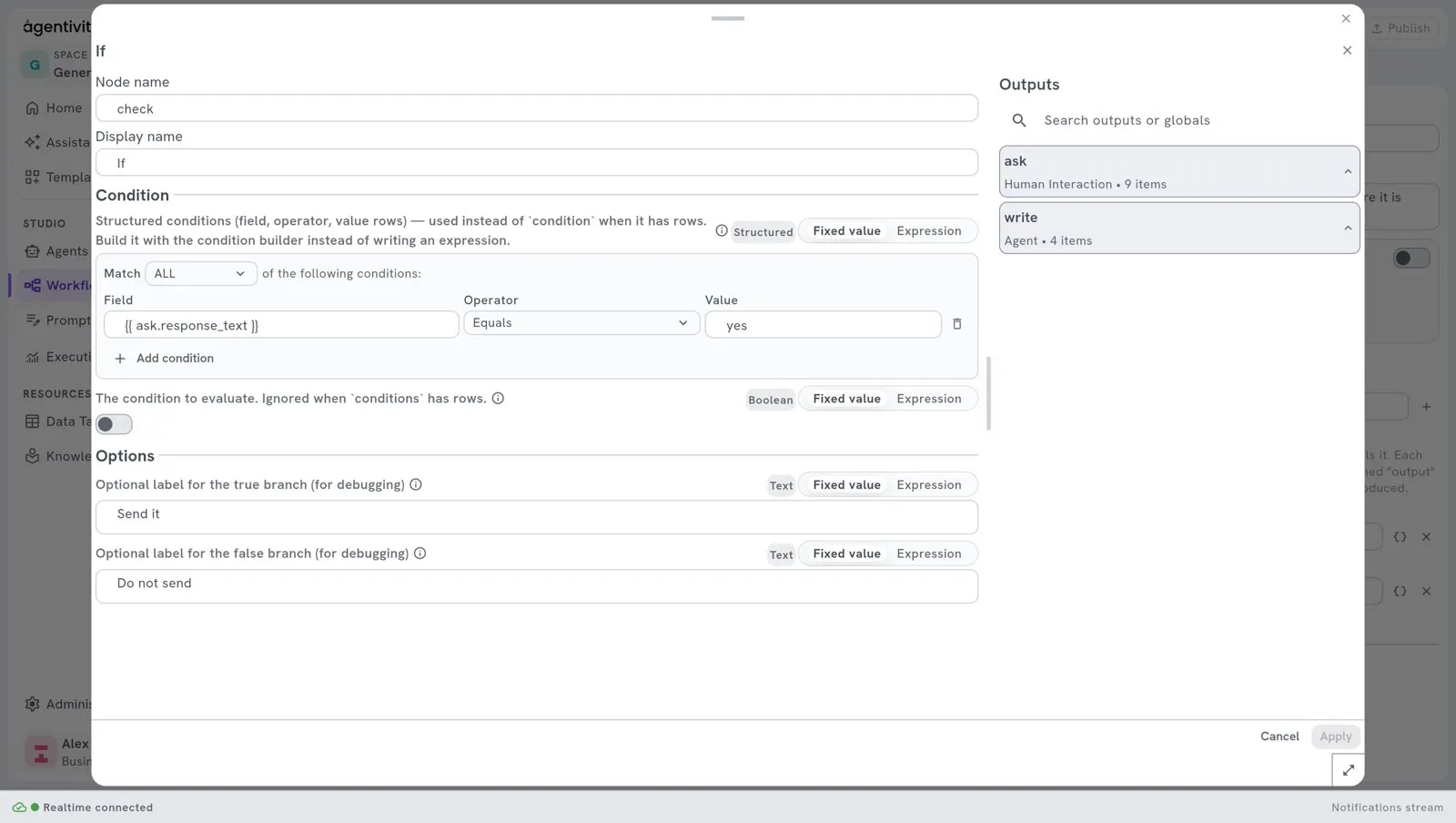
The operators are: Equals, Not equals, Contains, Does not contain, Starts with, Ends with, Greater than, Greater or equal, Less than, Less or equal, Is empty, Is not empty, Is true and Is false.
Until you add a row, the window says: “No conditions yet — this node will always take the “false” branch until you add one.”
Link the two paths
Section titled “Link the two paths”If has two exits, drawn as two dots on its right side: True and False.
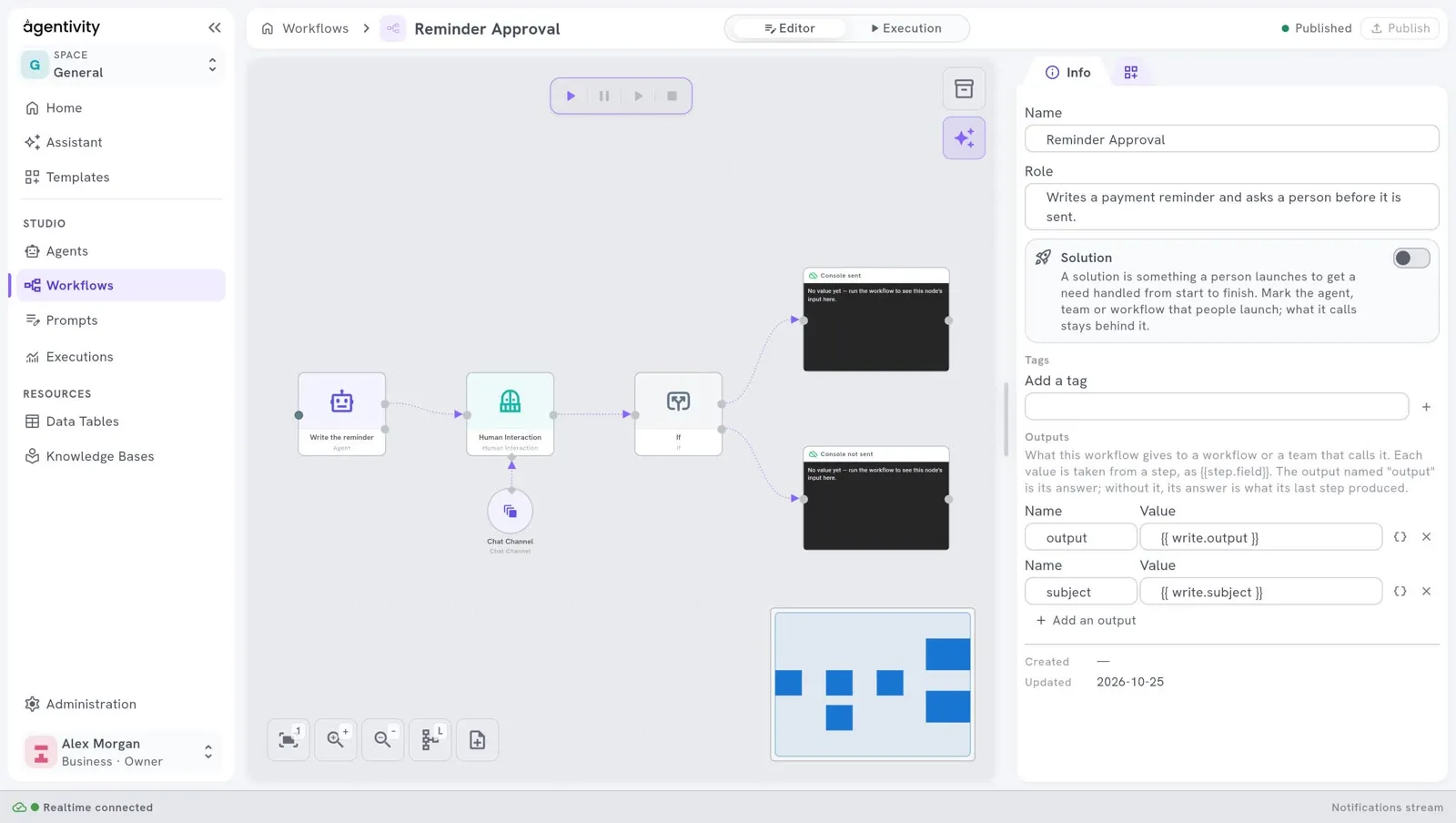
- Link the exit True to the step that runs when the condition is true.
- Link the exit False to the step that runs when it is not.
- Select Publish.
How to know it worked
Section titled “How to know it worked”When you run the workflow, only one of the two paths runs. In the Execution view, the steps of the other path stay not started.
If it does not work
Section titled “If it does not work”- The workflow always takes the path False. The condition has no row, or the value does not match exactly. Open the execution, select the step before If in the Inspector, and read what it really produced.
- The window shows no output to choose from. If is not linked to an earlier step.
Other steps that control the path
Section titled “Other steps that control the path”The same category, Control Flow, has other nodes:
| Node | What it does |
|---|---|
| Switch | Tests one value and takes one path among several, one per case. |
| For Each | Repeats the steps linked to it for each item of a list. |
| First Of | Takes the first value that arrives among several inputs. |