
The widgets an agent can show
Ce contenu n’est pas encore disponible dans votre langue.
This page is for developers. An agent does not only write text. It can put a chart, a form or a choice in the conversation. These pieces are named widgets. The SDK has twenty-two, and your application shows them with one line.
This is what makes a VibeApp more than a chat window: the execution decides which screen comes next.
How it works
Section titled “How it works”- In the Studio, the Chat Channel of the agent says which widgets exist. A group of widgets is named a bundle. The bundle Agentivity Artifacts holds the twenty-two widgets, and it is on by default.
- During an execution, the agent chooses. Each widget has a description that tells the agent when to use it. The agent fills in the content: the bars of a chart, the options of a choice.
- Your application draws it. The SDK has the matching component for each name.
- If the widget asks something, the person answers in it, and the answer goes back to the agent like a typed message.
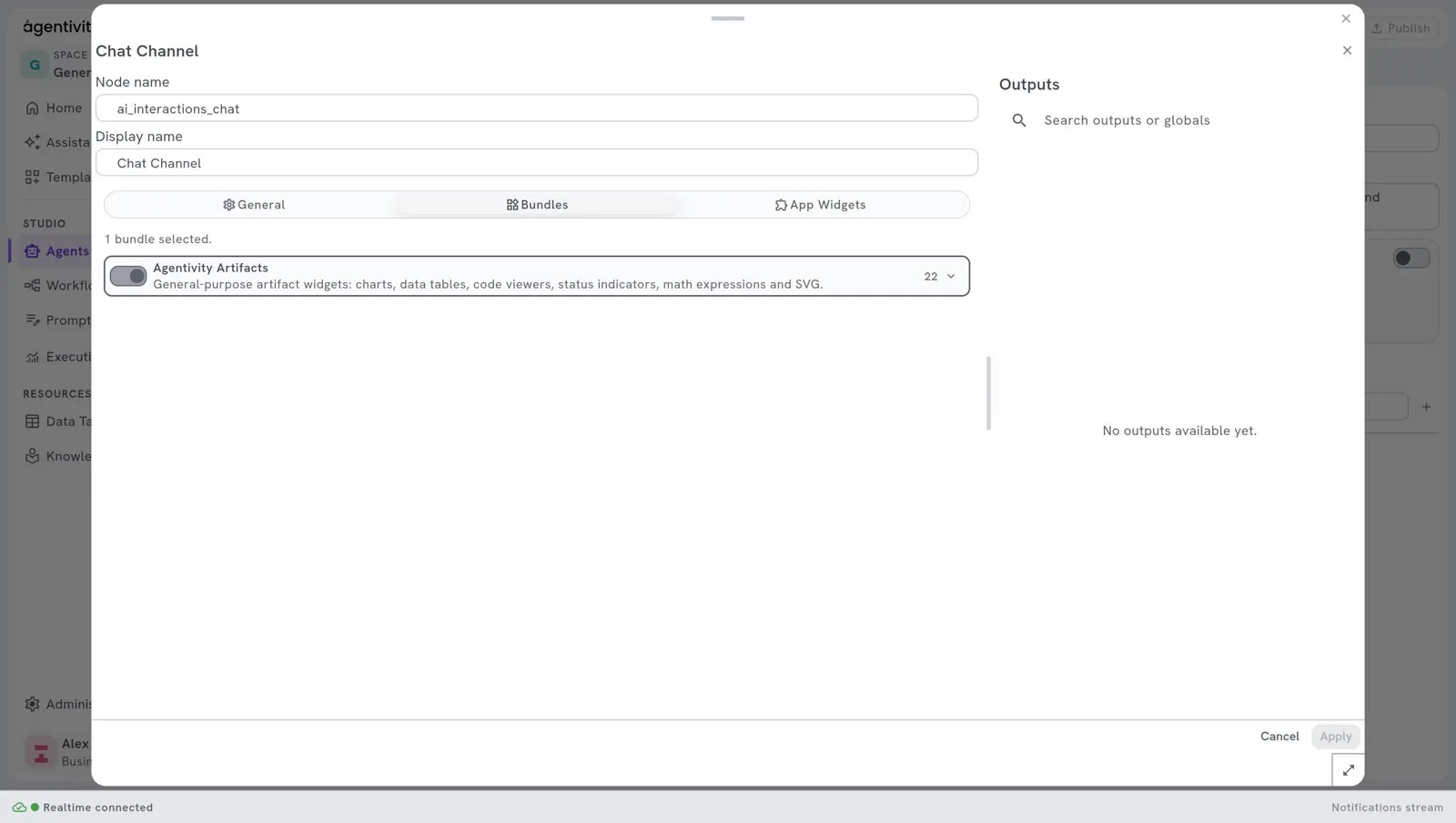
To see this in the Studio: open an agent, right-click its Chat Channel, select Edit, then the tab Bundles.
The twenty-two widgets
Section titled “The twenty-two widgets”Widgets that show something:
| Widget | Use it for |
|---|---|
BarChart | Comparing amounts across a few categories. |
LineChart | A value that changes over time. |
AreaChart | Cumulative or stacked values over time. |
PieChart | The share of each part in a whole. |
RadarChart | Comparing items across several criteria. |
MetricCard | One key number, with its trend. |
StatGrid | Several key figures at a glance. |
KeyValue | The details of one item: a record, an order, a profile. |
CodeBlock | Code, a query or a configuration to copy. |
JsonViewer | Structured data with no better layout. |
StatusCard | The outcome of an action: success, warning, error. |
Timeline | A sequence of dated events or steps. |
Latex | A formula. |
Svg | A simple diagram or illustration. |
ImageGallery | Pictures with captions and links: products, places. |
SummaryCard | A recap of what is about to happen, before a confirmation. |
Widgets that ask the person, and wait for the answer:
| Widget | Use it for |
|---|---|
QuestionForm | Several questions at once. |
ChoiceCard | One or several options to pick. |
ConfirmCard | Confirm or cancel, before an action that cannot be undone. |
RatingCard | A rating, with stars or a scale. |
DatePickerCard | A date or a range of dates. |
SourceInput | A document: the person uploads a file, gives a link or pastes a text. |
Show them in your application
Section titled “Show them in your application”Give the ready-made widgets to the chat. One line:
import { ChatDiscussion, buildArtifactsBundle } from '@agentivity-labs/sdk-react';import '@agentivity-labs/sdk-react/styles.css';
const widgetRegistry = buildArtifactsBundle();
<ChatDiscussion controller={controller} onSend={handleSend} onHilResponse={handleHilResponse} widgetRegistry={widgetRegistry} />;controller, handleSend and handleHilResponse are those of List solutions and start an execution from your app.
Make the agent use the right widget
Section titled “Make the agent use the right widget”The agent decides, so you guide it in its instructions, in the Studio. Say when to use a widget, in plain words. Two examples from the showcases:
- Invoice Clerk asks for the invoice with a
SourceInput, and its instructions say so in the first step. - The Report Writer of Shopping Lab is asked for a report with price and radar charts.
A good instruction names the widget and the moment: “Show the totals by category with a BarChart after each invoice.”
Good to know
Section titled “Good to know”- A widget that asks is answered once. After the answer, it stays in the conversation, dimmed, and its buttons no longer respond.
- A widget that shows stays usable. Its links keep working for the whole conversation.
- The widgets follow your theme. See Give the app your brand.
- Turn the bundle off in the tab Bundles if an agent must answer with text only.
When the ready-made widgets are not enough
Section titled “When the ready-made widgets are not enough”A confirmation card does not know what a payment is. A choice card does not show hotel photos. For a screen of your own, see Add your own widgets.