
Add your own widgets to a VibeApp
Ce contenu n’est pas encore disponible dans votre langue.
This page is for developers. A custom widget is a screen of your own that an agent can put in the conversation. The agent fills it in. The person answers in it. It is the part that turns a conversation into an application made for one job.
What it makes possible
Section titled “What it makes possible”The Trip Planner example has three custom widgets. They show what the idea is for.
| Widget | What the person sees | Why a ready-made widget was not enough |
|---|---|---|
HotelChoice | Up to three hotels as cards, each with photos, a price, a reason and a “recommended” mark. One click chooses. | A plain list of options has no photos and no price layout. |
PaymentCard | The total, the lines of the bill, the card on file, and a button to pay. The payment is simulated. | A confirmation card knows nothing about an amount or a card. |
TripCover | A large photo of the destination, with the dates and the number of travellers. It asks nothing. | It gives the conversation the look of a travel application. |
In each case the agent sends only facts: names, prices, dates. The widget decides how they look. The agent never sends a picture address: HotelChoice looks for photos itself.
Other uses of the same idea: an order summary to approve, a seat map, a quote with editable lines, a signature box, a map with a point to confirm.
The two halves
Section titled “The two halves”A custom widget has two halves that share one name.
| Half | Where | What it says |
|---|---|---|
| The declaration | In the Studio, on the Chat Channel of the agent | The name of the widget, when to use it, and what content it expects. |
| The component | In your application | How to draw that content, and what to send back. |
What you need
Section titled “What you need”- A conversation that works, with the ready-made widgets. See The widgets an agent can show.
- An agent with a Chat Channel. See Let an agent ask a person before it decides.
The example below adds a widget named ReminderPreview to the agent Reminder Writer. It shows the payment reminder as an e-mail, with two buttons: approve, or ask for changes.
1. Declare the widget in the Studio
Section titled “1. Declare the widget in the Studio”- Open the agent in Studio > Agents.
- Right-click its Chat Channel and select Edit.
- Select the tab App Widgets, then Add widget.
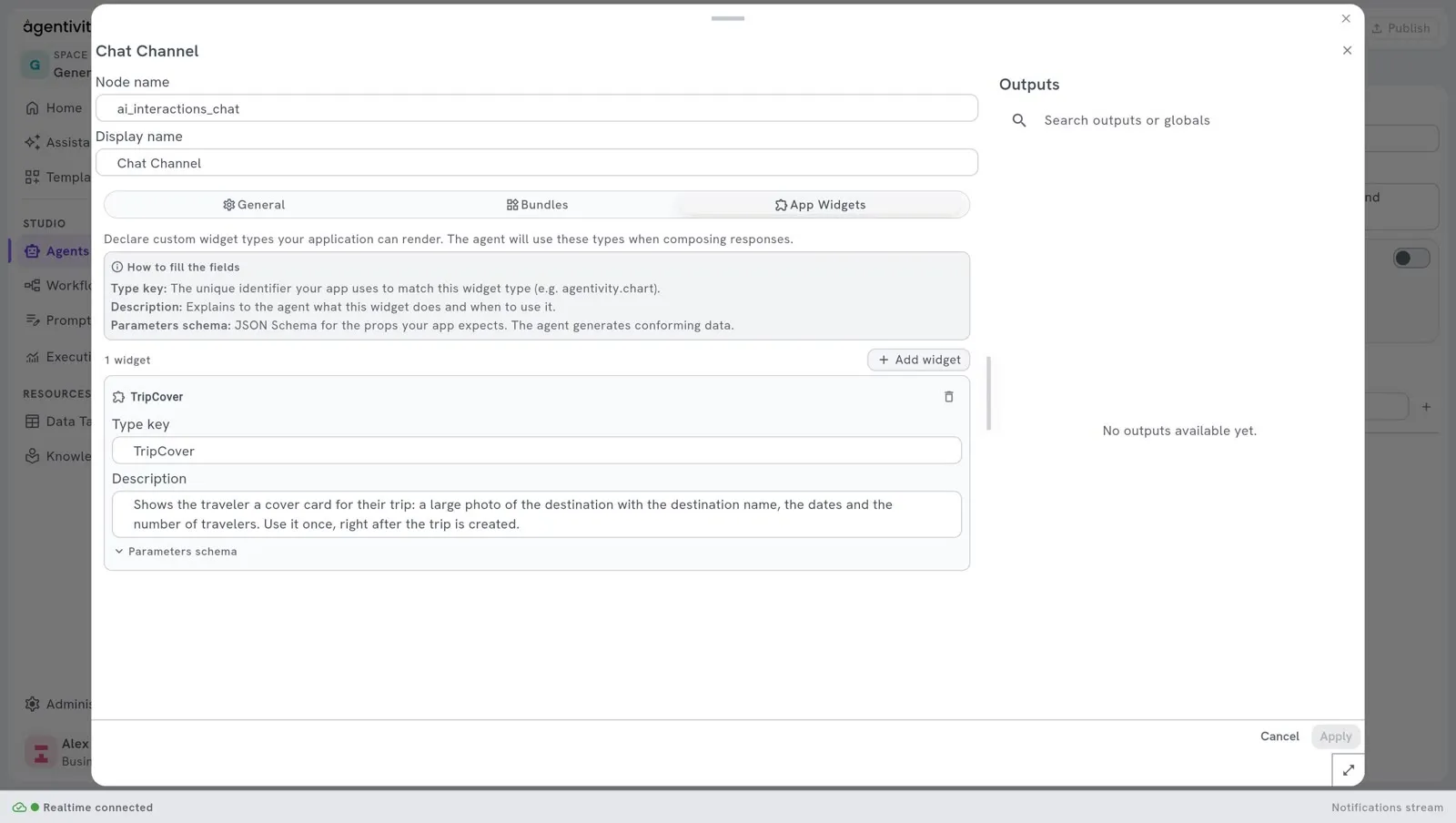
- Fill in the three fields:
| Field | What to enter | In the example |
|---|---|---|
| Type key | The name of the widget. Your application uses the same name. | ReminderPreview |
| Description | What the widget does and when to use it. The agent reads this to decide. | Shows the customer reminder as an e-mail and lets the person approve it or ask for changes. Use it once the reminder is written. The reply is the decision. |
| Parameters schema | The content the widget expects, as a JSON Schema. The agent produces content that matches it. | See below. |
{ "type": "object", "properties": { "customer": { "type": "string", "description": "Name of the customer." }, "subject": { "type": "string", "description": "Subject line of the e-mail." }, "body": { "type": "string", "description": "Text of the e-mail." } }, "required": ["customer", "subject", "body"]}- Select Apply, then Publish.
2. Tell the agent when to use it
Section titled “2. Tell the agent when to use it”Add one sentence to the instructions of the agent:
When the reminder is ready, show it with the ReminderPreview widget and wait for the decision. If the person asks for changes, rewrite it and show it again.The description of the widget says what it is. The instructions say when it comes in the work.
3. Build the component
Section titled “3. Build the component”The component receives the content as props. A widget that asks also receives a function named __onSubmit: call it with a text, and that text goes back to the agent as the answer of the person.
export function ReminderPreview(props: Record<string, unknown>) {  const onSubmit = typeof props['__onSubmit'] === 'function' ? (props['__onSubmit'] as (answer: string) => void) : undefined;
  return (    <div className="reminder-preview">      <p>To: {String(props.customer ?? '')}</p>      <h3>{String(props.subject ?? '')}</h3>      <p>{String(props.body ?? '')}</p>      <button disabled={!onSubmit} onClick={() => onSubmit?.('Approved. Send it.')}>        Approve      </button>      <button disabled={!onSubmit} onClick={() => onSubmit?.('Please make it shorter and more friendly.')}>        Ask for changes      </button>    </div>  );}
The content comes from an AI model. Read each value with care, as the example does: a field can be missing.
4. Register it under the same name
Section titled “4. Register it under the same name”Add your widget to the ready-made ones, and give the result to the chat.
import { ChatDiscussion, buildArtifactsBundle } from '@agentivity-labs/sdk-react';import { ReminderPreview } from './ReminderPreview';
const widgetRegistry = buildArtifactsBundle({  ReminderPreview: (props) => <ReminderPreview {...props} />,});
<ChatDiscussion controller={controller} onSend={handleSend} onHilResponse={handleHilResponse} widgetRegistry={widgetRegistry} />;
The name on the left must be the Type key of the Studio, letter for letter.
A widget that only shows
Section titled “A widget that only shows”By default, the chat treats a custom widget as a question. Once it is answered, or once the conversation moves on, it is dimmed and its buttons stop responding.
That is wrong for a widget the person only looks at: a cover, a report, a result with links. Wrap it in displayWidget, and it stays in full colour and usable.
import { buildArtifactsBundle, displayWidget } from '@agentivity-labs/sdk-react';
const widgetRegistry = buildArtifactsBundle({  TripCover: displayWidget((props) => <TripCover {...props} />),});
Replace a ready-made widget
Section titled “Replace a ready-made widget”Register your component under the name of a ready-made widget, for example ChoiceCard, and yours is used instead. Nothing changes in the Studio.
How to know it worked
Section titled “How to know it worked”- Run the agent from your application.
- When the reminder is ready, your widget appears in the conversation, filled in.
- Select a button. The agent continues with your answer.
If it does not work
Section titled “If it does not work”- The agent answers with text, and no widget. Check the instructions: name the widget and the moment. Check that the widget is declared on the Chat Channel of this agent, not of another member of the team.
- Nothing is drawn where the widget should be. The name in your application is not the Type key. Check the capital letters.
- The widget is empty or half filled. Make the descriptions in the schema more precise, and list the fields the agent must always give in
required. - The buttons do nothing. The widget is no longer the open question. Only the last question can be answered.
Good to know
Section titled “Good to know”- A widget is declared per agent. In a team, each member has its own Chat Channel, and its own widgets. In the Trip Planner,
HotelChoicebelongs to the Hotel Specialist, andPaymentCardto the Payment Agent. - The answer is a text. Write it as a person would: “I choose: Hotel du Parc, 140 euros a night.” The agent reads it like a typed message.
- The Studio does not draw your widget. In the Execution view of the Studio, only your application knows the component. Test a custom widget from your application.
- Do not put a secret or a real payment in a widget. The Trip Planner payment is a simulation. A real payment belongs to a payment provider, on your own server.
Where to read more
Section titled “Where to read more”The three widgets of the Trip Planner are short, and each starts with a comment that explains it: src/widgets in agentivity_sdk_showcase_tripagency.