
Create a team of agents
Ce contenu n’est pas encore disponible dans votre langue.
A team is several agents that work together on one request. This page builds a team by hand: a writer and a reviewer, who prepare payment reminders one after the other.
Recorded from the product, played faster. To have a team built from a description instead, read Build your first team with the Assistant.
What you need
Section titled “What you need”- Agentivity running, with the Studio open. See Install Agentivity with Docker.
- At least two agents in your workspace. In this page they are
Reminder WriterandReminder Reviewer. To create them, see Create an agent.
Create the team
Section titled “Create the team”- On the home page, select New, then Team, or the card A team. You can also open Studio > Agents and select New team.
- In the window New team, type the Team name, for example
Payment Reminders. - Select Create.
Choose how the members work together
Section titled “Choose how the members work together”The Studio asks How will this team work? The pattern, which the Studio also calls the mode of the team, is the way the members of the team work together: who acts, in what order, and who decides that the work is done. The Studio says that you choose it once, when the team starts.
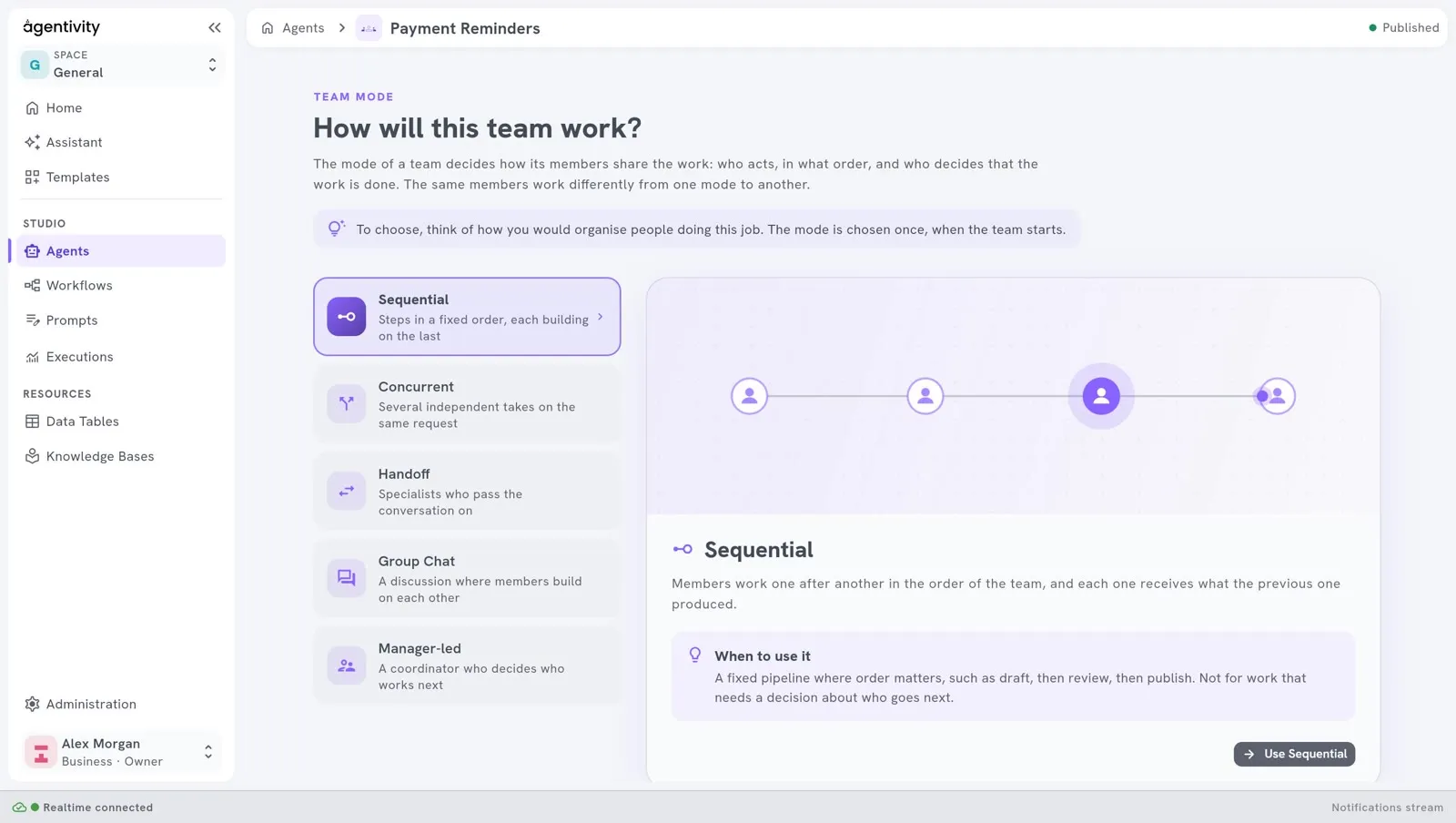
- Select one of the five patterns in the list: Sequential, Concurrent, Handoff, Group Chat or Manager-led. The right side shows how it works and When to use it.
- Select the button of the pattern, for example Use Sequential.
For this team, select Sequential: the writer works first, then the reviewer receives what the writer produced. The page Choose how a team works together explains the five patterns.
The editor of the team opens. The pattern you chose is shown as a small pill beside the name of the team, and the state at the top says Published: the pattern is saved.
Describe the team
Section titled “Describe the team”In the panel Info, on the right:
- Check the Name.
- Fill in Role: one or two sentences on what this team handles. When this team is a member of another team, the role tells the other team when to use it.
Add the members
Section titled “Add the members”- In the panel on the right, select the second tab, Add member. It lists what you can add: your agents, your teams and your workflows, grouped by folder. Use All, Agents, Teams and Workflows to filter the list, or the search field to find a name.
- Drag
Reminder Writerfrom the list onto the canvas. It appears as a hexagon with its name under it. - Drag
Reminder Revieweronto the canvas.
In a Sequential team, the members work in the order of their positions. To exchange two members, drag one onto the other: they swap places.
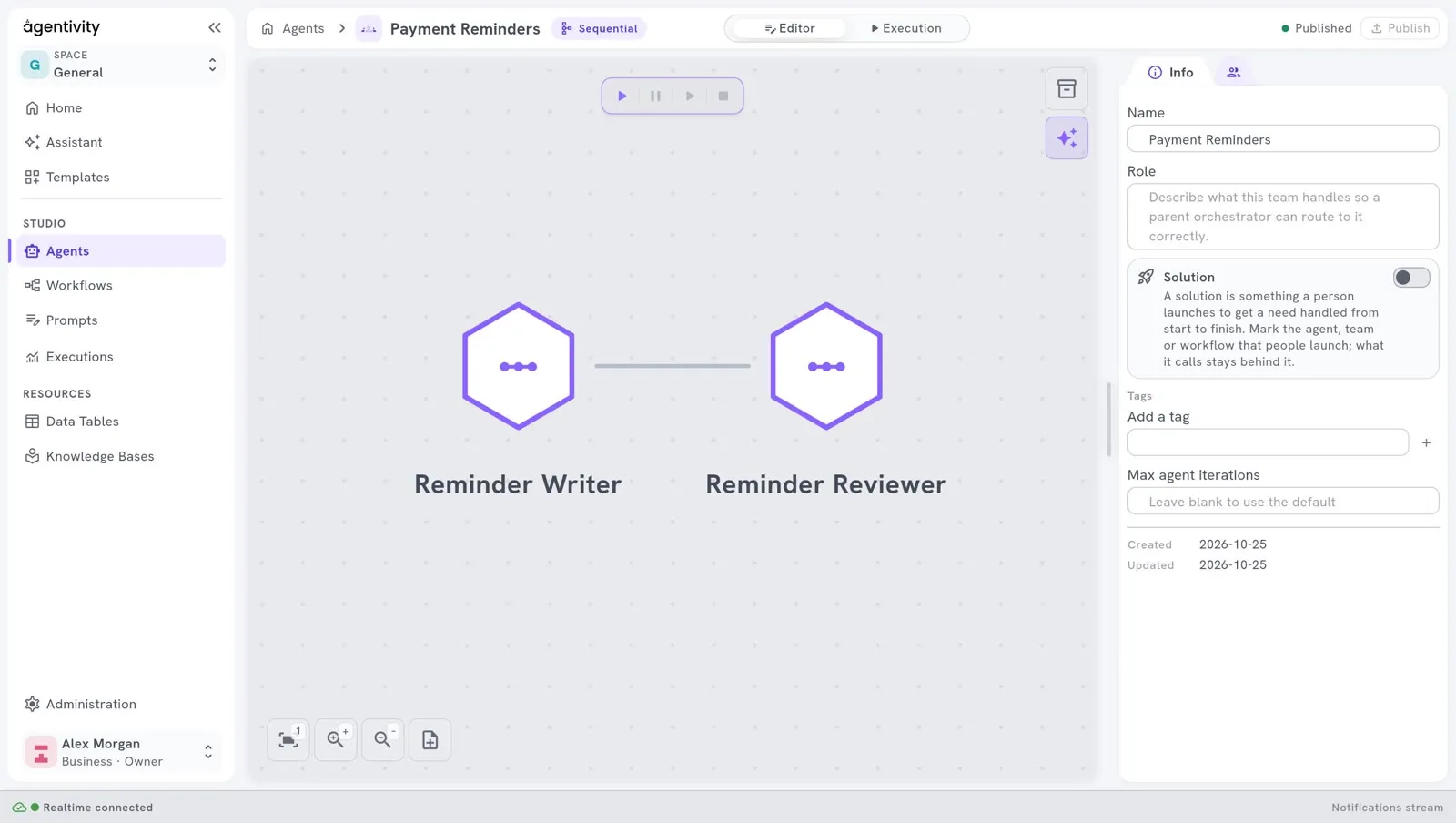
In a Sequential team, a line joins each member to the next one, in the order of the work. A member that is already in the team has a check mark in the list. The same member cannot be added twice.
A long list of members is hard to follow and to check. Start with a few members, each with a clear role, and add more only when you need them.
- Select Publish, at the top right. This saves your changes. The state beside it says Changed while there is something to save, and Published once it is saved.
Publish before you leave the editor. The team editor does not ask you to save when you go to another section, and changes that are not published are lost.
How to know it worked
Section titled “How to know it worked”- The canvas shows one hexagon per member, with its name under it.
- In Studio > Agents, the team is in the list, with Team in the column Type.
If it does not work
Section titled “If it does not work”- “Team name is required.” The name field is empty.
- The list of members is empty. You have no agent yet. Import a ready-made solution, or build agents with the Assistant.
- Publish cannot be selected. There is nothing new to save.
- The menu entry Agents does nothing. You are in an editor of that section. Select the house at the left of the path, or Home, first, then Studio > Agents.
- A Manager-led team refuses to run. It needs a member at the top position, which is the manager, and at least one worker below. See Choose how a team works together.