
The list of workflows
Ce contenu n’est pas encore disponible dans votre langue.
Studio > Workflows lists your workflows. It works like the list of agents and teams.
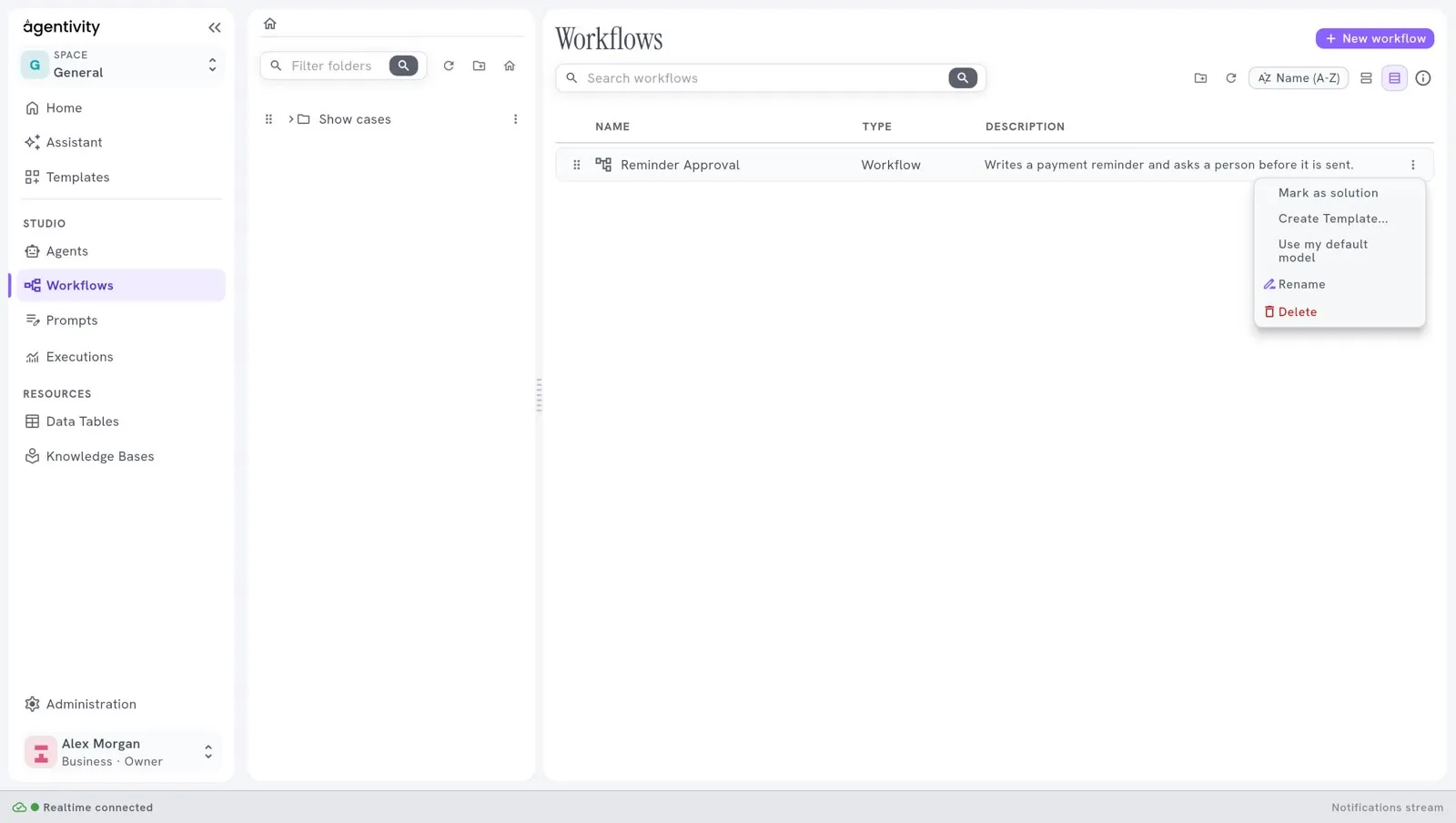
The list
Section titled “The list”Each line is a workflow, with its Name, its Type and its Description. Double-click a line to open the workflow in its editor.
The bar above the list
Section titled “The bar above the list”| Control | What it does |
|---|---|
| New workflow | Creates a workflow, at the top right of the first row. See Create a workflow. |
| The search field | Finds a workflow by its name, on the second row. |
| The folder button | Creates a folder. |
| The refresh button | Loads the list again. |
| Name (A-Z) | Changes the order of the list. |
The menu of a line
Section titled “The menu of a line”| Entry | What it does |
|---|---|
| Mark as solution | Marks the workflow as a Solution. The entry then reads No longer a solution. See What a Solution is. |
| Create Template… | Packs the workflow, with everything it uses, into one file that you can share. |
| Use my default model | Makes the workflow use your own model connection. |
| Rename | Changes the name of the workflow. |
| Delete | Removes the workflow. The Studio asks you to type the name of the workflow to confirm. This cannot be undone. |
The folders
Section titled “The folders”The panel on the left holds the folders of your workflows. They work as for agents and teams: create a folder, then drag workflows onto it.
Agents and teams, workflows, and data tables each have their own folders.