
Find your way around the Studio
Ce contenu n’est pas encore disponible dans votre langue.
The Studio is the visual editor of Agentivity. It runs in your browser. This page shows where things are, so that the other pages are easier to follow.
What you need
Section titled “What you need”- Agentivity running, with the Studio open in your browser. See Install Agentivity with Docker.
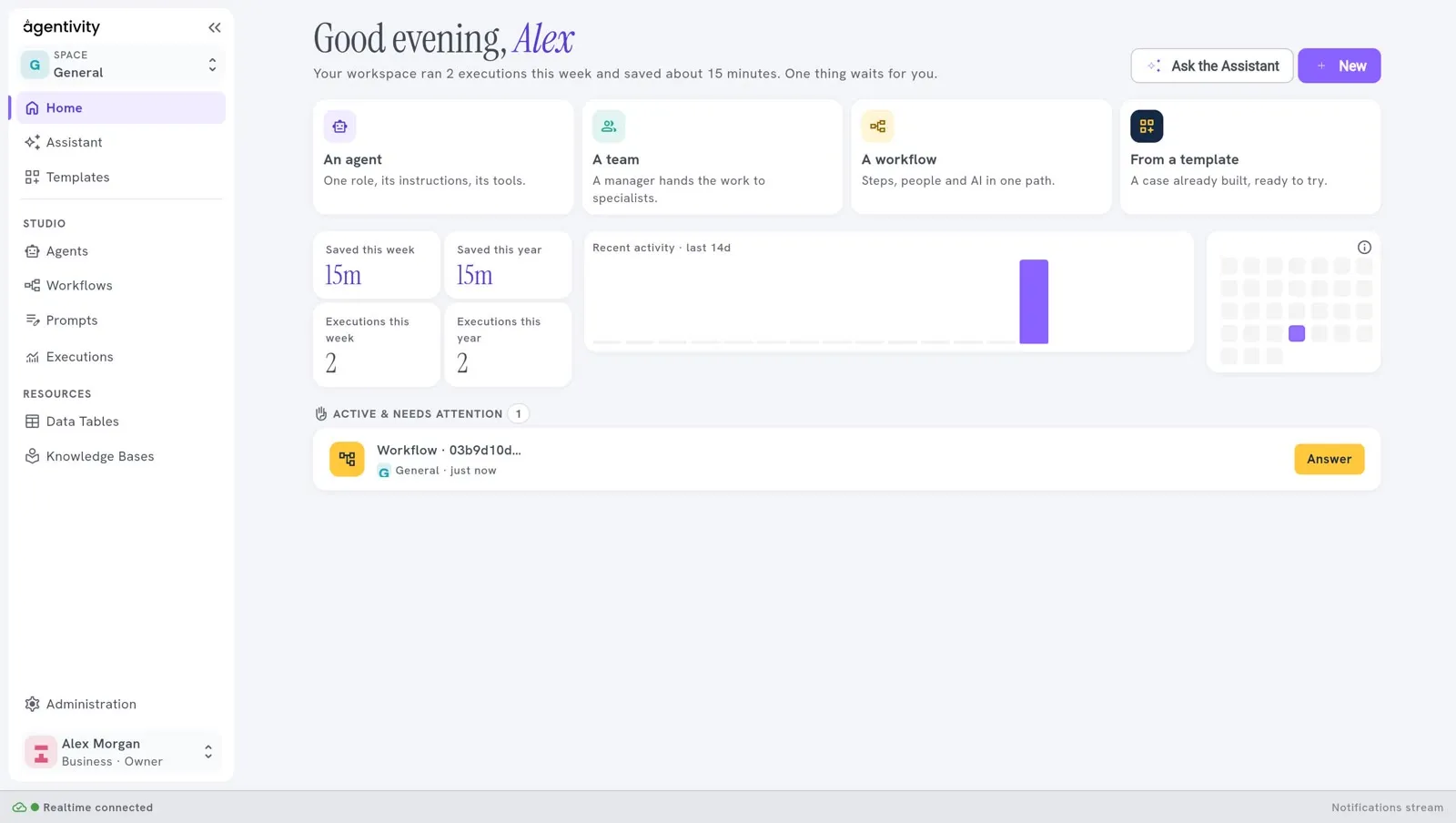
The menu on the left
Section titled “The menu on the left”
At the top of the menu, the logo and two small arrows («) fold the menu into a column of icons. Select », or the logo of the folded menu, to open it again. Ctrl+B (Cmd+B on a Mac) does the same. The Studio remembers your choice.
Under the logo, the Space switcher says which space you work in: see People, groups, roles and spaces. It is there in every edition: the Community edition has one space, General.
| Entry | What you do there |
|---|---|
| Home | See what is running and what is waiting for you, and start something new. |
| Assistant | Describe what you need in your own words. The Assistant builds an agent, a team or a workflow as a draft. See Build your first team with the Assistant. |
| Templates | Ready-made solutions to import, and Import from file for a Template you received. |
| Studio > Agents | The list of your agents and your teams. Open one to change it or to run it. |
| Studio > Workflows | The list of your workflows. |
| Studio > Prompts | The prompts you write and test. A prompt is the text of instructions that is sent to an AI model. |
| Studio > Executions | The executions: each time an agent, a team or a workflow worked on a request. |
| Resources > Data Tables | Tables of data that your agents and workflows can read and fill. |
| Resources > Knowledge Bases | Your documents, pages and feeds, kept so that agents can search them by meaning. See What a Knowledge Base is for. |
| Administration | Credentials, where you keep the keys and accounts your agents connect with, Configurations, and, when the workspace asks for a sign-in, the people, the roles and more. See Administration, who sees what. |
If you do not know the difference between an agent, a team and a workflow, read Choose between an agent, a team and a workflow.
At the bottom of the menu, a card shows your name and your edition (for example Business · Owner). Select it to open your account menu:
- Your account and Your API keys: see Your account and API keys;
- Appearance: the sun and the moon switch between a light and a dark screen, and a list changes the accent colour;
- Getting started opens the welcome guide again;
- Sign out, on a workspace that asks for a sign-in.
The home page
Section titled “The home page”The home page greets you by your first name (“Good morning, Alex”) and says in one sentence what the week looked like, for example “Your workspace ran 2 executions this week and saved about 15 minutes. One thing waits for you.” It has four parts.
Two buttons, at the top right: Ask the Assistant, and New, which opens a menu to create an Agent, a Team or a Workflow.
Four cards: An agent, A team, A workflow and From a template start the same things.
Counters: Executions this week and Executions this year count the executions. Saved this week and Saved this year show an estimate of the time saved by these executions.
Active & needs attention: the executions that are in progress, the executions that failed, and the executions that wait for an answer from a person, each with the button Answer. When there is nothing, you read “Nothing running and nothing waiting on you right now.”
The list of agents and teams
Section titled “The list of agents and teams”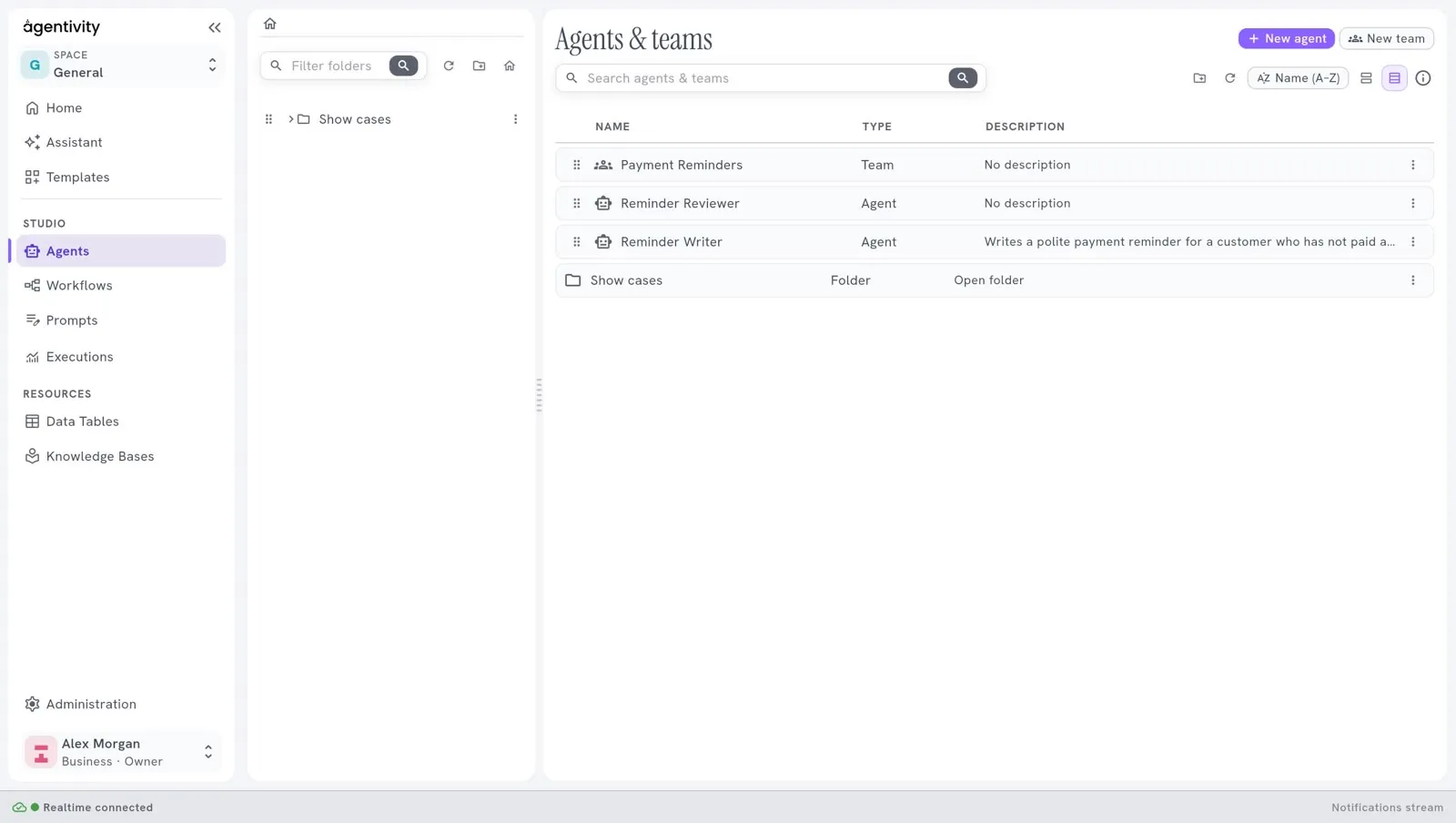
Studio > Agents shows agents and teams in the same list. The column Type says which one each line is.
- New agent and New team create one, at the top right.
- The search field, on the second row, finds an agent or a team by its name.
- The panel on the left holds folders, to keep your work in order.
An editor
Section titled “An editor”When you open an agent or a team, its editor takes the place of the list. Every editor has the same parts:
- a bar at the top: on the left, the path (for example Workflows > the name), in the middle a switch Editor | Execution (Editor to build, Execution to run and to see what happened), and on the right the state of the work and Publish, which saves your changes;
- a canvas in the middle, a white box where the agent, the team or the workflow is drawn;
- a panel on the right, with icon tabs: Info has the name and the role.
Each screen in detail
Section titled “Each screen in detail”- The Home page of the Studio
- The list of agents and teams
- The list of workflows
- An editor, its canvas, panels and buttons
- The Executions screen
- The Templates screen
- The Settings screen, now part of Administration
- The status bar, the theme and the guide button
How to know it worked
Section titled “How to know it worked”You can open Home, Assistant, Studio > Agents and Administration from the menu, and each one shows the screen described above.
Next step
Section titled “Next step”Build your first team with the Assistant, or try a ready-made solution first.