
The Executions screen
Ce contenu n’est pas encore disponible dans votre langue.
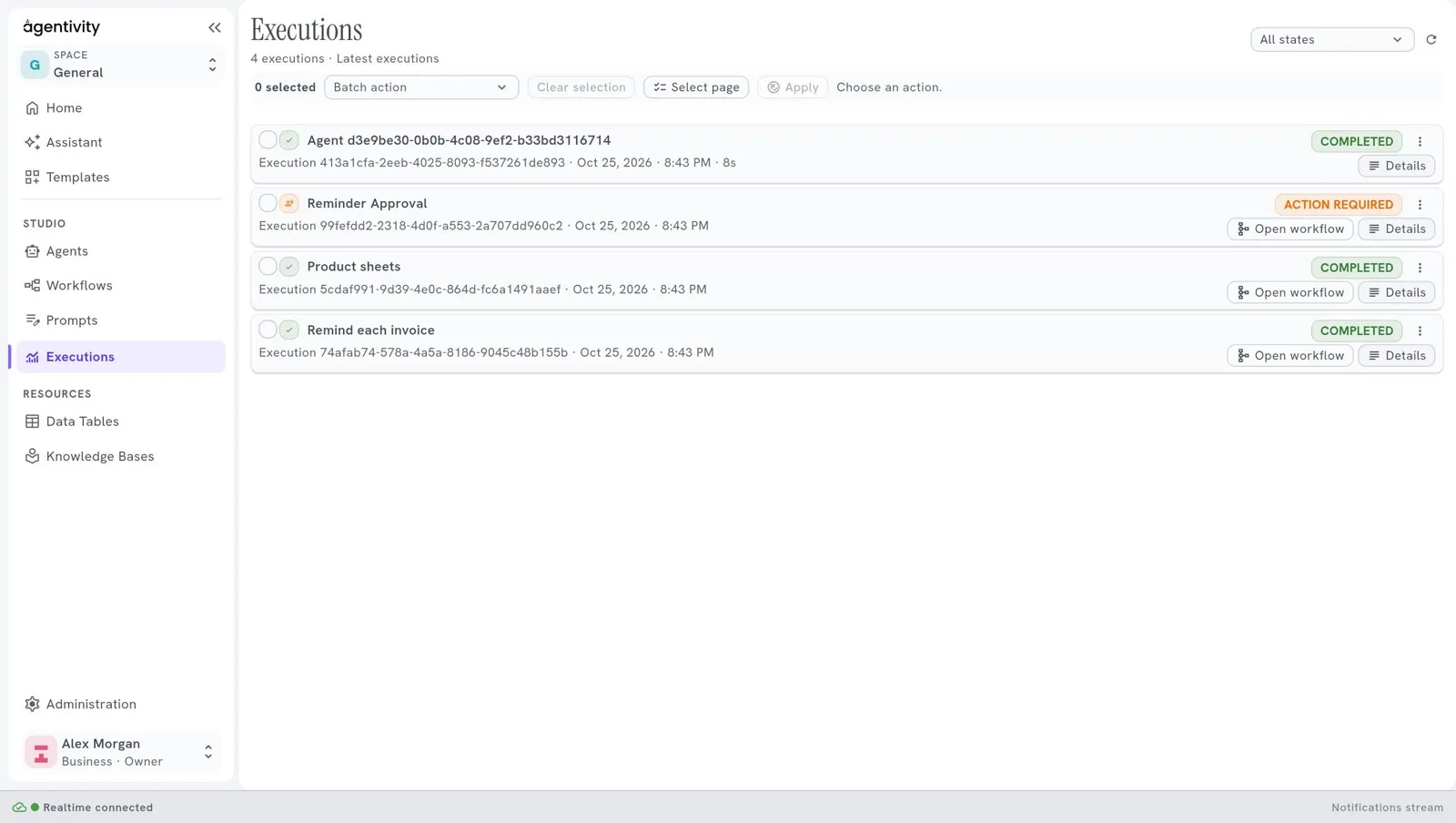
Executions lists the executions of your whole workspace: each time a workflow, an agent or a team worked on a request. The page is titled Executions.
The list
Section titled “The list”Under the title, a line says how many executions are listed, for example “4 executions · Latest executions”. Each line of the list is one execution:
- the name of what ran (an agent called by a workflow shows as Agent and its identifier);
- the identifier of the execution, its date, its time and, when it is over, how long it took;
- its state, as a label on the right: COMPLETED, or ACTION REQUIRED when the execution waits for the answer of a person.
Filter and refresh
Section titled “Filter and refresh”- The list All states, at the top right, keeps only the executions in one state.
- The button next to it loads the list again.
The buttons of a line
Section titled “The buttons of a line”| Button | What it does |
|---|---|
| Open workflow | Opens what ran in its editor. |
| Details | Opens the details of the execution. |
| The three dots | Opens the actions on this execution: stop it, or delete it from the history. |
The details of an execution
Section titled “The details of an execution”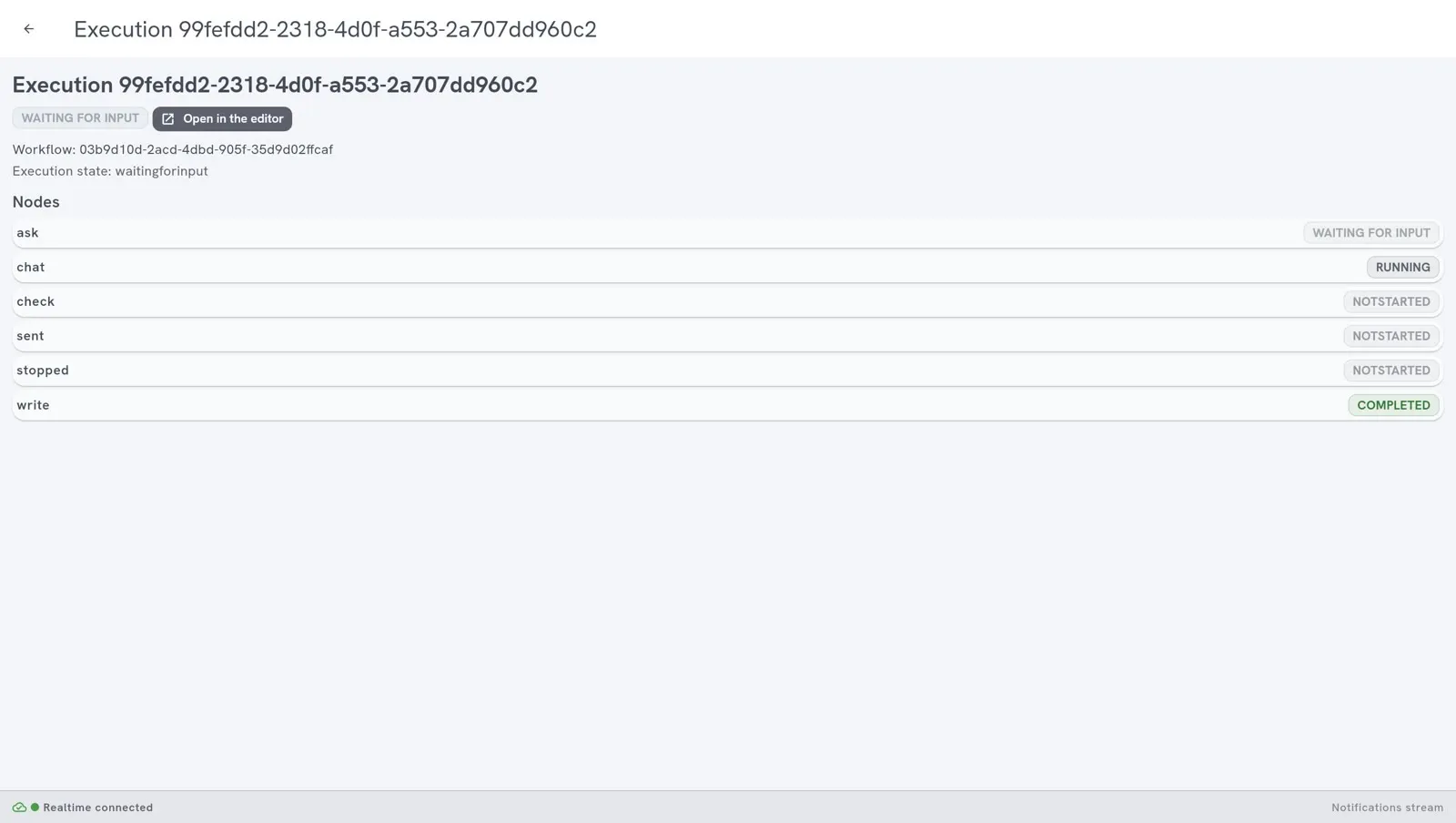
The details show:
- the state of the execution, for example WAITING FOR INPUT;
- Open in the editor, to go to the workflow, the agent or the team;
- the list Nodes: each step of the execution with its state, for example running or not started.
The arrow at the top left goes back to the list.
An execution that waits for a person
Section titled “An execution that waits for a person”A workflow, an agent or a team that asks a person a question stops and waits. In the list, its line carries the label ACTION REQUIRED. In its details, the execution shows the state WAITING FOR INPUT, and so does the step that asks. Once the question is answered, the execution goes on and then completes.
To answer, open the execution in its editor and use the panel Chat of the tab Execution.
Act on several executions at once
Section titled “Act on several executions at once”- Tick the box of each execution. Select page ticks all the executions of the page, Clear selection unticks them.
- Choose an action in the list Batch action: stop the executions, or delete them.
- Select Apply.
When a new execution is refused
Section titled “When a new execution is refused”On a hosted workspace, an execution can be refused with a message that says why: no plan in force, an update under way, or a limit of the plan reached. See Why did my execution not start?.
When the server stops
Section titled “When the server stops”If the server stops or restarts while executions are going on, those executions are cut off. What happens next depends on where they were:
- An execution that waits for a person (an approval, a form, a question) keeps its place. After the restart, it is still there and you can answer it. It is waiting, not paused: you answer it, you do not select Resume.
- A workflow cut off in the middle of a step cannot go on from where it was. Run it again. Asked to go on, the workspace answers: “This workflow cannot go on from where it was cut off: it keeps its place only where it waits for a person. Run it again.”
- An agent or a team keeps its last saved point and can be taken up again from there. The Studio has no button for it: it is done through the API. The button Resume of the bar above the canvas is not that: it only undoes a Pause you made.
On a hosted workspace this rarely happens, because an update lets executions finish first: see When your workspace sleeps or is updated. It can still happen when a machine fails.
Good to know
Section titled “Good to know”- To answer an execution that waits for a person, open it in its editor and use the panel Chat of the tab Execution. See Ask a person to approve or answer.
- Deleting an execution removes it from the history. It does not change the workflow, the agent or the team.