
An editor, its canvas, panels and buttons
Ce contenu n’est pas encore disponible dans votre langue.
Agents, teams and workflows each open in an editor. The three editors are built the same way. This page names their parts.
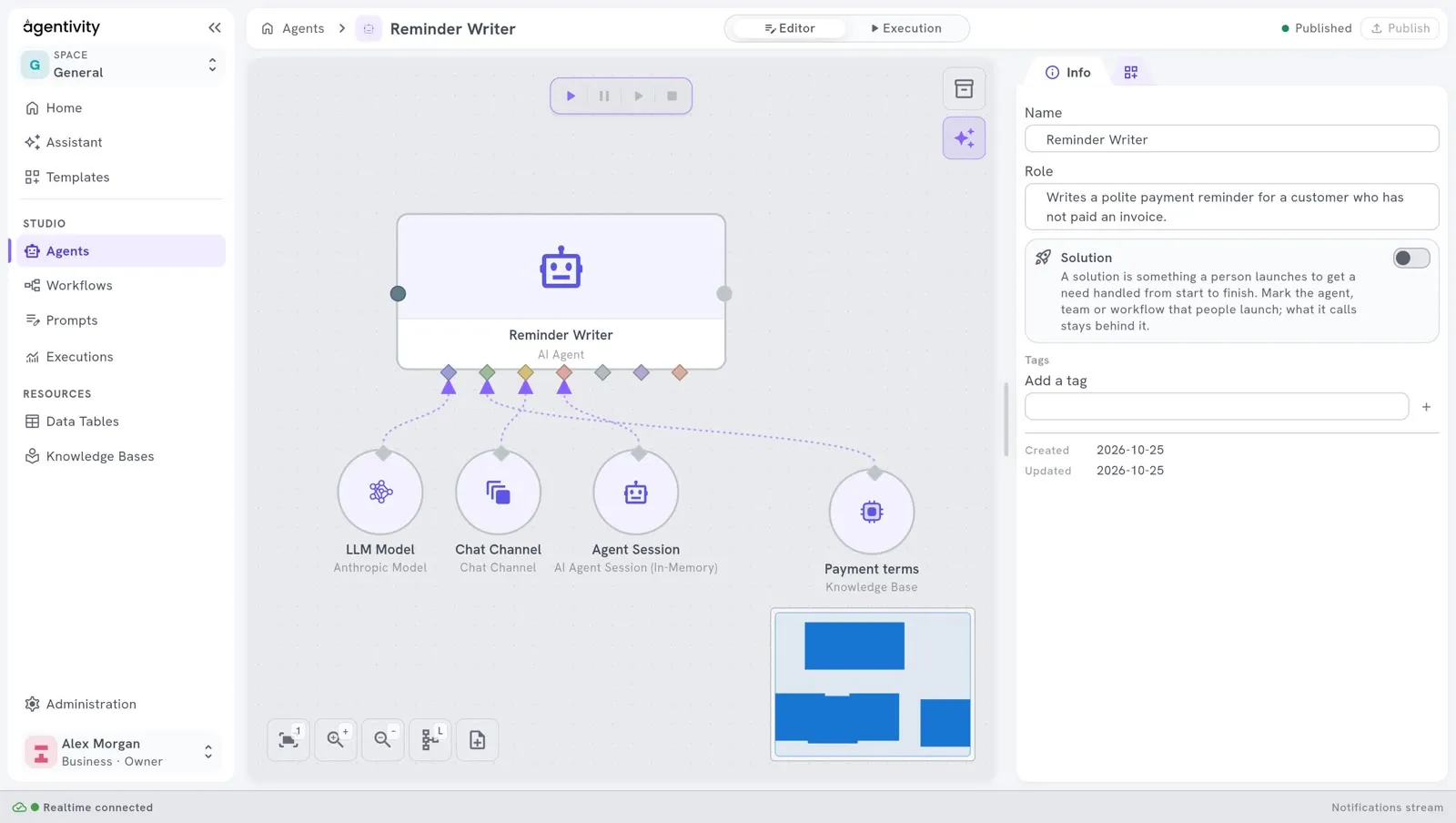
At the top
Section titled “At the top”- The path, on the left. It shows where you are: the house, then the section (Agents or Workflows), then the name of what you edit. The house and the section name take you back to the list.
- The switch Editor | Execution, in the middle. Editor is where you build. Execution is where you run and see what happened.
- The state and Publish, on the right. A dot says Published when everything is saved, and Changed when there are changes that are not saved. Publish saves your changes: it is light when there is nothing to save and highlighted when there is.
- In a team, the way the team works (Manager-led, Sequential, and so on) is shown as a small pill beside the name.
The canvas
Section titled “The canvas”The canvas is the large white box in the middle, where the agent, the team or the workflow is drawn.
- Drag an element to move it.
- Right-click an element to open its menu. Edit opens its settings.
- Drag from one dot to another to link two steps. Drag from one diamond to another to plug something into a step.
The buttons at the bottom left
Section titled “The buttons at the bottom left”| Button | What it does |
|---|---|
| The first one | Brings the whole drawing into view. |
| The magnifier with a plus | Zooms in. |
| The magnifier with a minus | Zooms out. |
In the agent and workflow editors, a small map at the bottom right shows the whole drawing and the part you are looking at.
The bar of execution buttons
Section titled “The bar of execution buttons”Above the canvas, a small bar has four buttons: Run, Pause, Resume and Stop. Pause shows while the execution runs, and Resume only once you paused it: it undoes your pause. An execution that waits for a person is not paused: you answer it, there is no Resume to select.
The two buttons next to the panel
Section titled “The two buttons next to the panel”| Button | What it does |
|---|---|
| The box | Opens Create a Template, to pack what you are editing into one file. |
| The sparkle | Opens the Assistant on what you are editing. |
The panel on the right
Section titled “The panel on the right”The panel has two tabs, each with an icon. The tab that is open also shows its name.
| Tab | Agent and workflow | Team |
|---|---|---|
| The first tab, Info | The name, the role, the box Solution and the tags. | The same, and Max agent iterations. |
| The second tab | The Nodes catalog: everything you can add to the canvas. | Members: the agents, teams and workflows you can add to the team. |
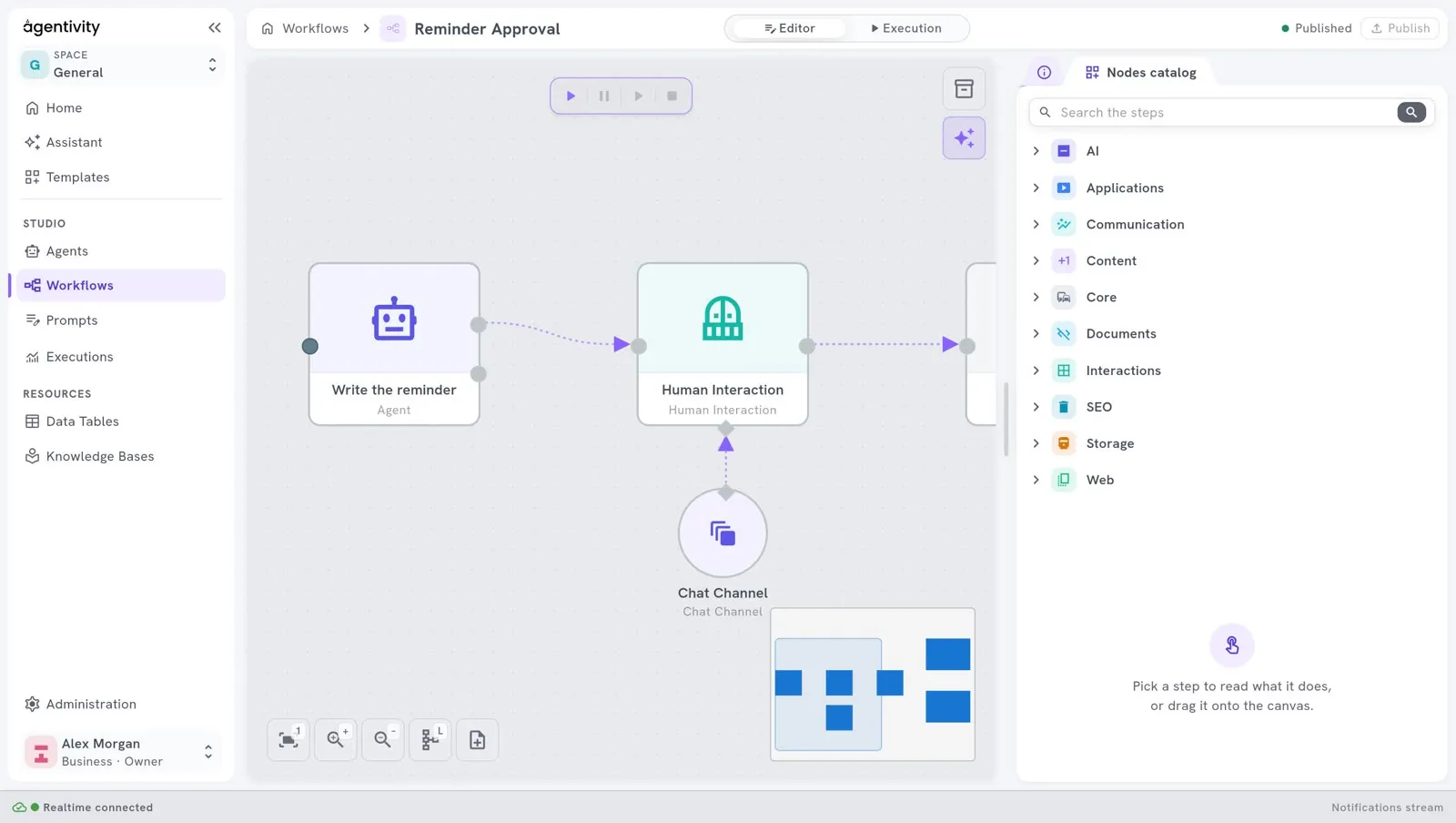
In the Nodes catalog, the field Search the steps finds a node by its name. Select a category to open it. Select a category or a node and a box at the bottom of the panel says what it is for, and Where it sits: its place in the catalog. Drag a node onto the canvas to add it.
The menu of an element
Section titled “The menu of an element”Right-click an element of the canvas. The menu has, depending on the element:
| Entry | What it does |
|---|---|
| Explain with the assistant | Asks the Assistant what this element does. |
| Improve with the assistant… | Asks the Assistant to change it. |
| Improve its instructions… | For an agent: asks the Assistant to make its instructions clearer. |
| Edit | Opens the settings of the element. |
| Inspect… | Opens the inspection of the element. |
| Duplicate, Copy | Make a copy. |
| Bring to front, Send to back, Bring forward, Send backward | Change which element is drawn above the others. |
| Delete | Removes the element. |
The window of settings
Section titled “The window of settings”Edit opens a window with the settings of the element.
- Each field can hold a Fixed value, which you type, or an Expression, which is computed when it runs.
- The panel Outputs, on the right, lists what the earlier steps produce, with their exact names.
- Apply keeps your changes and closes the window. Cancel closes it without keeping them.
Changes are saved in your workspace only when you select Publish. A message, “Workflow published” for example, confirms it.
When you leave an editor
Section titled “When you leave an editor”- A workflow with changes that are not saved: the Studio asks what to do. Keep editing stays in the editor, Discard loses the changes, Publish saves them.
- A team: the Studio does not ask. Publish before you leave.
In the tab Execution
Section titled “In the tab Execution”Below the canvas, three tabs show an execution: Inspector, Errors and Logs. See Run a workflow and follow each step.