
The list of agents and teams
Ce contenu n’est pas encore disponible dans votre langue.
Studio > Agents lists your agents and your teams together. This is where you open one to change it or to run it.
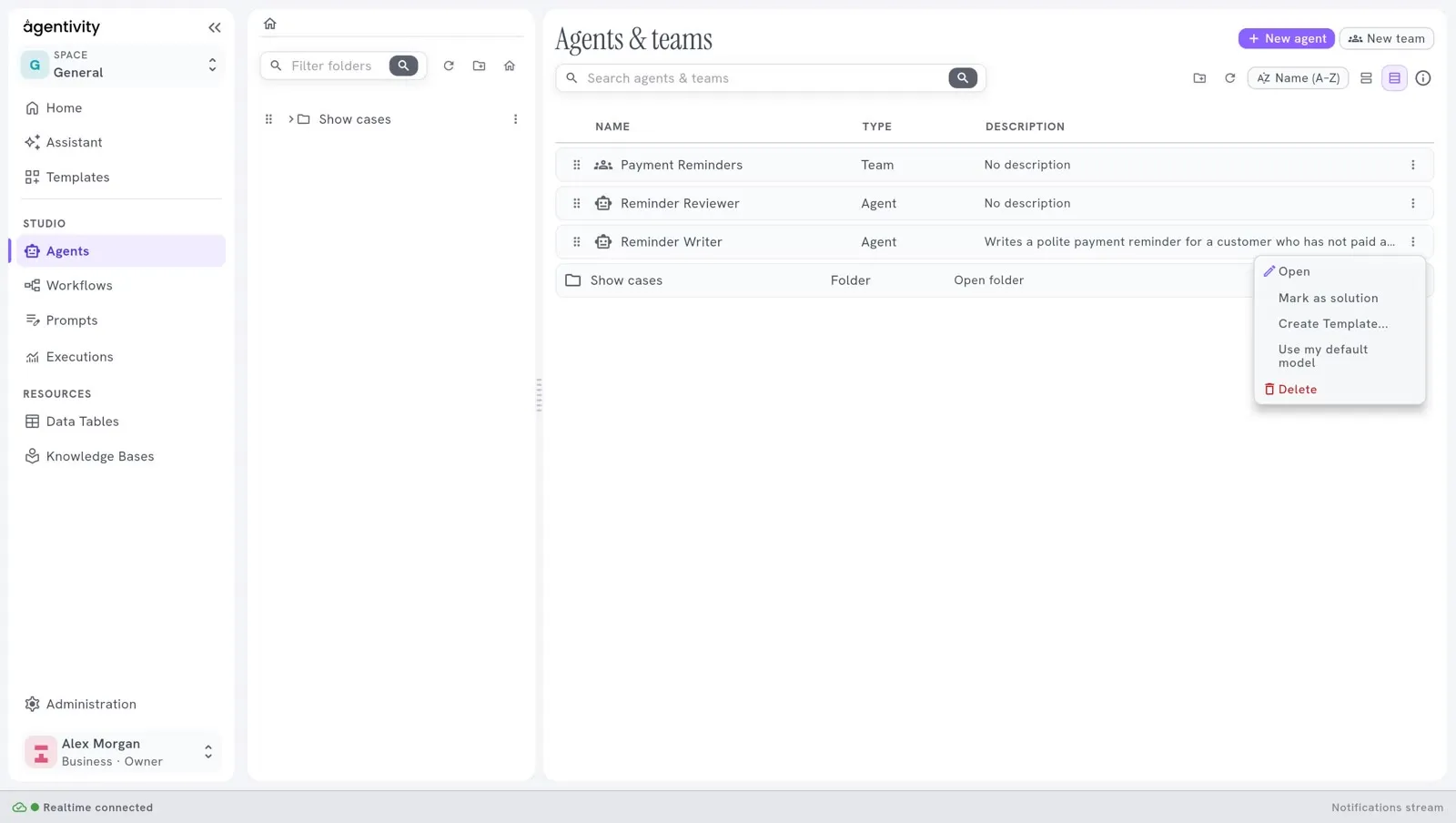
The list
Section titled “The list”Each line is an agent or a team. The columns are Name, Type (Agent, Team or Folder) and Description. The description is the role you gave to the agent or the team.
Double-click a line to open it in its editor.
Above the list
Section titled “Above the list”The header has two rows. The first holds the title and the buttons New agent and New team. The second holds the search field and the tools.
| Control | What it does |
|---|---|
| New agent | Creates an agent. |
| New team | Creates a team. |
| Search agents & teams | Finds an agent or a team by its name. |
| The folder button | Creates a folder. |
| The refresh button | Loads the list again. |
| Name (A–Z) | Changes the order of the list: by name, in either direction, or folders first. |
| The two view buttons | Switch between the list and the table. |
| The small i | Says, in a tip, how to select several lines and drag them. |
The menu of a line
Section titled “The menu of a line”Select the three dots at the end of a line.
| Entry | What it does |
|---|---|
| Open | Opens the agent or the team in its editor. |
| Mark as solution | Marks it as a Solution, the thing a person launches. The entry then reads No longer a solution. See What a Solution is. |
| Create Template… | Packs it, with everything it uses, into one file that you can share. |
| Use my default model | Makes it use your own model connection. Use it after you import a Template. See Choose or change the model of an agent. |
| Delete | Removes it from your workspace. |
The folders
Section titled “The folders”The panel on the left holds your folders.
- To create a folder, select the folder button at the top of the panel, type a name and select Create.
- To put an agent or a team in a folder, drag its line onto the folder.
- To move several at once, hold Ctrl (or Cmd on a Mac), select the lines, then drag them.
- Select a folder to see only what it contains. The house button goes back to the top level.
A folder also appears in the list, with Folder in the column Type.