
Create a Knowledge Base
Ce contenu n’est pas encore disponible dans votre langue.
You create a Knowledge Base in a window with three steps. The base reads its source as soon as it is created.
What you need
Section titled “What you need”- Agentivity running, with the Studio open.
- A source: your texts, a folder of files on the server, or a web address.
Open the window
Section titled “Open the window”- In the menu on the left, open Resources > Knowledge Bases.
- Select New Knowledge Base. If you want the base in a folder, open the folder first.
The window New Knowledge Base opens. A line under the title says: “What it reads, and how it stays up to date. Agents search it by meaning, with one tool.”
Step 1: what it reads
Section titled “Step 1: what it reads”Choose the kind of source: Text, Files, Web pages, Sitemap, RSS/Atom feed, API, PostgreSQL or SQLite. Each choice says in a line what it reads. See What a Knowledge Base is for for the list.
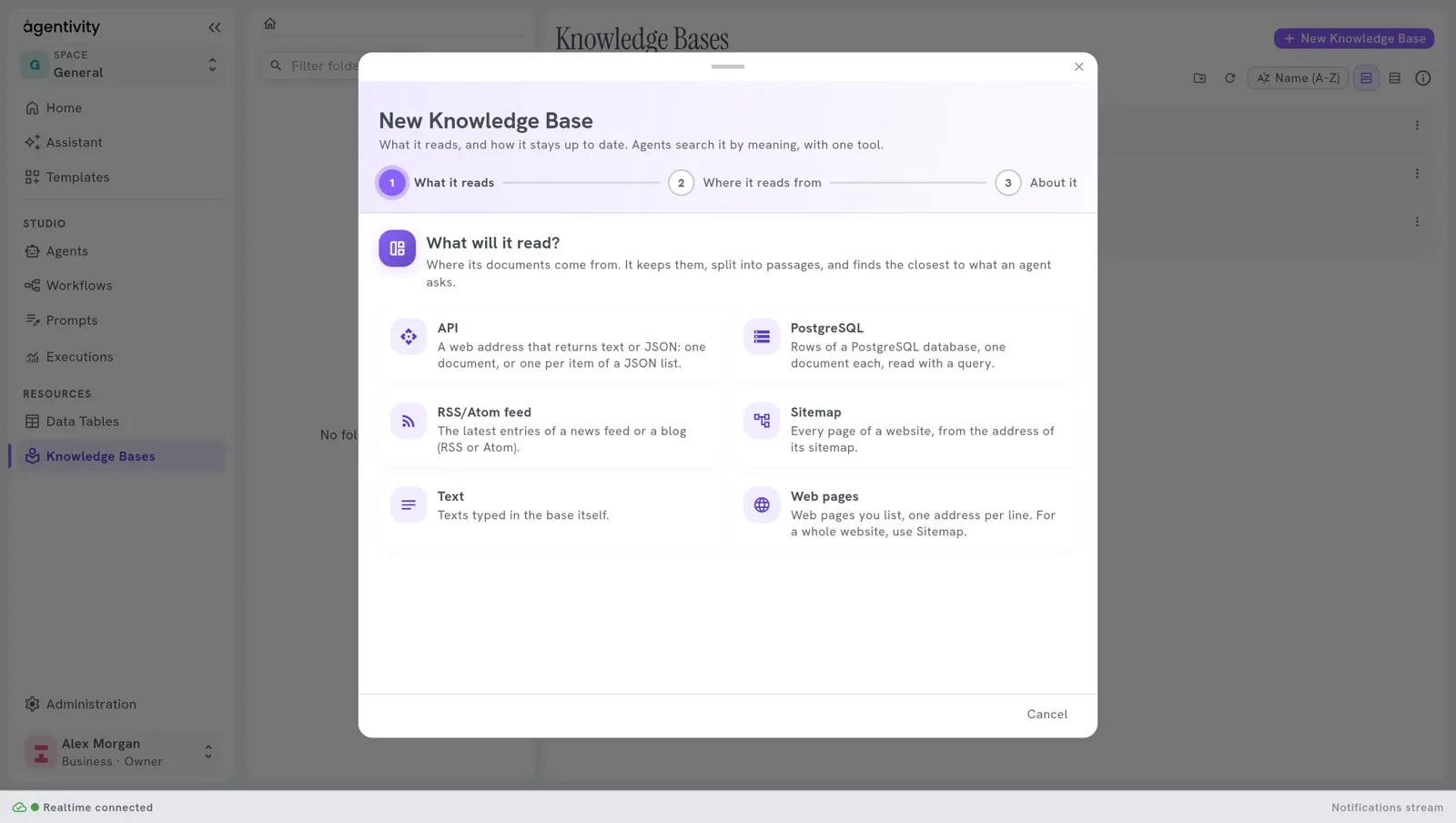
Select a card: the window goes to the next step. You can come back with Back, or with Change on the next step.
A hosted workspace does not offer Files and SQLite, because they read the server itself: its window shows six cards. The Community edition shows all eight.
Step 2: where it reads from
Section titled “Step 2: where it reads from”The window shows the settings of the kind you chose. A setting marked with a star is needed. The others have a value already.
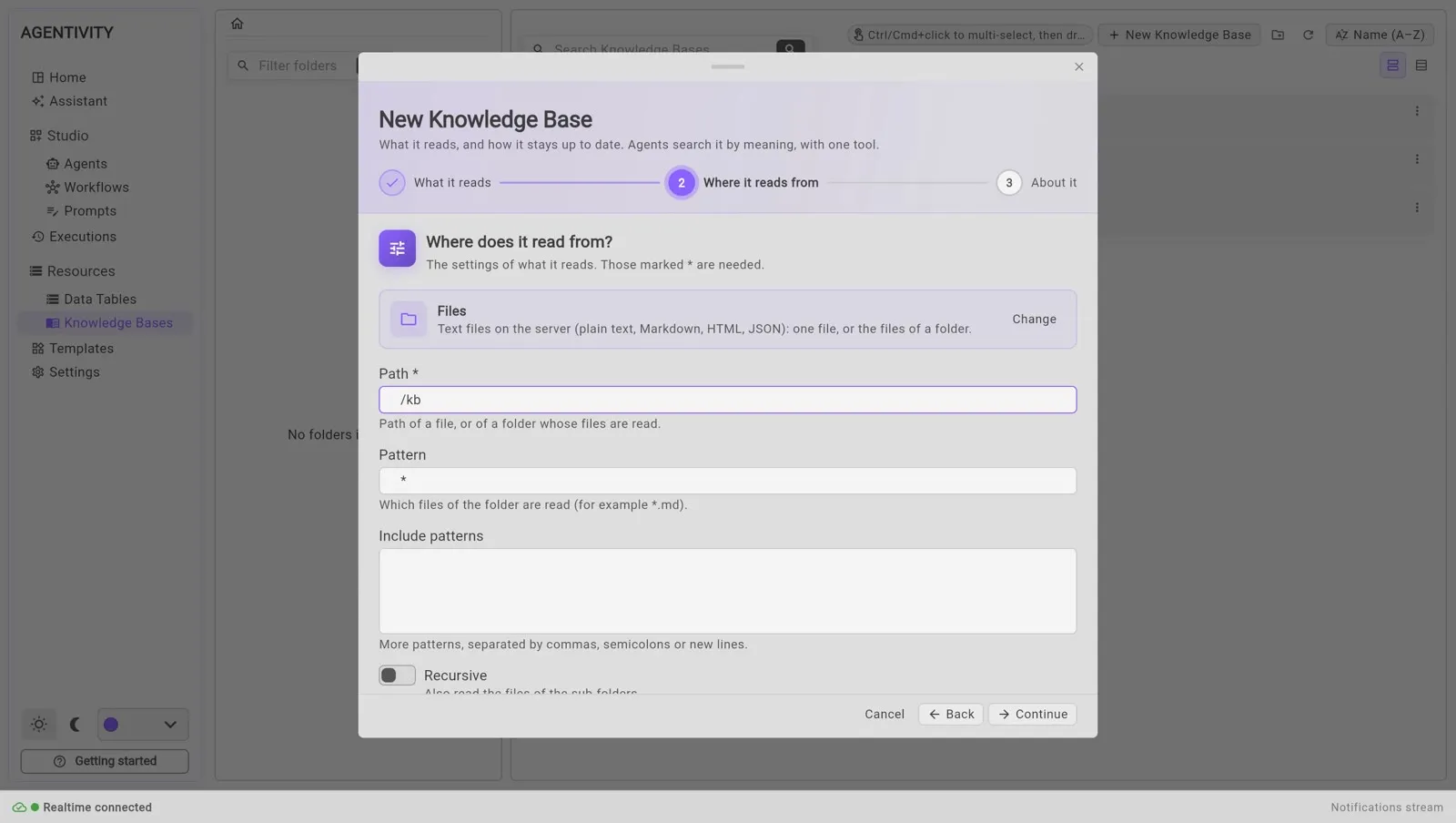
The settings that matter least, such as delays and options for reading pages, wait under More settings. Select it to open them.
| Kind | Needed | Good to know |
|---|---|---|
| Text | none | Documents holds your texts as a list in JSON. See “Type your texts” below. |
| Files | Path | The path of a file, or of a folder, on the machine where Agentivity runs. Pattern says which files of a folder are read, for example *.md (at the start, * reads all of them). Recursive also reads the sub-folders. |
| Web pages | URLs | One address per line. For a whole site, use Sitemap. Under More settings: how pages are read (Direct, which is free and the default, Jina Reader, or Firecrawl, which needs a key), and the longest content kept from each page. |
| Sitemap | Sitemap URL | Often https://your-site/sitemap.xml. Max URLs limits the pages read (50 at the start). |
| RSS/Atom feed | Feed URL | Max items limits the entries read (20 at the start). |
| API | URL | An address that returns text or JSON. For a JSON list, Selector gives the path to it, and Item text field the field that holds the text of each item. |
| PostgreSQL | Connection string, Query | The database is your own, an outside connection. The query returns one row per document. Content column names the column that holds the text. |
| SQLite | Database path, Query | A SQLite file on the server. Same query rule. |
A setting with a drop-down list of credentials, such as the Firecrawl key, says “No credentials of this kind yet” if you have none. Create one in Administration > Credentials.
Type your texts (kind Text)
Section titled “Type your texts (kind Text)”Documents is a list in JSON. Each text is a block with text, and, if you want a title, a metadata with title.
[ { "text": "Invoices are due 30 days after the invoice date.", "metadata": { "title": "Payment terms" } }, { "text": "A reminder is sent 7 days after the due date.", "metadata": { "title": "Reminders" } }]Each block becomes one document. The title is what the Studio shows in the list of documents.
Read files (kind Files)
Section titled “Read files (kind Files)”The path is a path on the machine where Agentivity runs, inside its container, not a path on your own computer. To give the container a folder of yours, add a mount to the start command. Mount it outside /app, for example at /kb:
docker run -d --name agentivity -p 5005:5005 -v agentivity-data:/app/_data -v C:\guides:/kb:ro agentivitylabs/agentivityThen give /kb as the Path. The end :ro makes the folder read-only for the container.
A path inside /app is refused: it is the installation of Agentivity, with its data, its connections and its settings. The base then fails with a message that says so.
Step 3: about it
Section titled “Step 3: about it”| Field | What to enter |
|---|---|
| Name | A name that you will recognise, for example Payment terms. It is required. |
| What it holds | A sentence on what is in the base, for example “The payment terms of the company.” It is told to the agents with their search tool, so that they know when to search the base. |
| Synchronised | How the base stays up to date: By hand, After a delay or When the source changes. See Keep a Knowledge Base up to date. |
| Delay (hours) | Only with After a delay: a number of hours, at least 1. |
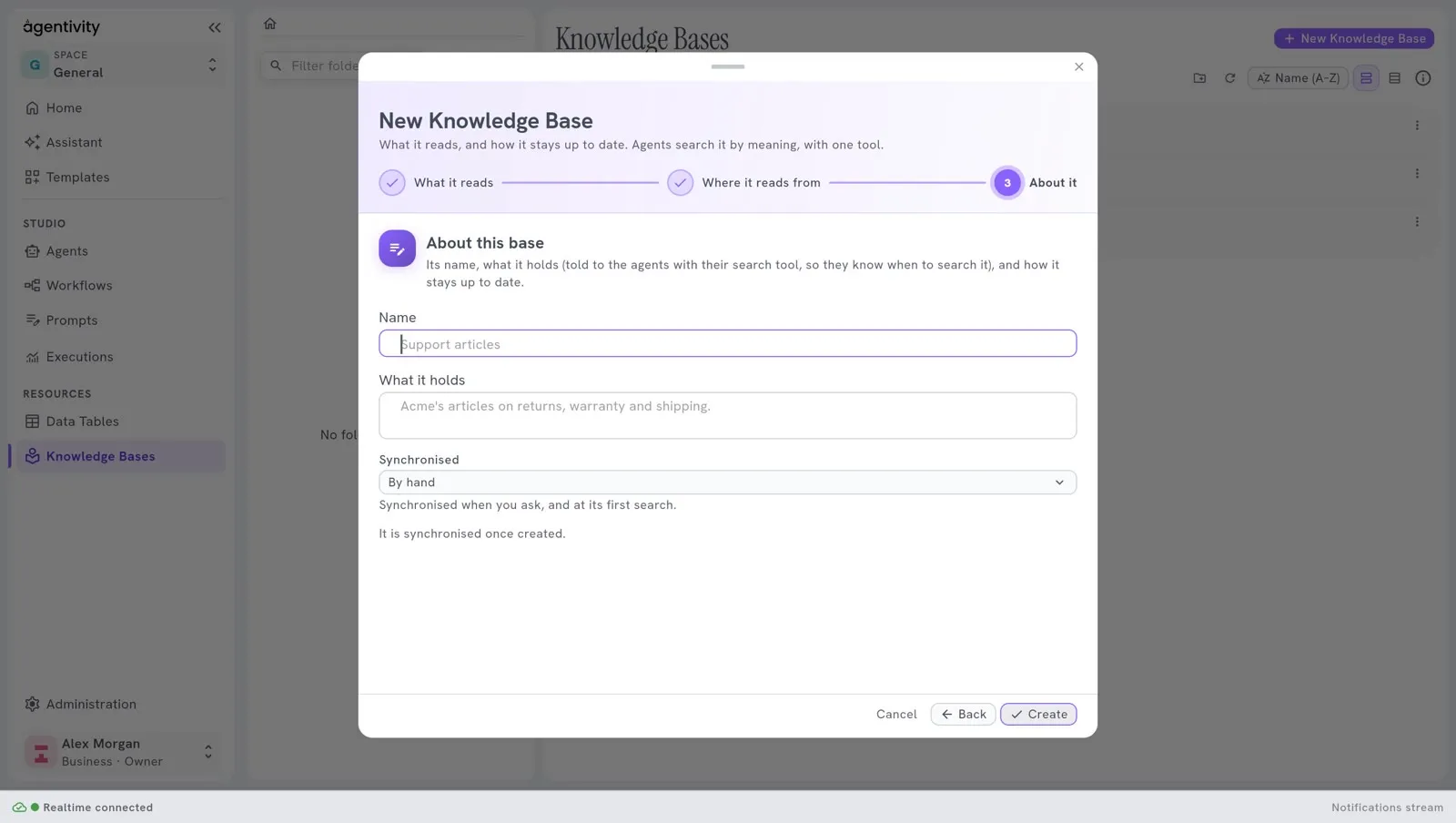
A line says: “It is synchronised once created.”
Select Create.
How to know it worked
Section titled “How to know it worked”The base is in the list, and its column Synchronisation goes from Synchronising… to Synchronised. Open it: Holds says how many documents and passages it read. See Look inside a Knowledge Base.
If it does not work
Section titled “If it does not work”- “A knowledge base needs a name.” The field Name is empty.
- ”
is required.” A setting marked with a star is empty. - ”
must be a number.” A numeric setting has other characters in it. - “The delay is a number of hours, at least 1.” Fix Delay (hours).
- “Choose what it reads.” Go back to step 1 and choose a kind.
- The base shows Failed. Open it and read What could not be read: it says which address or file failed and why.
- The list of kinds does not load. The Studio says that the types of data source could not be read. Reload the page.