
Share your work as a Template
Ce contenu n’est pas encore disponible dans votre langue.
A Template is one file that holds a solution and everything it needs: the agent, the team or the workflow, the agents it uses, and its data tables. This page shows how to make a Template of your own work, and how another person imports it. What a solution is, and how it is marked, is in What a Solution is, and how to mark one.
What you need
Section titled “What you need”- An agent, a team or a workflow that works, published.
Create the Template
Section titled “Create the Template”- Open Studio > Agents or Studio > Workflows.
- On the line of what you want to share, select the three dots, then Create Template… You can also select the box button in its editor.
- The window Create a Template opens.
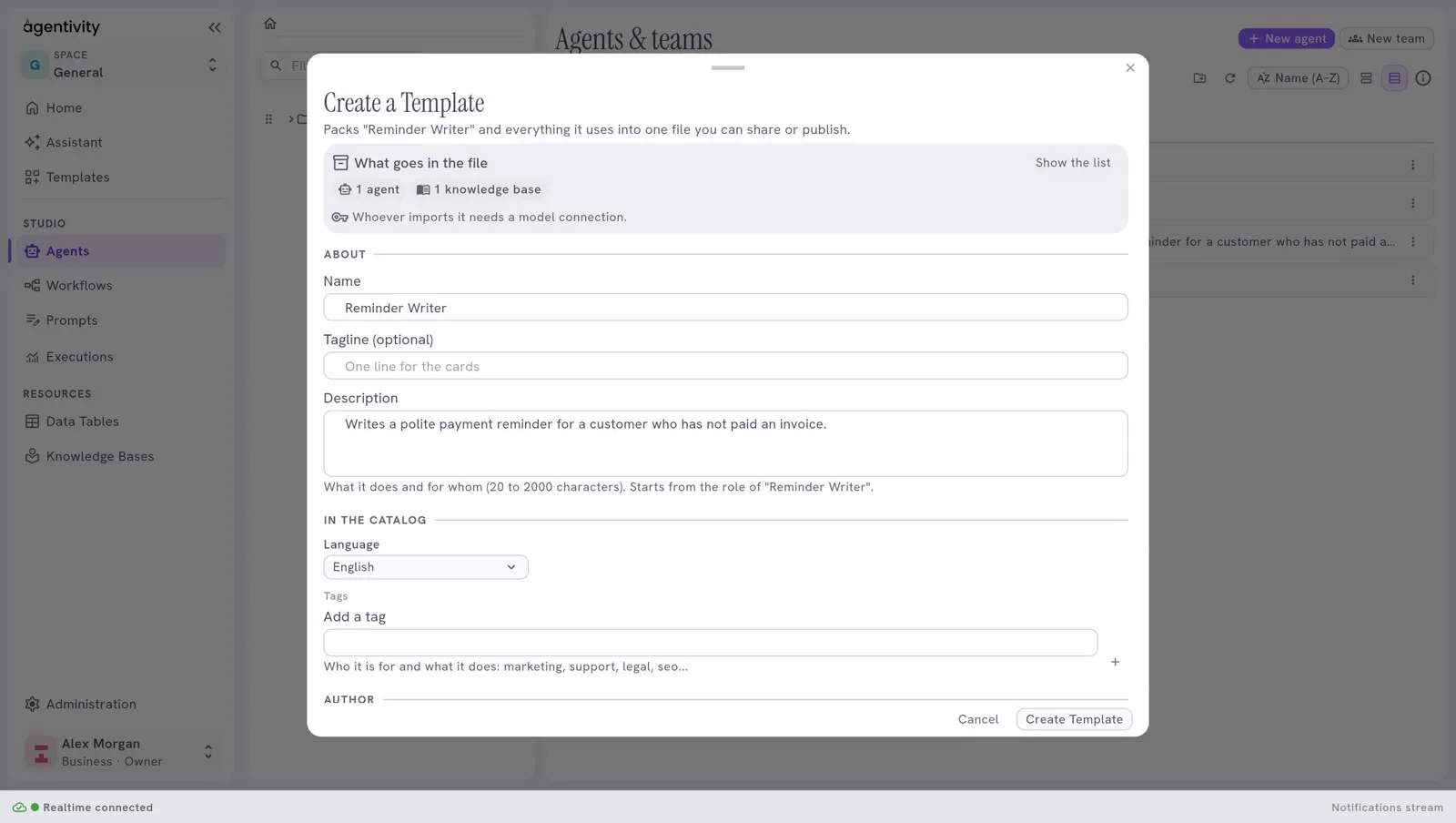
Check What goes in the file. Show the list shows every element that is packed.
Fill in the form.
Field What to write Name The name people will see. Tagline One line for the card. It is optional. Description What it does and for whom. Between 20 and 2000 characters. Language The language of the solution. Tags Words that say who it is for and what it does. Author Your name, and your website if you want. Cover A picture for the card. It is optional. If the solution has data tables, decide whether to Include the rows of the data tables. Leave them out if they hold data that should not be shared.
Select Create Template.
Your browser saves a file whose name ends with .template.json.
The Knowledge Bases in a Template
Section titled “The Knowledge Bases in a Template”If the agents of your solution search Knowledge Bases, the Template carries those bases with the rest: the agents, the teams, the workflows and the data tables.
What travels is the definition of each base: its kind of source, its settings, its name, what it holds, and how it is kept up to date. The window counts them in What goes in the file.
What never travels:
- Its documents. They are read again, on the machine where the Template is imported.
- The settings that belong to your server. The path of a Files base, the file of a SQLite base, the connection string of a PostgreSQL base. The window names each base that travels without a setting, for example “Product manuals travels without its Path, which belongs to this installation: whoever imports it fills it in. Its documents do not travel either; they are read again there.”
The other kinds (Text, Web pages, Sitemap, RSS/Atom feed, API) travel as they are. For Text, that means the texts themselves.
What the file does not contain
Section titled “What the file does not contain”- The documents of your Knowledge Bases, and the settings that belong to your server. See above.
- Your credentials. A Template never carries a key. The window tells you what the person who imports it will need, for example a model connection.
- The history of your executions.
Before you share the file, read the instructions of your agents again: anything you wrote there is in the file.
Give it to someone
Section titled “Give it to someone”Send the file as you would send any document. The other person needs their own Agentivity and their own model connection.
Import a Template from a file
Section titled “Import a Template from a file”On the other side:
- In the Studio, open Templates.
- Select Import from file, at the top right, and choose the file.
- The window Import a Template shows what the Template is and what it will create.
- Select Import.
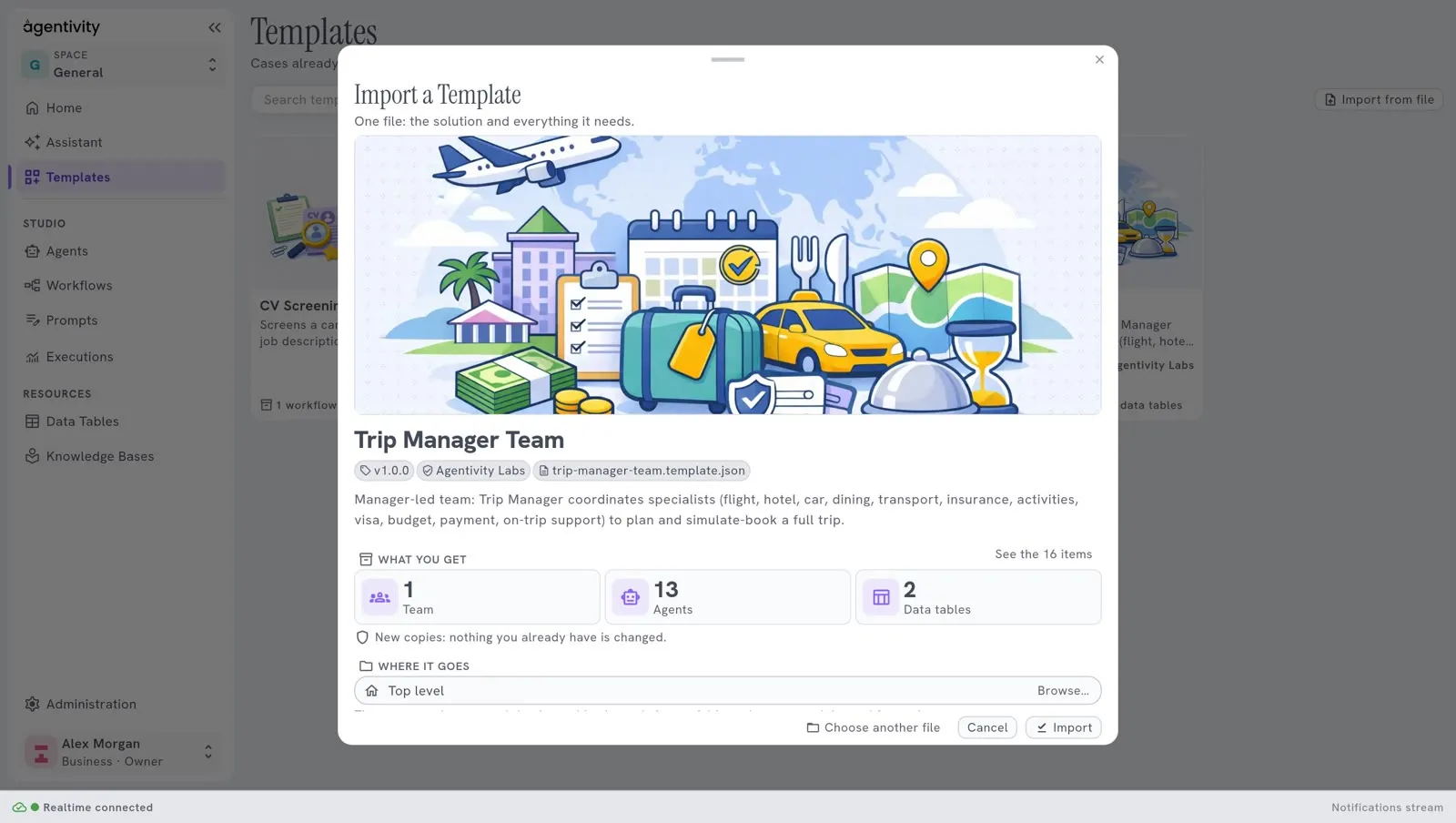
The window counts what you get, one tile per kind of thing, for example “1 Team”, “13 Agents” and “2 Data tables”. The Knowledge Bases go in the folder you chose under Where it goes, like the rest.
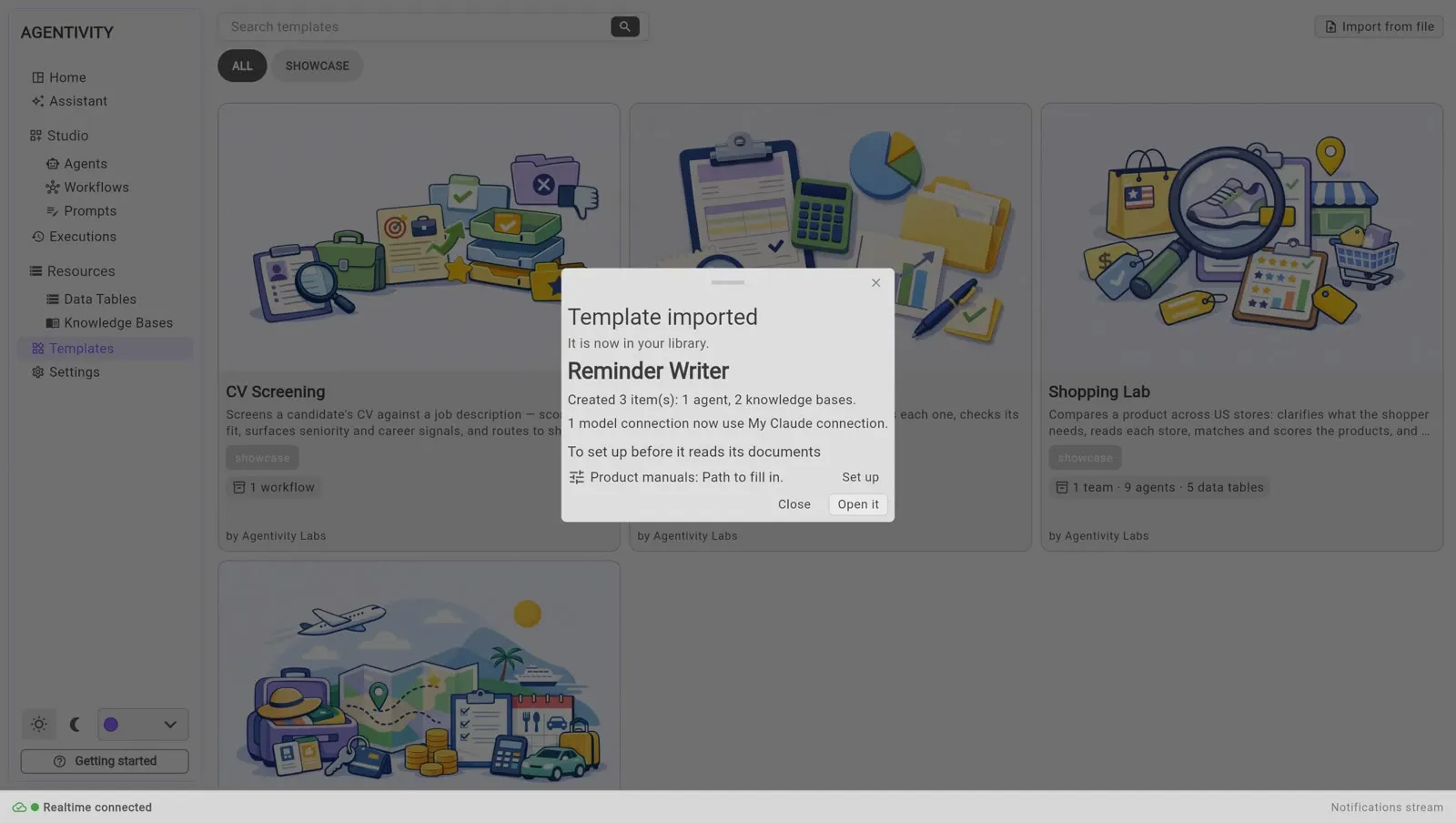
A base that has nothing to fill in is read at once. A base that arrived without a setting waits: after the import, the window lists it under To set up before it reads its documents, with the settings to fill in and a button Set up. Set up opens the base on that setting. When you save, the base is read. An installation that cannot read a kind of source refuses the import and names the base.
The import creates new copies: nothing they already have is changed. When you already have a model connection, the window of the end of the import says which one the imported agents now use. If you have none, they need one: see “The model of the imported agents” in Try a ready-made solution.
How to know it worked
Section titled “How to know it worked”- The file is in the downloads folder of your browser.
- After the import, the message Template imported says what was created. Select the button Open with the name of the solution to open it in its editor.
If it does not work
Section titled “If it does not work”- “This file is not a JSON document.” The file chosen is not a Template, or it was changed.
- The imported agents fail at their first execution. They have no model connection yet.