
Choose or change the model of an agent
Ce contenu n’est pas encore disponible dans votre langue.
Each agent runs on an AI model. The model is a node, linked to the first diamond of the agent. This page shows how to choose it and how to change it.
What you need
Section titled “What you need”- An agent open in its editor. See Create an agent.
- A model connection for the provider you want. See Connect an AI model.
The model nodes
Section titled “The model nodes”They are in the Nodes catalog, under AI > Models.
| Node | Provider |
|---|---|
| Anthropic Model | Anthropic (Claude) |
| OpenAI Model | OpenAI (GPT), and the services that use the same format |
| Google Gemini Model | Google (Gemini) |
| xAI / Grok Model | xAI (Grok) |
| DeepSeek Model | DeepSeek |
| AWS Bedrock Model | Claude models through AWS Bedrock |
Give the agent a model
Section titled “Give the agent a model”- Drag the model node of your provider onto the canvas, below the agent.
- Drag from the diamond of the model to the first diamond of the agent, on the left.
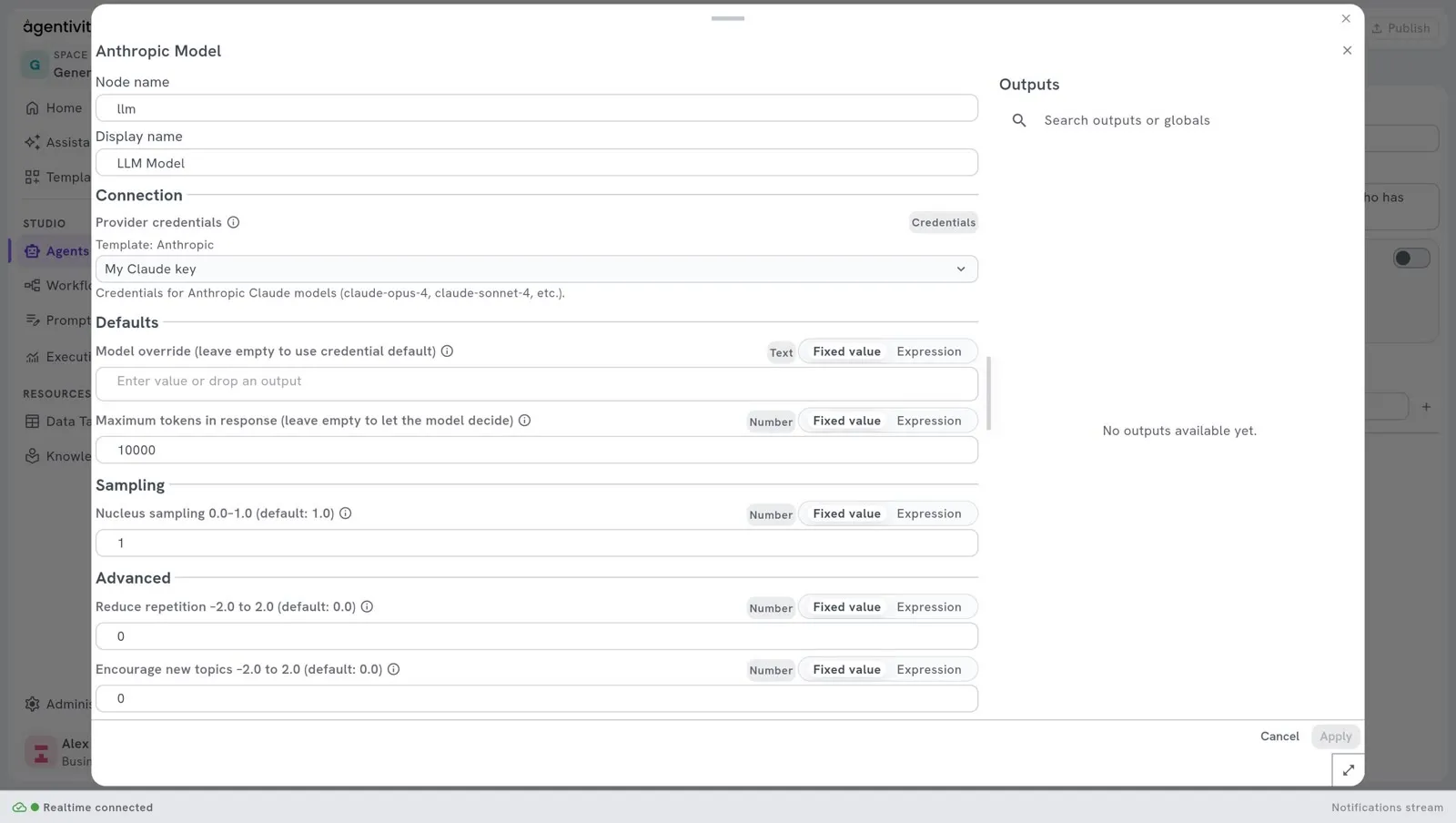
- Right-click the model and select Edit.
- Under Connection, choose your connection in Provider credentials.
- Select Apply, then Publish.
An agent has one model only.
Choose a precise model
Section titled “Choose a precise model”A connection has a model, which you chose when you created it. To use another model of the same provider for this agent:
- Right-click the model node and select Edit.
- Under Defaults, type the name of the model in Model override. Use the exact name given by your provider.
- Select Apply, then Publish.
Leave Model override empty to use the model of the connection.
Change the provider
Section titled “Change the provider”- Right-click the model node and select Delete.
- Add the model node of the other provider, link it to the first diamond, and choose its credentials, as above.
- Select Publish.
Move an agent to your default model
Section titled “Move an agent to your default model”Agents that you imported in a Template were set up with the connection of their author. To make an agent or a team use your own connection:
- Open Studio > Agents.
- Open the menu of the agent or of the team, at the end of its line.
- Select Use my default model.
For a team, this applies to its agents.
Which model to choose
Section titled “Which model to choose”- A larger model reasons better and costs more for each execution. A smaller model is faster and cheaper.
- Start with the default model of your connection. Change only if the answers are not good enough, or if the executions are too slow.
- Your provider bills you for each execution. A team with many members uses the model many times for one request.
How to know it worked
Section titled “How to know it worked”- On the canvas, a dotted line goes from the model to the first diamond of the agent.
- The agent answers when you run it. See Run an agent and read its answer.
If it does not work
Section titled “If it does not work”- The list Provider credentials is empty. You have no connection for this provider. Add one in Administration > Credentials.
- The agent fails at its first execution after an import. It still points to the connection of its author. Use Use my default model.