
Run a workflow and follow each step
An execution is one time that a workflow works, from its first step to its last. This page shows how to start an execution from the Studio and how to see what happened.
What you need
Section titled “What you need”- A workflow with at least one step, published. See Create a workflow.
- If the workflow has an AI step: a model connection that works. See Connect an AI model.
Start an execution
Section titled “Start an execution”- Open Studio > Workflows and open the workflow.
- In the switch at the top, select Execution. If the workflow has changes that are not published, the Studio first says Publish before leaving the editor: select Publish. When the workflow can run, you read Ready to run at the top right.
- In the bar above the canvas, select the first button, Run.
The same bar has Pause, Resume and Stop run. Pause shows while the execution runs, and Resume only once you paused it: it undoes your pause. An execution that waits for a person is not paused: you answer it, there is no Resume to select.
Follow the execution
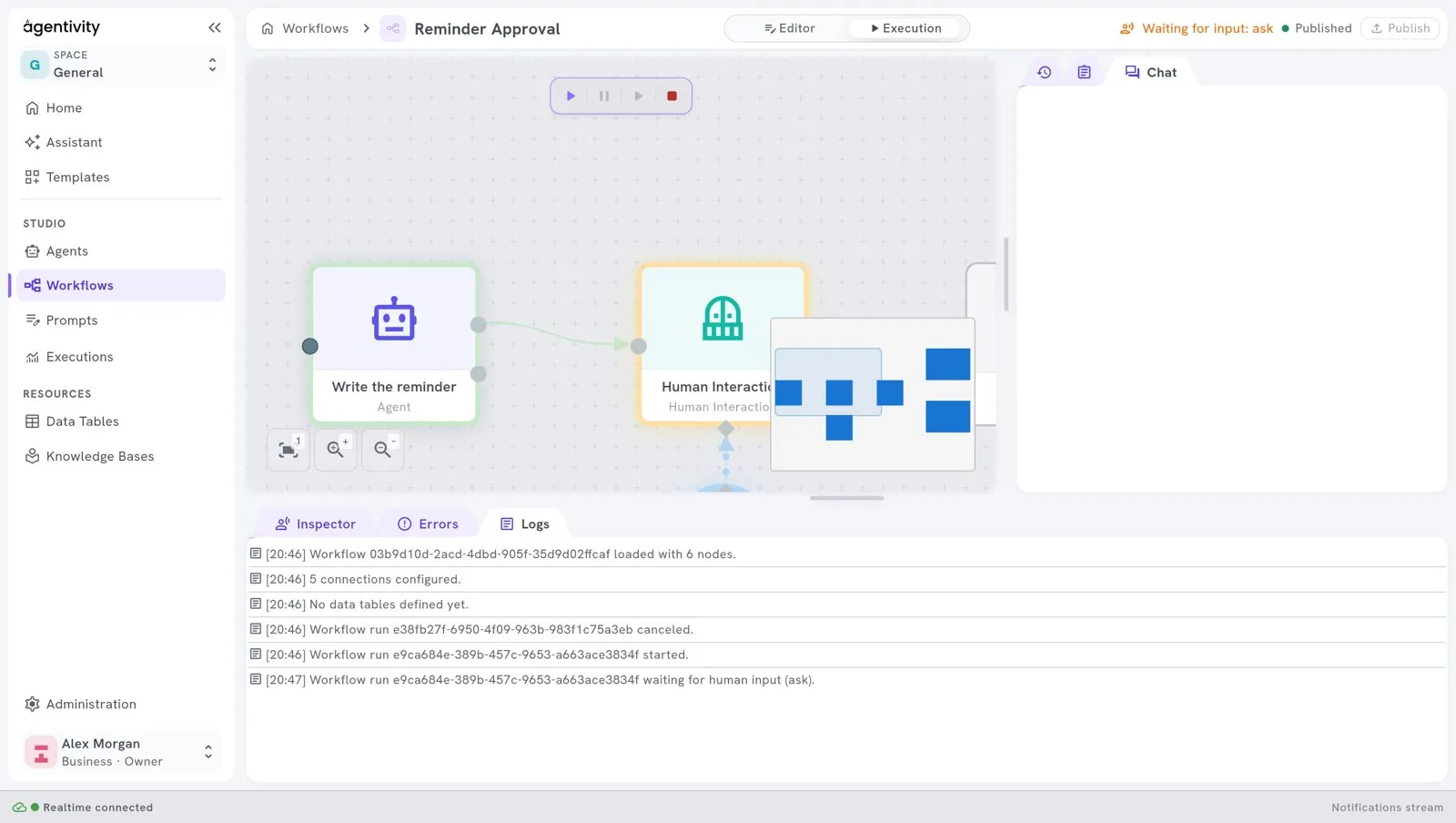
Section titled “Follow the execution”The state of the execution is shown at the top right, for example Run in progress: write. When a step asks a person something, the state is Waiting for input, followed by the name of the step, for example Waiting for input: ask. See Ask a person to approve or answer.
Below the canvas, three tabs show what happens:
| Tab | What it shows |
|---|---|
| Inspector | The steps of the execution. Select a step to see its inputs, its outputs and its logs. |
| Errors | What went wrong. When all is well, it says “No runtime errors detected.” |
| Logs | One line for each event, with the time: the execution started, the execution waits for a person, and so on. |
On the right, a panel has three tabs: the earlier executions of this workflow, the forms that wait for an answer, and the Chat of the execution.
See a value on the canvas
Section titled “See a value on the canvas”To see a value without opening the Inspector, add a Console node at the end of the workflow. It is in the Nodes catalog, under Core > Display. Before an execution, it says “No value yet”. After an execution, it shows the value it received.
Find an execution again
Section titled “Find an execution again”- In the menu on the left, select Executions. The page Executions lists the latest executions of your whole workspace: workflows, agents and teams.
- Use the list All states to keep only the executions in one state.
- On the line of an execution:
- Open workflow opens the workflow in its editor;
- Details shows the state of the execution and the state of each step.
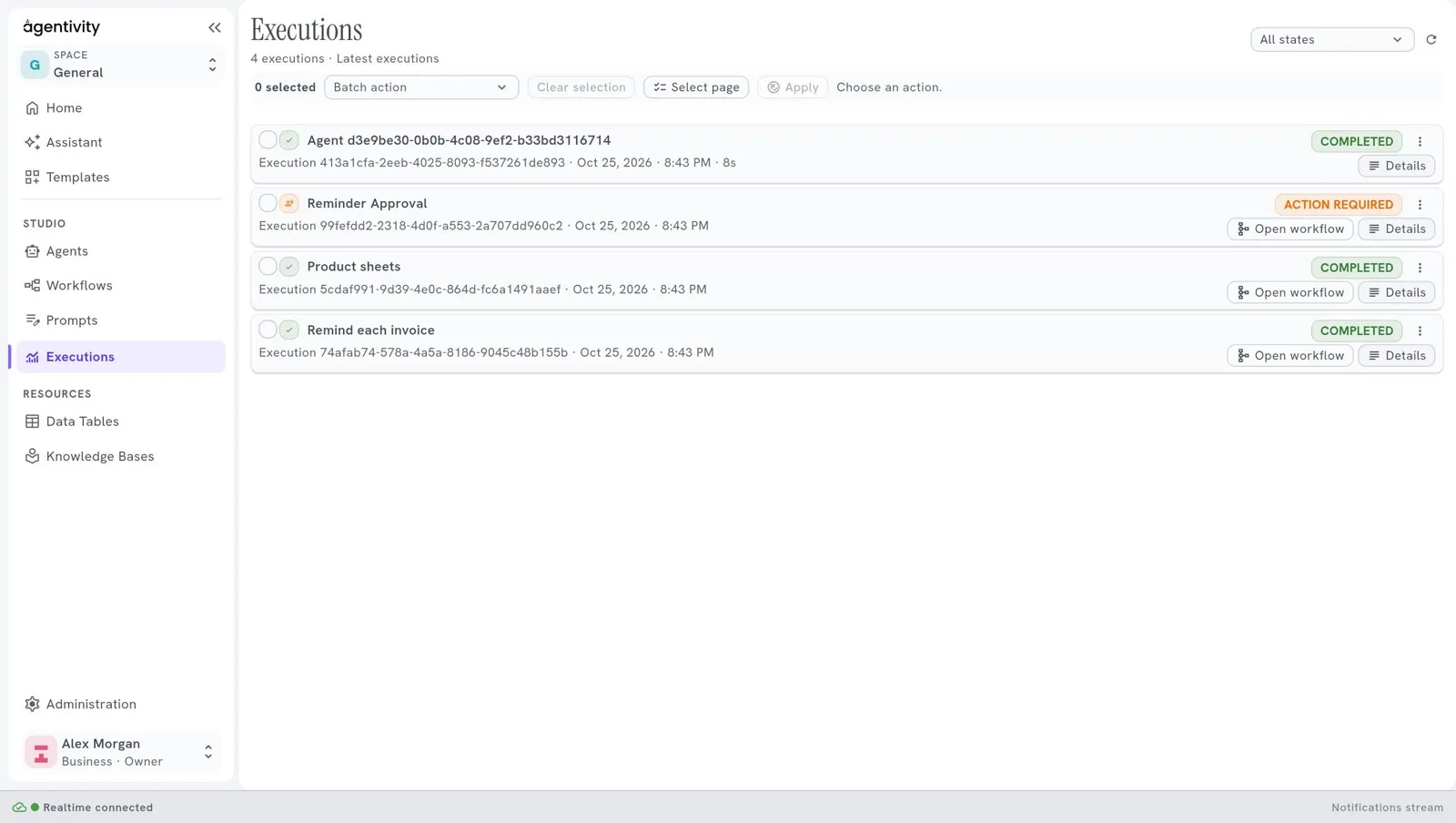
An execution that waits for a person has the label ACTION REQUIRED.
To stop or delete several executions at once, tick them, choose the action in the list Batch action, then select Apply.
How to know it worked
Section titled “How to know it worked”- In the tab Logs, you read that the execution started.
- In Executions, the execution is in the list. In Details, every step that ran is completed.
If it does not work
Section titled “If it does not work”- A step failed. Open the tab Errors to read the message. Then select the step in the Inspector and compare its inputs with what you expected.
- The execution stays in Waiting for input. A person must answer. Open the Chat of the execution.
Good to know
Section titled “Good to know”Executions start when a person starts them. Starting executions on a schedule is planned, and it is not available yet.
Next step
Section titled “Next step”Add a condition to a workflow, add an AI step, or repeat steps for each item of a list.