
Keep texts and find them by meaning
A Vector Store keeps texts and finds again the closest ones to a question, by their meaning. Something puts texts in it: a step of a workflow, or an agent. Something finds them later: another step, or the agent.
It is not the way to give an agent its knowledge. For what an agent must know (documents, pages, feeds), use a Knowledge Base. See Where each kind of information goes.
What you need
Section titled “What you need”- A workflow open in the editor. See Create a workflow. Or an agent, for the second example.
Choose a Vector Store
Section titled “Choose a Vector Store”The four stores are under AI > Vector Stores in the Nodes catalog. They are circles: you plug one into the steps and tools that use it.
| Store | Kept for | What it needs |
|---|---|---|
| In-Memory Vector Store | The time of one execution. It is free and needs no account. | Memory key (default at the start): the steps of an execution that use the same key share the same texts. |
| Qdrant Vector Store | From one execution to the next. | A Qdrant connection, and a Collection name (agentivity at the start, created at the first insert). |
| Pinecone Vector Store | From one execution to the next. | A Pinecone connection, and a Namespace (empty for the default one). |
| pgvector Vector Store | From one execution to the next. | A Connection string to a PostgreSQL database of your own, with the pgvector extension, and a Table name (agentivity_vectors at the start, created at the first insert). |
The database of the pgvector store is yours: an outside connection. It has nothing to do with the database of your Agentivity workspace.
Each store has an optional diamond named Embeddings. Embeddings turn a text into numbers, so that texts can be compared by meaning. With nothing plugged in, the store uses a small local model, which is free. You can plug Local Embeddings or OpenAI Embeddings to choose. For a collection that already holds texts, keep the same model: a model of another size is refused with a message.
Example 1: keep product sheets, then find the closest
Section titled “Example 1: keep product sheets, then find the closest”A workflow keeps four product sheets, then finds the laptops that fit a question.
Drag In-Memory Vector Store onto the canvas. Give it the Memory key
products.Drag a Vector Store step. Set Operation to Insert Documents. In Documents, give a list in JSON:
[{ "text": "Acme Book 13: ultralight laptop, 0.9 kg, 899 euros.", "metadata": { "kind": "laptop" } },{ "text": "Acme Pro 16: workstation laptop, 2.1 kg, 1899 euros.", "metadata": { "kind": "laptop" } },{ "text": "Acme Dock: docking station, 149 euros.", "metadata": { "kind": "accessory" } },{ "text": "Acme Mouse: wireless mouse, 29 euros.", "metadata": { "kind": "accessory" } }]Drag a second Vector Store step and link it after the first. Set Operation to Get Many, Query to
What is the lightest laptop?, Limit to2, and Metadata filter to{ "kind": "laptop" }.Plug the In-Memory Vector Store into the diamond Vector Store of both steps.
Run the workflow.
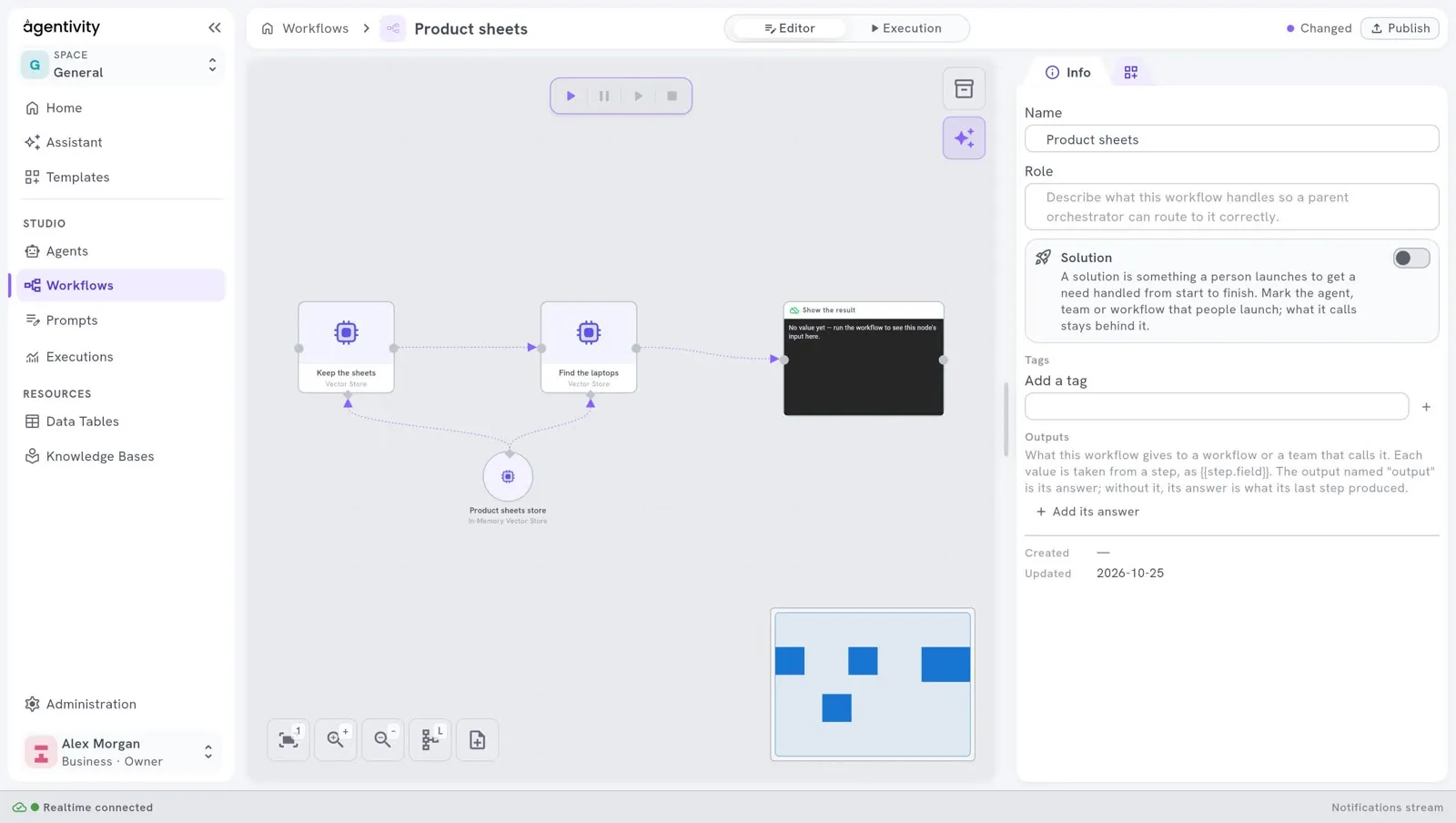
What we saw: the first step gave inserted 4. The second step gave count 2 and documents: the Acme Book 13 first, with a score, then the Acme Pro 16. The accessories were left aside by the filter.
The three operations
Section titled “The three operations”| Operation | What you give | What you get |
|---|---|---|
| Insert Documents | Documents: one text, a list of texts, or a list of blocks with text, and if you want metadata and id. A text inserted again with the same id replaces the old one. Metadata says something about all the texts. Split long texts cuts a long text into passages. Clear the collection first empties the store before inserting. | inserted (how many) and ids. |
| Get Many | Query: the question. Limit: the most texts to give, 4 at the start. Metadata filter: keeps only the texts whose metadata has every value of this JSON object. | documents, the closest first, each with id, text, score and metadata, and count. |
| Delete Documents | Ids: a list in JSON, or separated by commas. | deleted (how many). |
Example 2: an agent that searches the store
Section titled “Example 2: an agent that searches the store”An agent can search a Vector Store itself, with the AI Agent Vector Store Tool.
- In the workflow of example 1, keep the step Insert Documents, and add an AI Agent step after it, with its model.
- Drag AI Agent Vector Store Tool onto the canvas, and plug it into the diamond AI Agent Tools of the agent.
- Plug the same In-Memory Vector Store into the diamond Vector Store of the tool.
- Give the tool a Name, for example
Products, and a Description that tells the agent what the texts are: “The product sheets of Acme: laptops and accessories.”
The tool gives the agent a search named after it: search_products. The agent uses it when it needs to. The developer ran this with a model: asked “the lightest laptop under 1000 euros”, the agent searched search_products and answered with the Acme Book 13, 0.9 kg, 899 euros. We did not run the agent ourselves.
Example 3: a notebook the agent fills itself
Section titled “Example 3: a notebook the agent fills itself”By default, the tool only searches. To let the agent keep texts itself, turn on Allow storing. The agent then also has a tool named store_ and the name, for example store_customer_notes, and puts in the store what it wants: a note, what it learned.
- Give the tool the Name
Customer notes, and the Description “Notes on our customers.” - Turn on Allow storing.
- Use a store that keeps texts (Qdrant, Pinecone or pgvector) if the notes must last after the execution. With In-Memory, they last one execution.
The developer ran this with a model: the agent stored “Mrs Martin prefers to be called in the morning, before 10”, found it again, and answered “before 10”. We did not run it ourselves.
The settings of the tool
Section titled “The settings of the tool”| Setting | What it is |
|---|---|
| Name | Names the tools of the agent. “Customer notes” gives search_customer_notes, and store_customer_notes if storing is allowed. |
| Description | What the texts are, told to the agent so it knows when to search. |
| Limit | The most texts one search gives, 4 at the start. |
| Allow storing | Also lets the agent keep texts. Off at the start. |
How to know it worked
Section titled “How to know it worked”- In the workflow, the step Insert Documents gives a number in
inserted, and the step Get Many givescountanddocuments. Read them in the panel Outputs or in the Inspector. - For an agent, the Inspector shows the search that the agent made.
If it does not work
Section titled “If it does not work”countis 0. The two steps do not use the same store, or the same Memory key. Plug the same circle into both. Or the Metadata filter keeps nothing: check the spelling of the values.- The agent never searches. Say in its instructions what the texts are and when to look in them. Check the Description of the tool.
- The texts are gone after the execution. The store is In-Memory. Use Qdrant, Pinecone or pgvector.
- A message about the size of the model. The collection was filled with another embeddings model. Plug the same one, or use another collection.
Good to know
Section titled “Good to know”- Do not use a Vector Store as a Knowledge Base. An agent that must know your policies, guides or pages needs a Knowledge Base: it reads the source and stays up to date. See What a Knowledge Base is for.
- What an agent finds in a store is sent to the AI model, like the rest of the conversation.