
Create a workflow
A workflow is a set of steps that you draw in advance. The steps run in the order you drew, the same way every time. This page shows the gestures you use for every workflow. The pages that follow add the steps one kind at a time.
Recorded from the product, played faster.
What you need
Section titled “What you need”- Agentivity running, with the Studio open. See Install Agentivity with Docker.
Create the workflow
Section titled “Create the workflow”- On the home page, select New, then Workflow, or the card A workflow. You can also open Studio > Workflows and select New workflow.
- In the window New workflow, type the Workflow name, for example
Reminder Approval. The name needs at least 3 characters. - Select Create.
The editor opens with an empty canvas.
Describe it
Section titled “Describe it”In the panel Info, on the right, fill in Role: one or two sentences on what this workflow handles.
Say what the workflow gives
Section titled “Say what the workflow gives”Another workflow, or a team, can call this workflow. What it gives to whoever calls it is what you declare, and nothing else: what happens inside stays inside.
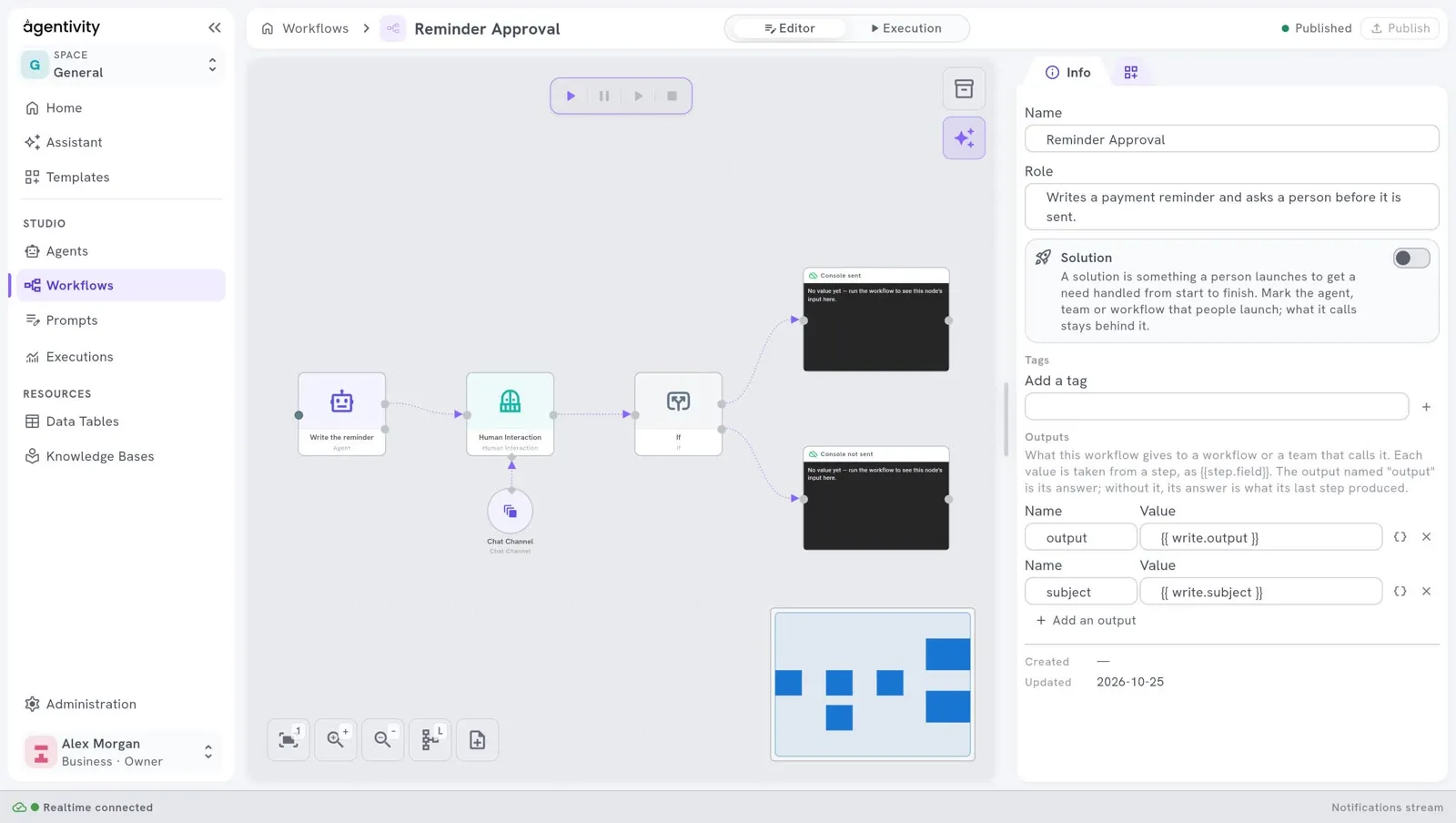
- In the panel Info, under Tags, find Outputs. The Studio says what it is for: what this workflow gives to a workflow or a team that calls it; each value is taken from a step, written between two pairs of curly braces; the output named
outputis its answer, and without it, the answer is what the last step produced. - Select Add its answer. A first line appears, with a Name and a Value. The name of the answer is
output. - In Value, say where the answer comes from: the reference of the output of a step, such as the step
writeand its outputresponse, between two pairs of curly braces, or a text that holds some. To choose it from a list, select the button Take the value from a step. It lists the outputs of the steps, each as the name of the step, a dot-separated dot and the name of the output, including the named outputs of what a step calls, and puts the one you choose where the cursor is. - To give more than the answer, select Add an output. Give it a Name, for example
city, and a Value in the same way. - Select Publish.
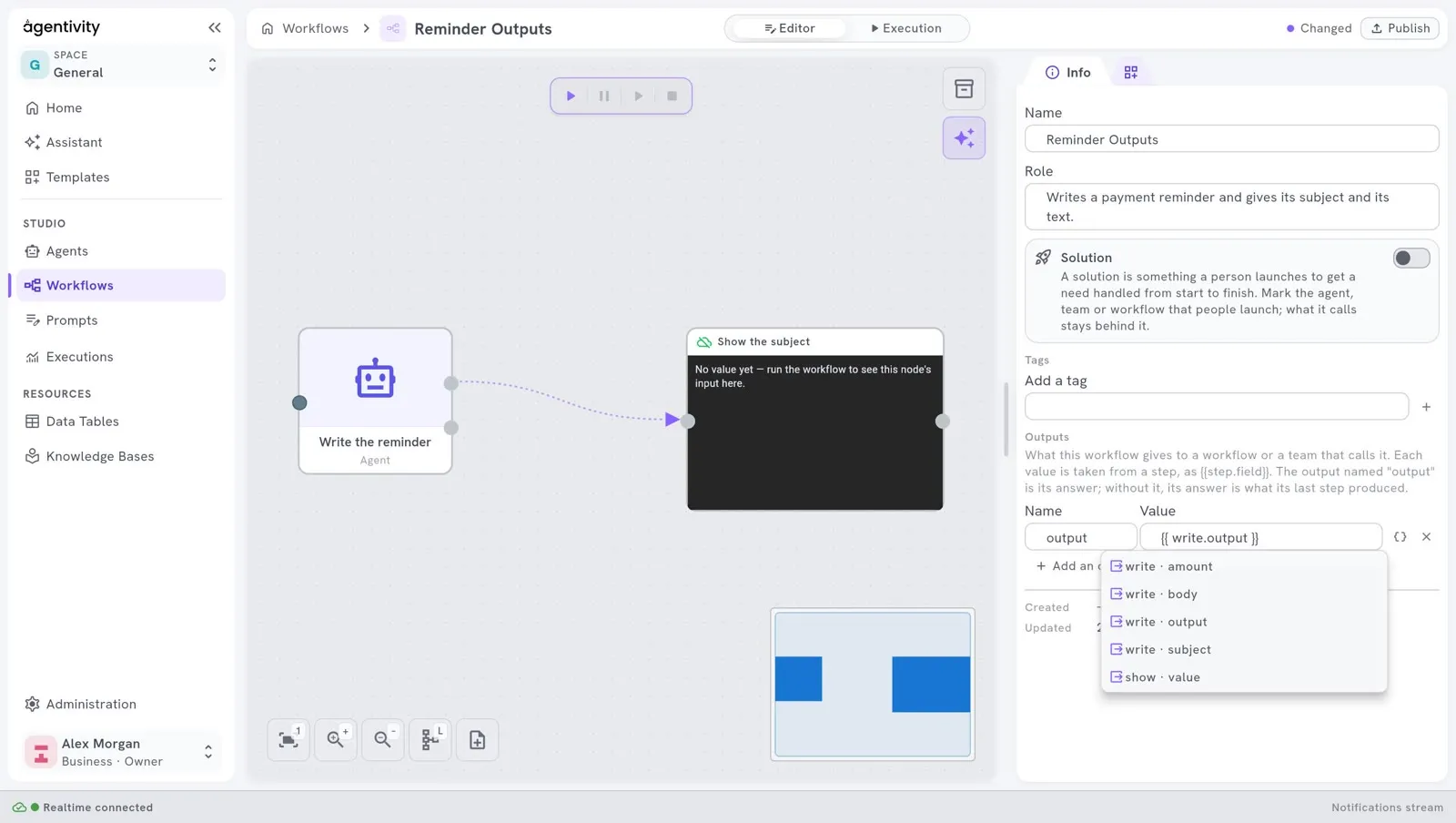
Two outputs cannot have the same name: the Studio shows “Another output has this name”. To remove a line, select the cross at its end.
A step that calls this workflow reads the answer as output, and each other output under its name. See Use an agent or a team as a step. The same goes when the workflow is a member of a team.
A workflow that declares nothing still has an answer: the text of its last step that produced one. But it gives nothing else, and what its steps hold cannot be read from outside. Declare what the callers need.
Find a step in the Nodes catalog
Section titled “Find a step in the Nodes catalog”A step of a workflow is called a node. The Nodes catalog holds all the nodes you can use.
- In the panel on the right, select the second tab. The Nodes catalog opens.
- Open a category, or type a name in the search field and press Enter.
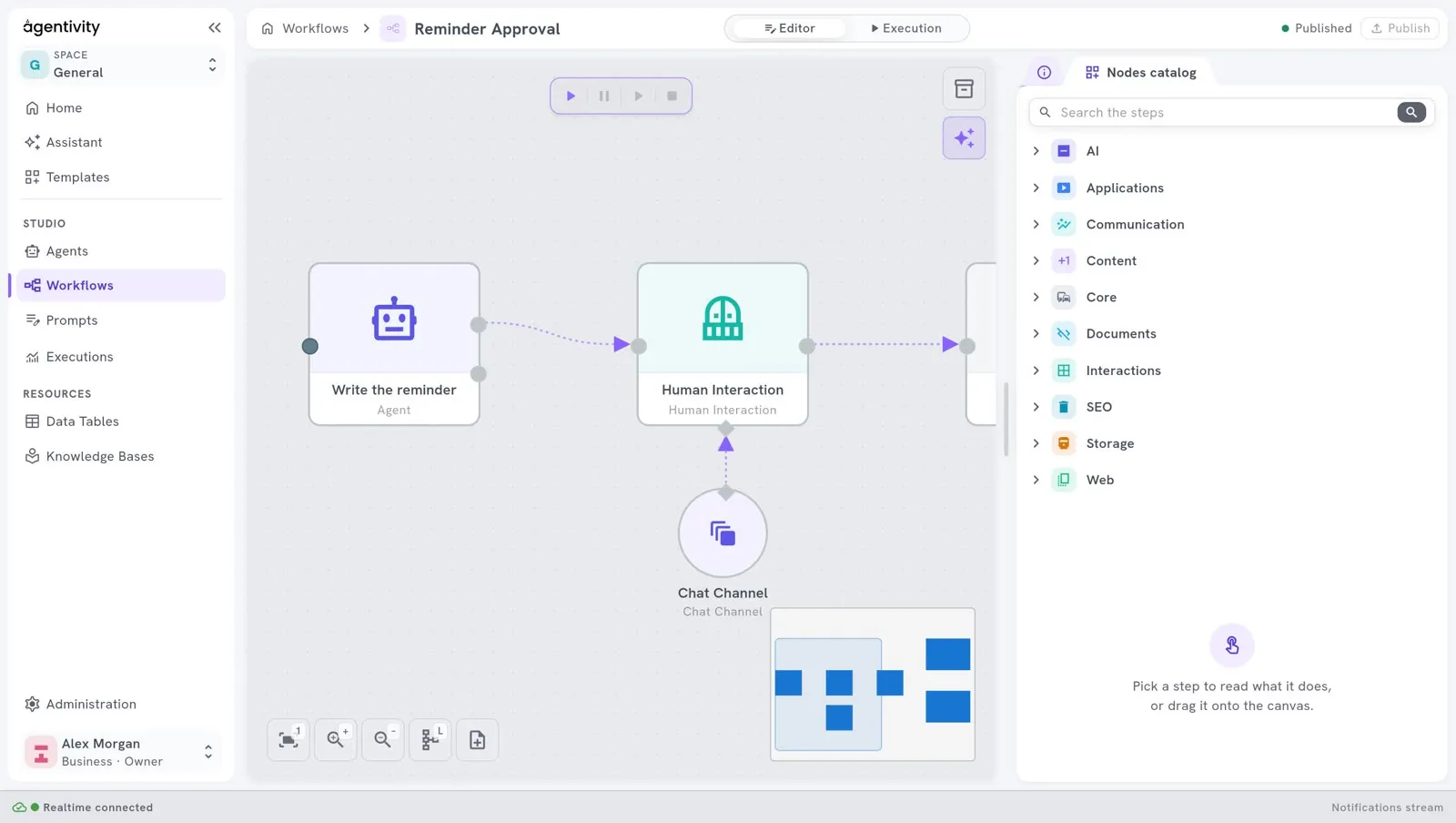
| Category | What you find there |
|---|---|
| AI | Agents, AI models, Knowledge Bases, Vector Stores, sessions, tools for agents. |
| Applications | Steps that work with other applications. |
| Communication | Steps that send messages. |
| Content | Steps that build and change content. |
| Core | Conditions, loops, variables, data tables, code, display. |
| Documents | Steps that read the text of documents (PDF, Word, text). |
| Interactions | Steps that ask a person something. |
| SEO | Steps for search engine work. |
| Storage | Steps that read and write stored values. |
| Web | Steps that search the web and read web pages. |
Select a node in the catalogue to read what it does, at the bottom of the panel.
Add steps and link them
Section titled “Add steps and link them”- Drag a node from the catalogue onto the canvas.
- Drag a second node next to it.
- Drag from the dot on the right of the first node to the dot on the left of the second node. An arrow links them: the second step runs after the first.
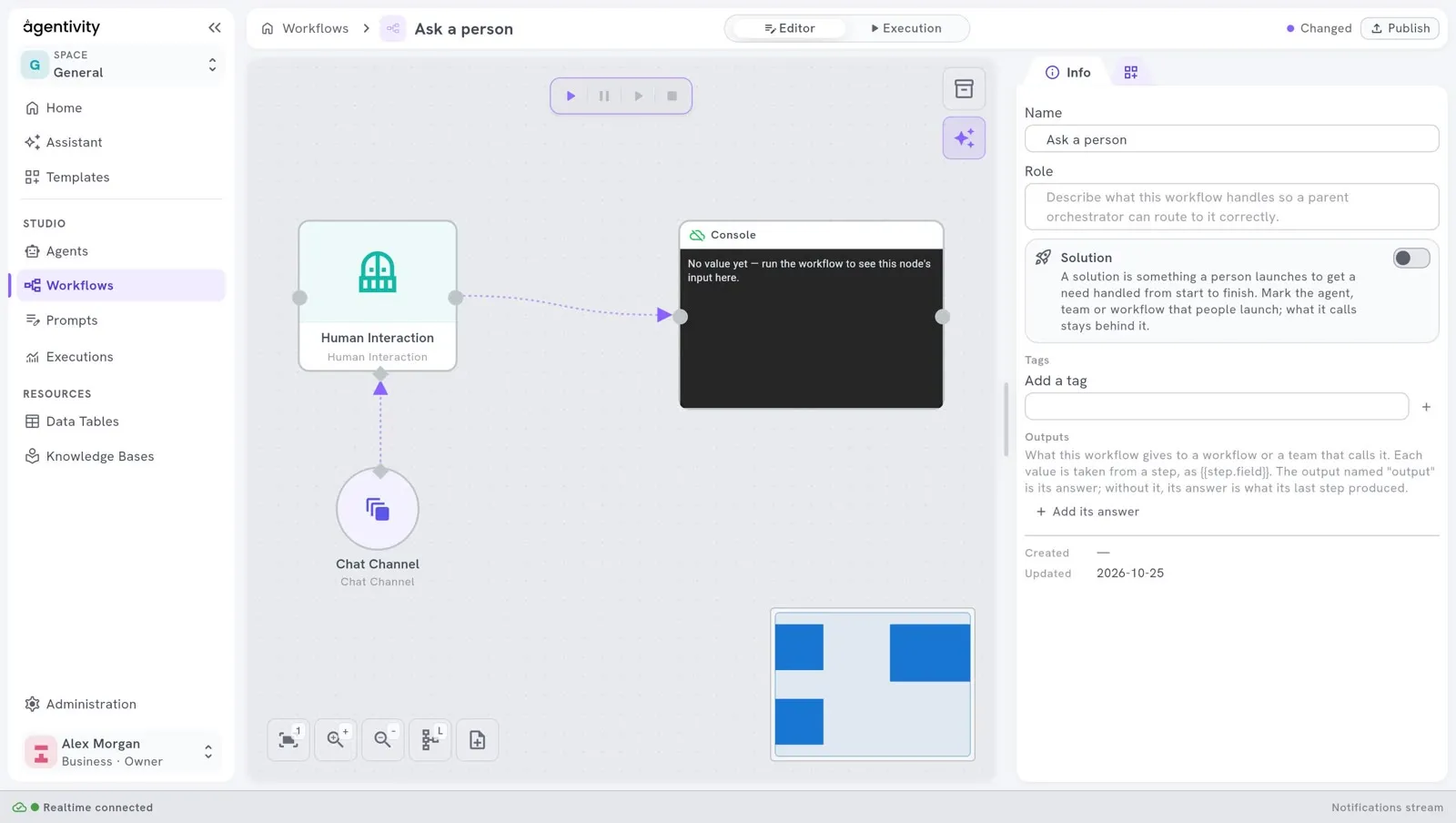
There are two shapes on the canvas:
- A box is a step. It has a dot on the left, where the work comes in, and a dot on the right, where it goes out.
- A circle is something a step uses, for example an AI model or a channel to reach a person. It is not a step. You link it to the diamond of the step that uses it.
Set up a step
Section titled “Set up a step”- Right-click the node and select Edit. A window opens with the settings of this node.
- Fill in the fields. A field can hold a Fixed value, which you type, or an Expression, which is computed when the workflow runs.
- Select Apply.
The panel Outputs, on the right of this window, lists what the earlier steps produce. It fills in when the node is linked to the steps before it.
The same menu has Duplicate, Copy and Delete.
- Select Publish, at the top right.
When you have changes that are not saved, the state at the top says Changed, and Publish is highlighted. After you publish, the state says Published and a message appears at the bottom of the screen: “Workflow published”.
If you leave the editor with changes that are not saved, the Studio asks what to do: Keep editing, Discard or Publish.
How to know it worked
Section titled “How to know it worked”- The canvas shows your steps, linked by arrows.
- In Studio > Workflows, the workflow is in the list.
The buttons under the canvas
Section titled “The buttons under the canvas”At the bottom left of the canvas, the first button brings the whole drawing into view. The next two zoom in and out.