
Show a team in the portal
The portal does not list everything in your workspace. It lists only what you marked as a solution. This page shows how to mark a team. To know what a Solution is and what to mark, read What a Solution is, and how to mark one.
What you need
Section titled “What you need”- A team, an agent or a workflow that works. Test it in the Studio first: see Run a team and read its work.
- The portal installed. See One app for one job, or one portal for all your teams.
Mark it as a solution
Section titled “Mark it as a solution”- Open the team in its editor.
- In the panel Info, on the right, find Tags.
- In Add a tag, type
solutionand select the plus button. - Select Publish.
The tag appears under Tags. To remove it, select the cross on the tag, then Publish.
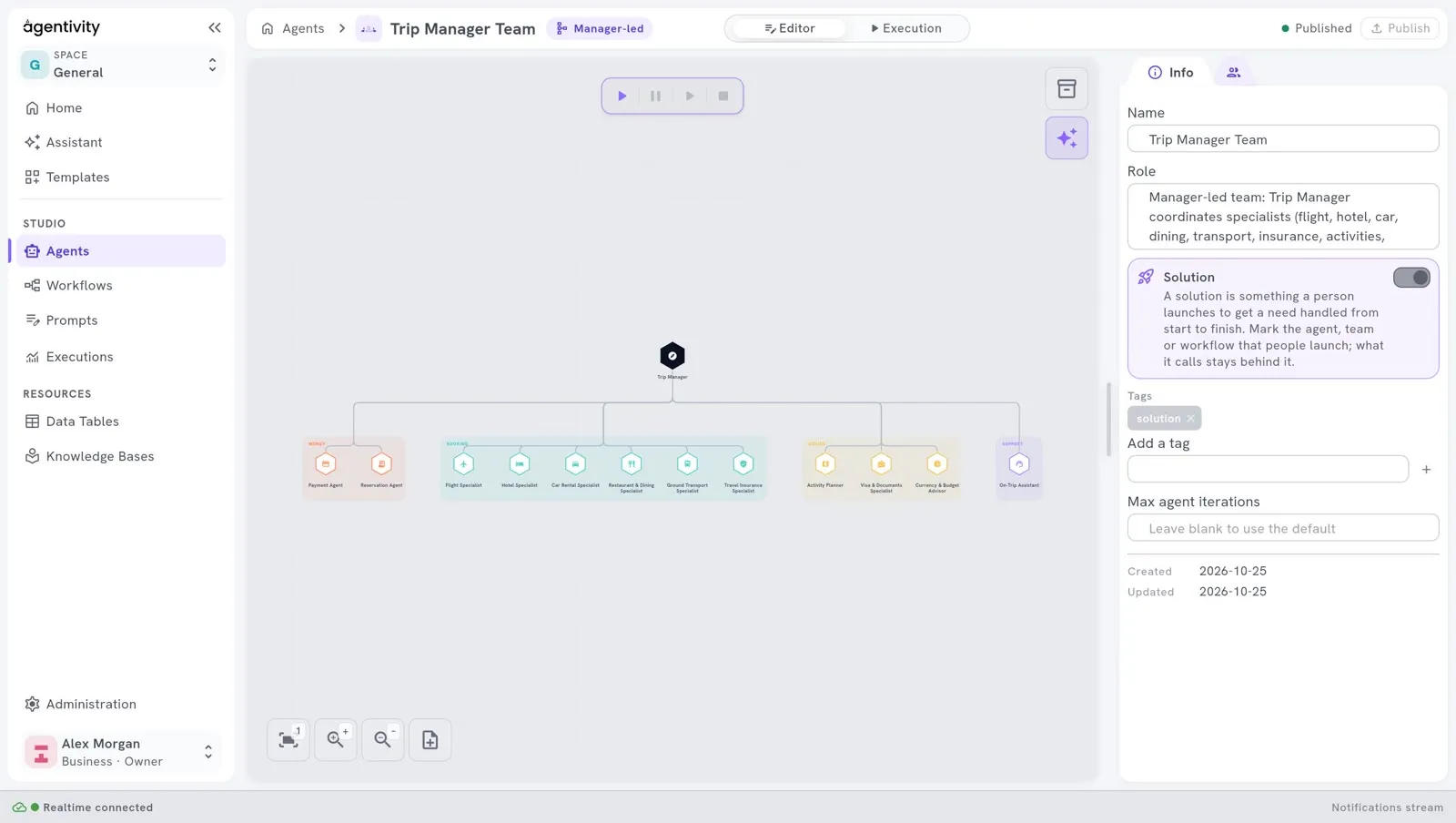
The same works for an agent and for a workflow: their panel Info has the same Tags.
Give it a good name and a good role
Section titled “Give it a good name and a good role”The card in the portal shows the name of the solution and its role. People read them to choose.
- Name: what a person would call the service. For example
Payment Reminders. - Role: one or two sentences on what it does for them, in plain words.
Mark only what a person can launch directly. Do not mark the agents that are only members of a team.
How to know it worked
Section titled “How to know it worked”Open the portal, or load its page again. The solution has its card on the welcome screen.
If it does not work
Section titled “If it does not work”- The card is not there. Check the spelling of the tag, check that you published, and load the portal again.
- Other things are listed. They carry the same tag. Remove the tag from what people should not launch.
- The portal was set up with another tag. A developer can change which tags the portal looks for. Ask which tag your portal uses.
Next step
Section titled “Next step”For a developer: How a VibeApp talks to Agentivity.