
The Settings screen
In the menu on the left, Administration opens with two panes, Credentials and Configurations. On a workspace with sign-in, they are in the group Workspace of Administration, with Data and Network: see Workspace panes.
Credentials
Section titled “Credentials”Credentials are the keys and the accounts that your agents, teams and workflows connect with: an AI model, a mailbox, a search service.
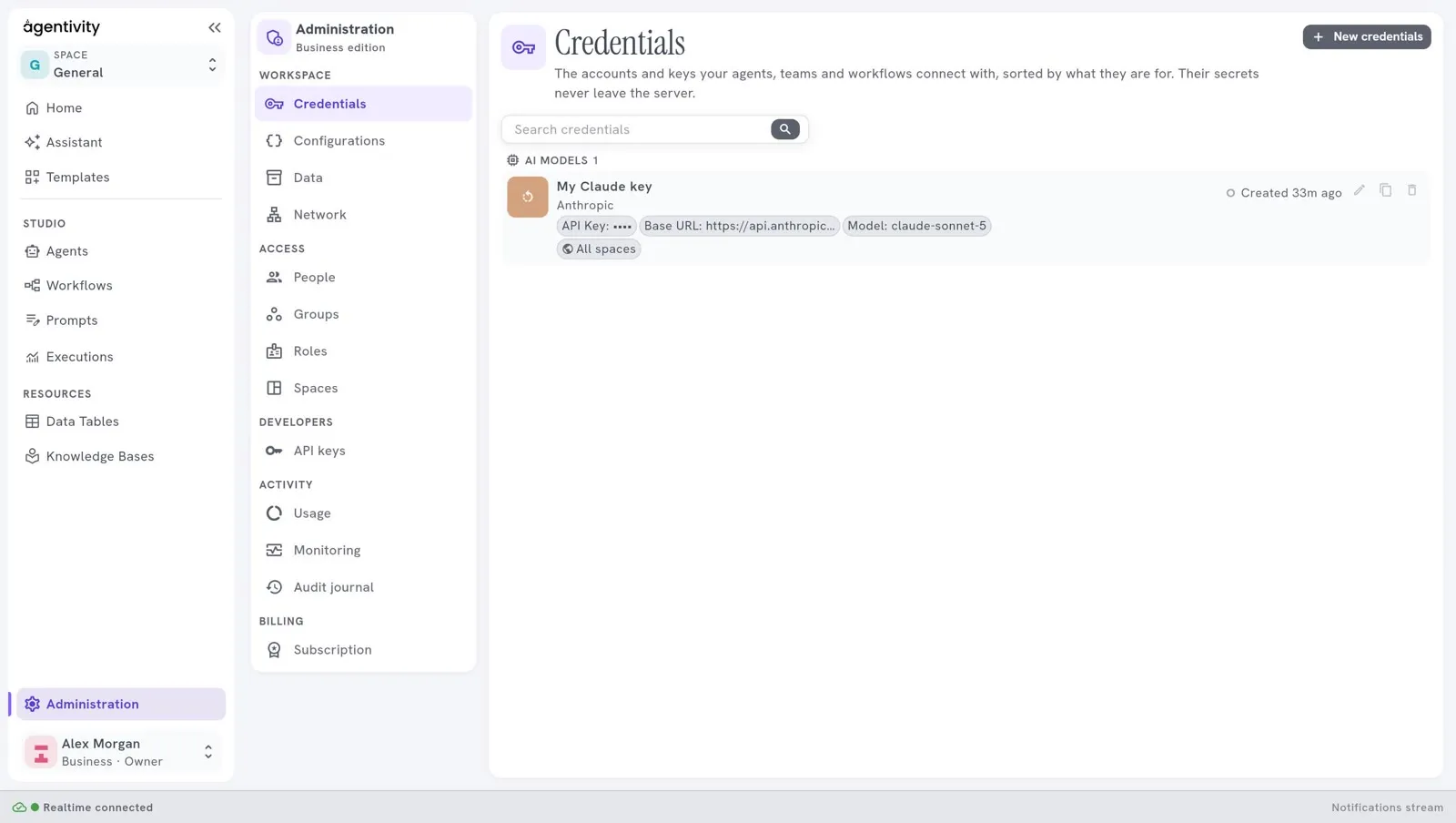
- The connections are sorted by what they are for, for example AI models.
- A secret value, such as an API key, is shown as dots. It is never shown again after you save it.
- Search credentials finds a connection by its name.
| Control | What it does |
|---|---|
| New credentials | Opens the window New connection, where you choose what to connect to. |
| The pencil | Changes a connection. To replace a secret, type the new value. |
| The two sheets | Makes a copy of a connection. |
| The bin | Deletes a connection. The Studio asks you to confirm. |
To add the connection of an AI model, see Connect an AI model.
Configurations
Section titled “Configurations”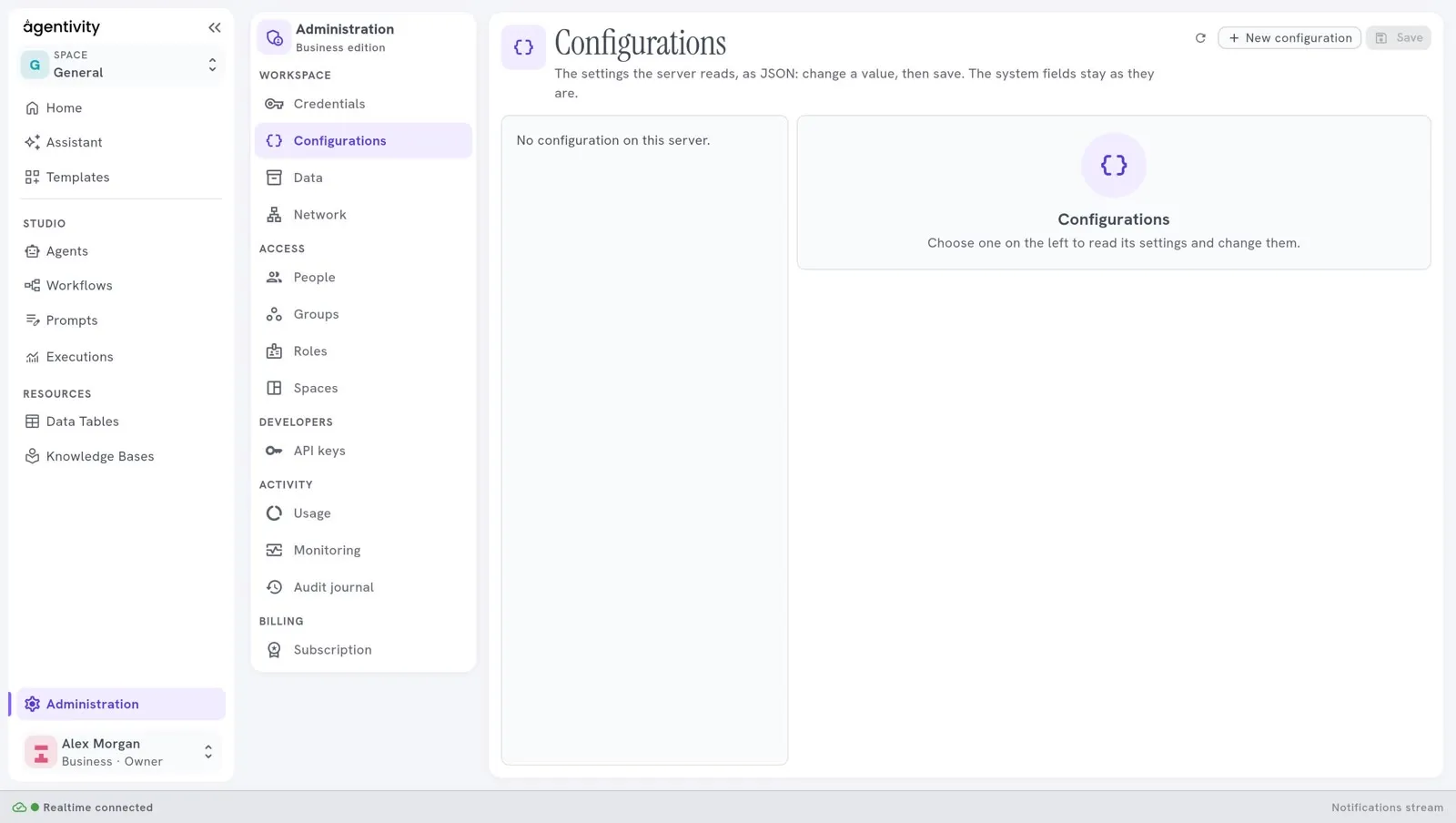
Configurations lets you look at and change settings of the server. On a new installation the list is empty and says “No configurations available.”
Good to know
Section titled “Good to know”- This area was called Settings in earlier versions. It is now Administration, which also holds the panes for people, roles, spaces, usage and, on a hosted workspace, the subscription: see Administration, who sees what.
- In the Community edition there is no login. Anyone who can open the Studio can open these panes, and can add, change or delete connections. A secret that is already saved is not shown to them.
- On a workspace with sign-in, a person sees a pane only if their role allows it.