
Invoice Clerk, one agent with tools and a table
Invoice Clerk is the smallest showcase: one agent and one data table. You give it supplier invoices in the chat. The agent reads each one, files it in a table, checks its figures and shows a chart of the spending by category.
What it contains
Section titled “What it contains”| Element | What it is |
|---|---|
| The agent Invoice Clerk | One AI agent. |
The table invoices | One row per invoice: the supplier, the invoice number, the dates, the currency, the amounts, a category, a summary, the name of the file, the result of the check and the total that the agent computed. |
How the agent is built
Section titled “How the agent is built”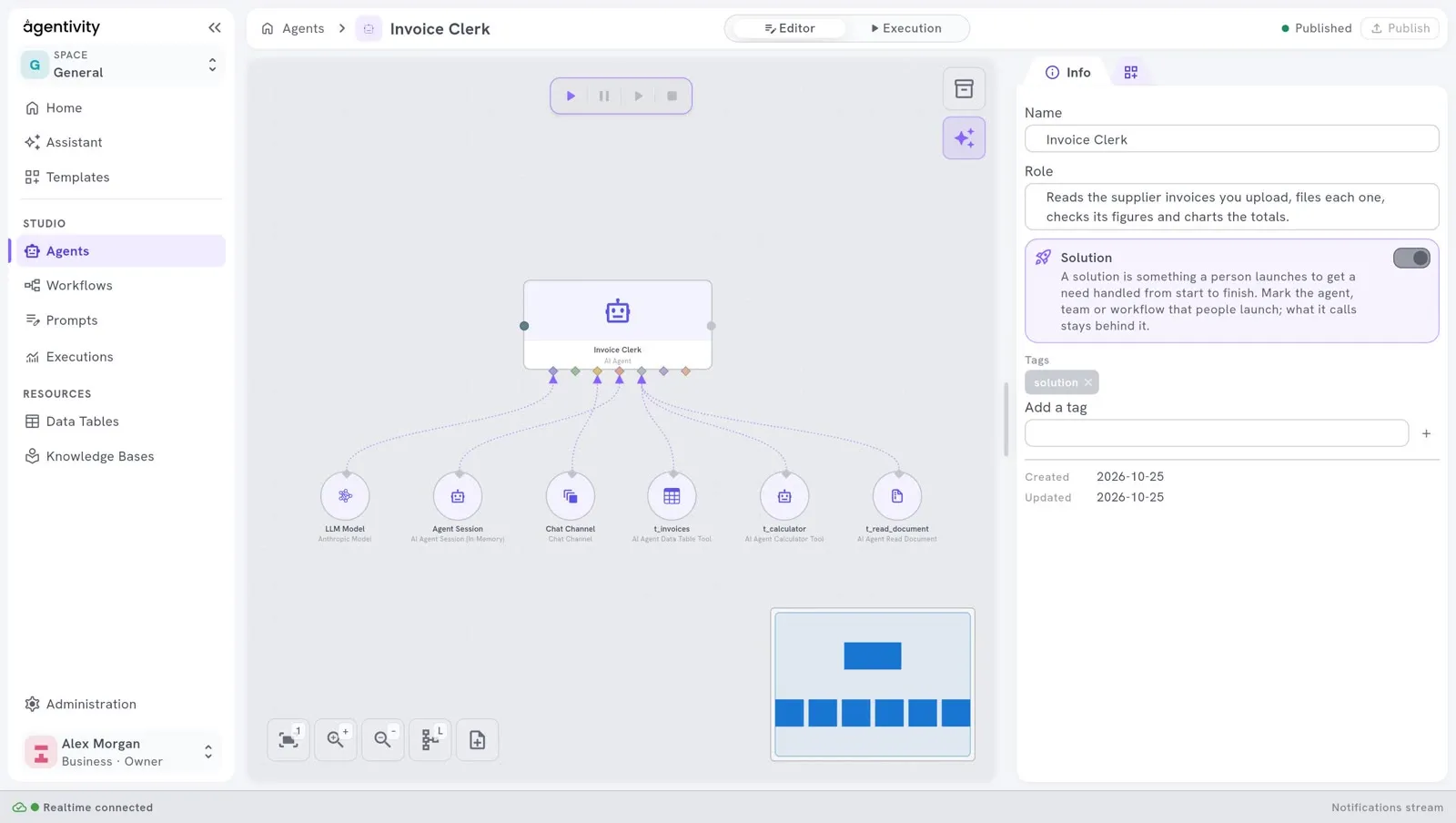
Six things are plugged into the agent:
| Plugged in | What it gives the agent |
|---|---|
| A model | The AI model it thinks with. |
| Chat Channel | The conversation with you, where you upload the invoices and where it can ask a question. |
| Agent Session | The memory of the conversation, so it remembers the invoices already seen. |
| AI Agent Read Document Tool | It can read the document you uploaded. |
| AI Agent Calculator Tool | It can compute, to check that the amounts add up. |
| AI Agent Data Table Tool | It can read and fill the table invoices. |
What to look at
Section titled “What to look at”- The three tools on the same diamond. An agent can have several tools. See Give tools to an agent.
- The calculator. The instructions tell the agent to check every addition with the calculator, never by itself. This is the way to get exact figures from an agent.
- Record, do not correct. When the total printed on the invoice does not match the sum, the agent keeps the printed total, stores its own sum next to it, and marks the row as a mismatch. It does not fix the figure.
- Nothing invented. A value that the invoice does not give stays empty.
- The instructions. Right-click the agent, select Edit, and read System instructions. They are written as numbered steps: ask for the invoice, read it, extract the fields, check the arithmetic, look for a duplicate, and so on.
- The table. Open Resources > Data Tables >
invoicesand read its columns. The names of the columns tell the agent what to store.
Try it
Section titled “Try it”- Open Studio > Agents and open Invoice Clerk.
- In the switch at the top, select Execution.
- Send a first message. The agent shows a box: upload an invoice as a PDF or Word file, or paste its text. Use an invoice with fictitious data for a first try.
- Open the table
invoices: the invoice has its row.
See Run an agent and read its answer.
Make it yours
Section titled “Make it yours”- Change the columns of the table to match what you want to keep. Then change the instructions to match.
- Add a channel that asks a person when the check fails: see Let an agent ask a person before it decides.
- If every invoice must be approved by a person, put the agent in a workflow with an approval step.
Good to know
Section titled “Good to know”The content of each invoice is sent to your AI model provider when the agent reads it.