
Try, test and improve a prompt
Prompt Studio has four ways to work on a prompt: try it, test it, analyse it and optimise it. All four send the prompt to an AI model.
Before you start
Section titled “Before you start”All of this needs a model connection chosen in the tab Settings of the panel on the right.
Each execution uses the AI model, and your provider bills you for it.
Try the prompt
Section titled “Try the prompt”- In the tab Playground, give a value to each input.
- Select Run Prompt.
- Read the answer in the Debug console, at the bottom.
Playground history keeps the list of your tries. Select one to see its output again.
Keep test cases
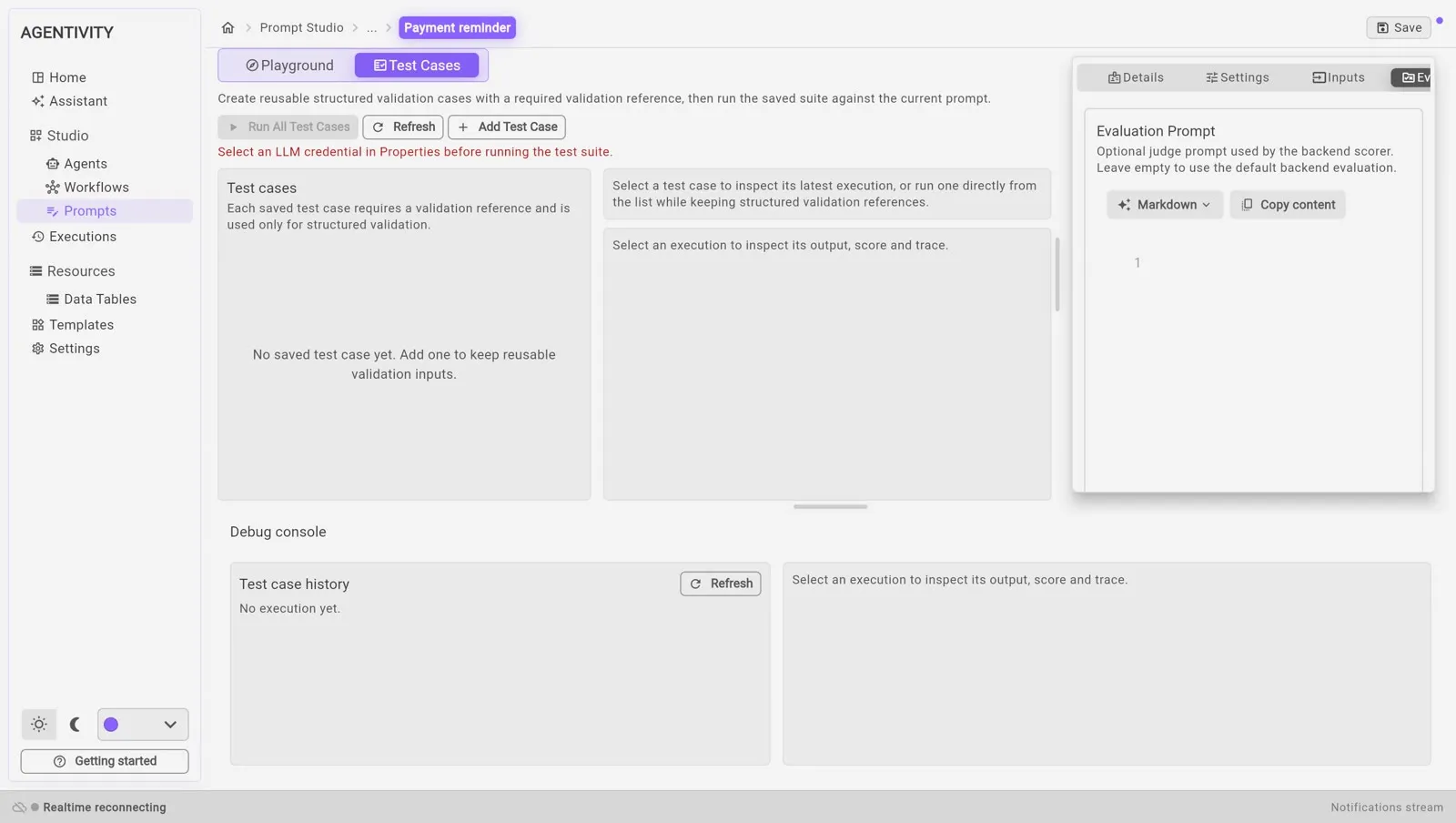
Section titled “Keep test cases”A test case is one example that you keep: values for the inputs, and the answer you expect. It lets you check the prompt again after each change.
- Select the tab Test Cases.
- Select Add Test Case.
- Give it a Name.
- Fill in the inputs.
- Fill in the expected result. It is required: it is the reference used to check the answer.
- Select Save.
Run the test cases
Section titled “Run the test cases”- Run All Test Cases runs every saved case against the current prompt.
- Select one case to see its last execution: the expected answer, the actual answer, and a score.
A case that passes is marked Success; one that does not is marked Failed, with an analysis of the failure.
Use test cases for what must not break: after each change of the prompt, run them all again.
Analyse the prompt
Section titled “Analyse the prompt”- In the tab Playground, select Analyze.
- Read the Analysis Result.
| Part | What it tells you |
|---|---|
| Strengths | What the prompt does well. |
| Issues | What is wrong, each with a level: HIGH, MED or LOW. |
| Recommendations | What to change. |
| Improved Prompt | A rewritten version of your prompt. |
To take the improved version, select Apply. It replaces the text of your draft. It is saved only when you select Save.
Optimise the prompt
Section titled “Optimise the prompt”Optimisation tries several versions of the prompt in a row and keeps the one with the best score.
- Open Optimization.
- Set Max Iterations: how many versions it may try.
- Select Start Optimization.
- When it is finished, read Score per Iteration and the Best Candidate.
- Select Apply Best Candidate to take it, then Save.
Optimisation makes many calls to the AI model. Start with a small number of iterations.
The evaluation prompt
Section titled “The evaluation prompt”The scores are given by the AI model too, following an evaluation prompt. The last tab of the panel on the right lets you write your own. Leave it empty to use the default evaluation.
Good to know
Section titled “Good to know”- A score is an opinion of an AI model. Read the answers yourself before you trust a number.
- Nothing is changed without you: an improved prompt is applied only when you select Apply, and saved only when you select Save.
Next step
Section titled “Next step”Back to What Prompt Studio is for.