
What a Solution is, and how to mark one
A Solution is the central idea of Agentivity. It is not a feature of the portal: the whole workspace knows which of your agents, teams and workflows are Solutions, and the Studio itself makes them stand out. This page says what a Solution is, what to mark as one, and how to mark it in the Studio.
What a Solution is
Section titled “What a Solution is”A solution is something a person launches to get a need handled from start to finish. The person makes a request and receives finished work. Underneath, a solution is an agent, a team or a workflow. The person who uses it does not need to know which one.
What makes something a Solution is a tag: the tag solution, on an agent, a team or a workflow. There is no other way to make a Solution. Marking one only adds the tag, and unmarking one only removes it. Nothing else changes: it is not published, not shared, and it does not run differently.
Tags are always kept in lower case. If you type Solution in the Studio, Agentivity keeps solution.
What to mark, and what not to
Section titled “What to mark, and what not to”Mark what a person launches. What it calls stays behind it. The Studio says it in one sentence:
Mark the agent, team or workflow that people launch; what it calls stays behind it.
In our example, the team Payment Reminders has two agents. A person launches the team, so the team is the Solution. The two agents are its members: they are not marked.
It is the same for a workflow. Mark the workflow that people start. Do not mark the workflows that it calls to do a part of the job.
An agent can be a Solution too, when a person launches it directly and no team stands in front of it.
Mark a Solution, or unmark it
Section titled “Mark a Solution, or unmark it”You can do it from a library or from an editor.
From a library
Section titled “From a library”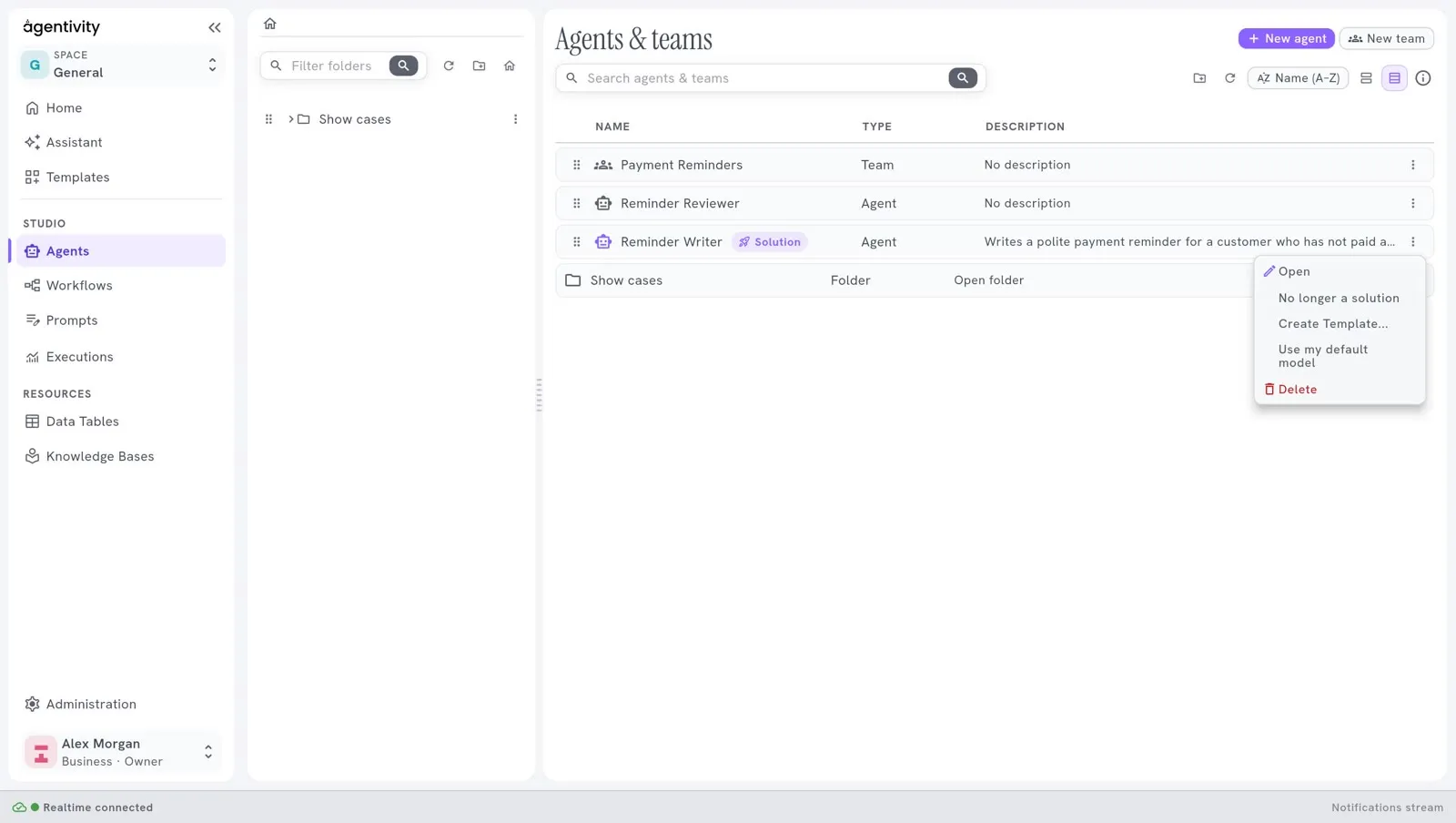
- Open Studio > Agents for an agent or a team, or Studio > Workflows for a workflow.
- On the row of the agent, the team or the workflow, select the three dots.
- Select Mark as solution.
When it is already a Solution, the same entry reads No longer a solution. Select it to remove the mark.
This changes only the tags. You do not need to publish.
From an editor
Section titled “From an editor”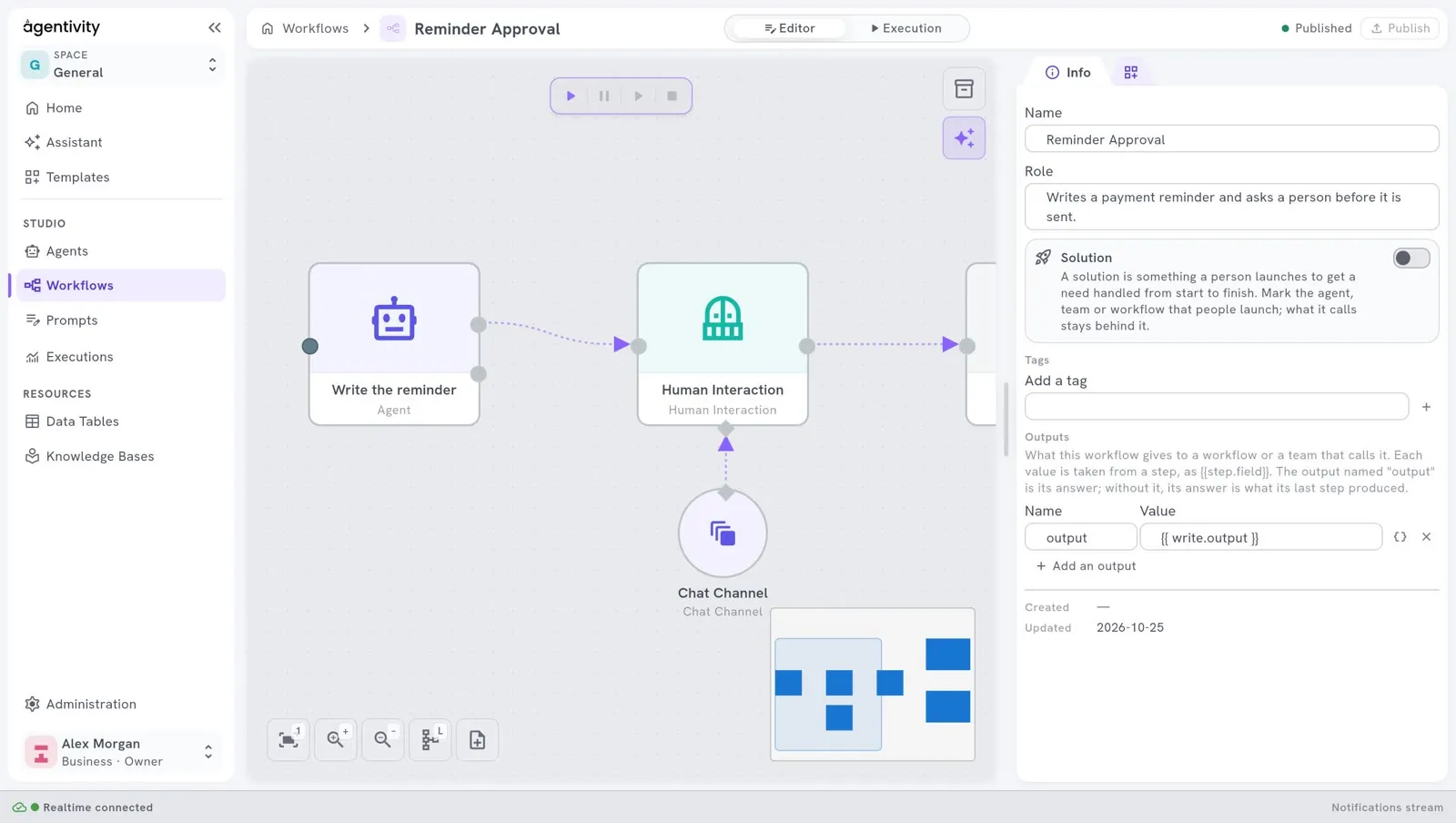
- Open the agent, the team or the workflow in its editor.
- In the panel Info, on the right, find the box Solution. It is above Tags.
- Turn the switch on, or off.
- Select Publish.
The change is saved with the rest of the editor. The box says what a Solution is, with the same sentence as above.
You can also type the tag solution by hand in Tags. It is the same thing: the switch only adds or removes that tag. See Show a team in the portal.
How a Solution shows in the Studio
Section titled “How a Solution shows in the Studio”In Agents and in Workflows, a Solution is told apart from the rest:
- a small mark Solution stands beside its name;
- its icon takes the accent colour.
If you rest the pointer on the mark, it tells what a Solution is.
Where Solutions show
Section titled “Where Solutions show”| Where | What happens |
|---|---|
| The libraries | The mark beside the name, as above. |
| The portal, and the apps you build | The portal is a white-label application: people can use it as it is, or adapt it. It finds the Solutions of your workspace by this tag, and nothing more. An app of your own can do the same. See Show a team in the portal and List solutions and start an execution from your app. |
| A Template | A Template always has a Solution at its heart. When the Template is created, its main agent, team or workflow carries the tag. So what you import from a Template shows up as a Solution in your library. See Share your work as a Template. |
| What the Assistant builds | The Assistant saves its work with the main agent, team or workflow marked as a Solution. See Build your first team with the Assistant. |
How to know it worked
Section titled “How to know it worked”In the library, the row of the agent, the team or the workflow shows the mark Solution beside its name, and its menu now offers No longer a solution.
In an editor, the switch of the box Solution is on, and the tag solution is under Tags.
A portal or an app lists it after you load its page again.
Good to know
Section titled “Good to know”- Marking a Solution does not publish it, share it or change how it runs. It adds a tag.
- A team is one Solution, whatever the number of its members. Mark the team, not each member.
- To stop listing something in a portal, unmark it.