
Add, change or remove credentials
Credentials are the keys and the accounts that your agents, teams and workflows connect with. Agentivity also calls one of them a connection. This page shows how to manage them.
For the first connection to an AI model, the shorter page is Connect an AI model.
What you need
Section titled “What you need”- Agentivity running, with the Studio open.
- The key or the account of the service you want to connect.
Open the screen
Section titled “Open the screen”In the menu on the left, open Administration, then Credentials.
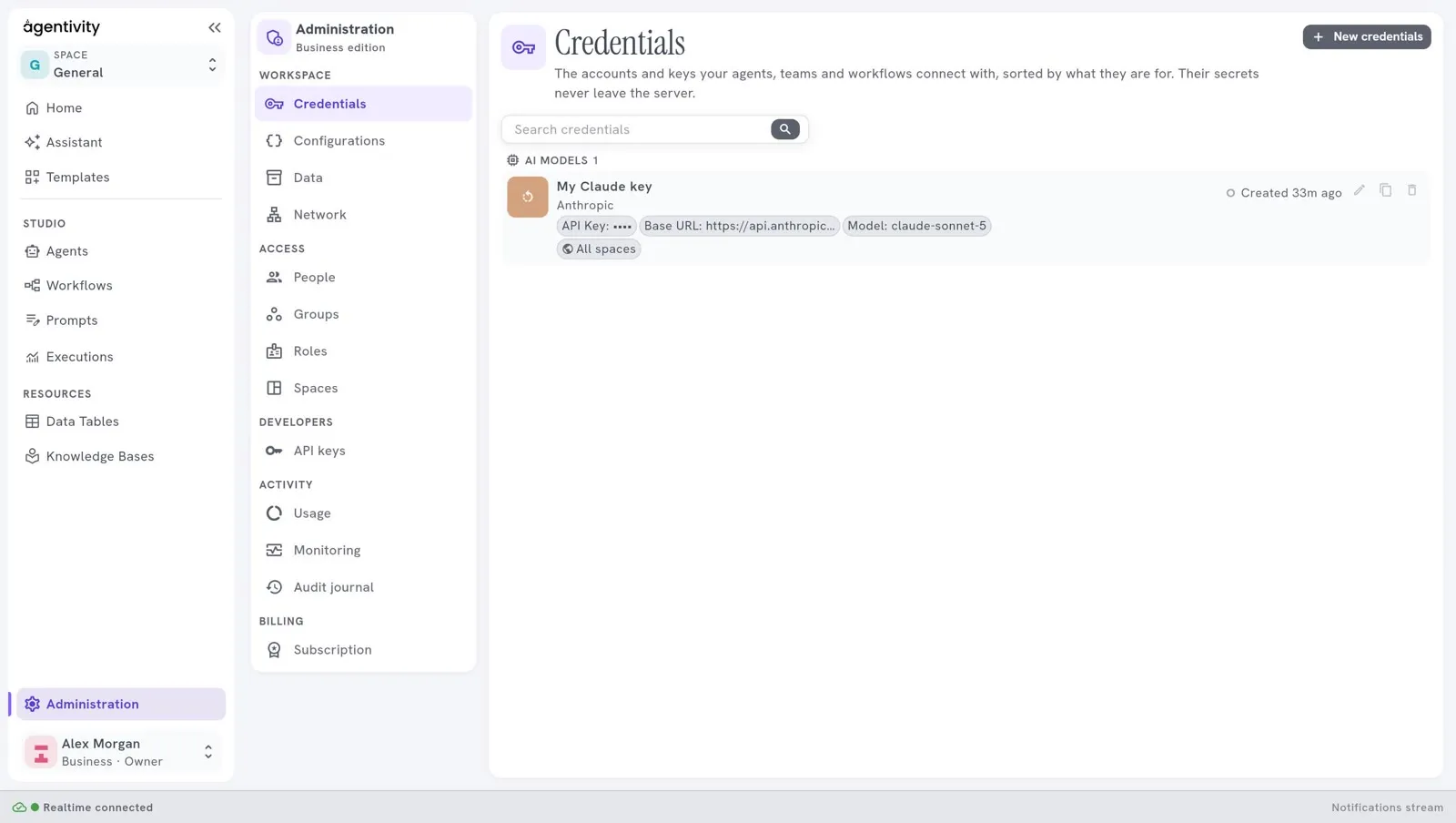
The connections are sorted by what they are for. Each line shows the name, the service, the values that are not secret, and when it was created. A secret value is shown as dots.
Add a connection
Section titled “Add a connection”Select New credentials. The window New credentials asks “Which service are they for?”
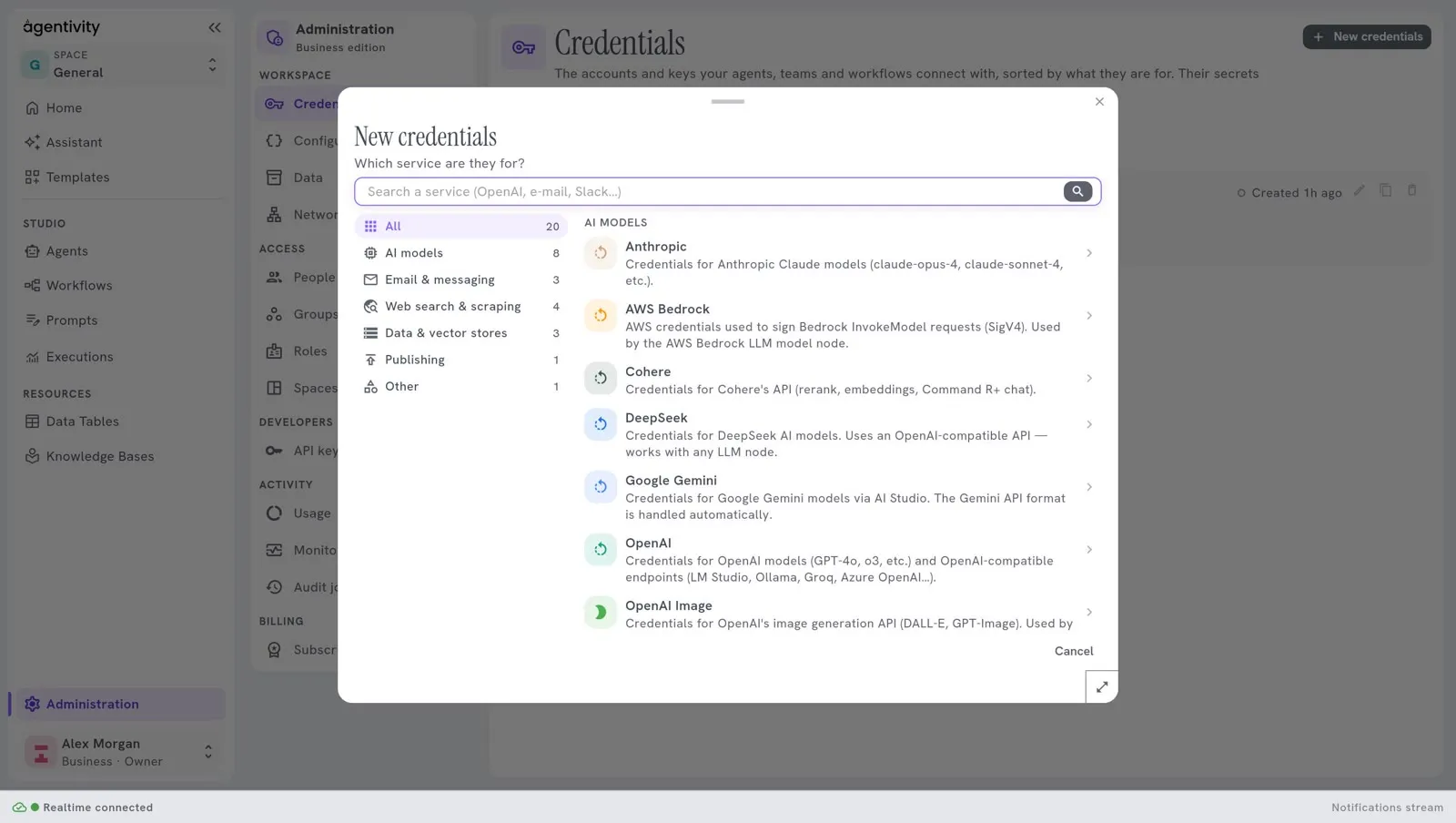
Choose a kind on the left, or type the name of the service in the search field.
Kind For example AI models Anthropic, OpenAI, Google Gemini, DeepSeek, AWS Bedrock Email & messaging A mailbox, Slack Web search & scraping A web search service Data & vector stores A database for documents Publishing A website to publish to Other Any other service Select the service. The window New credentials opens.
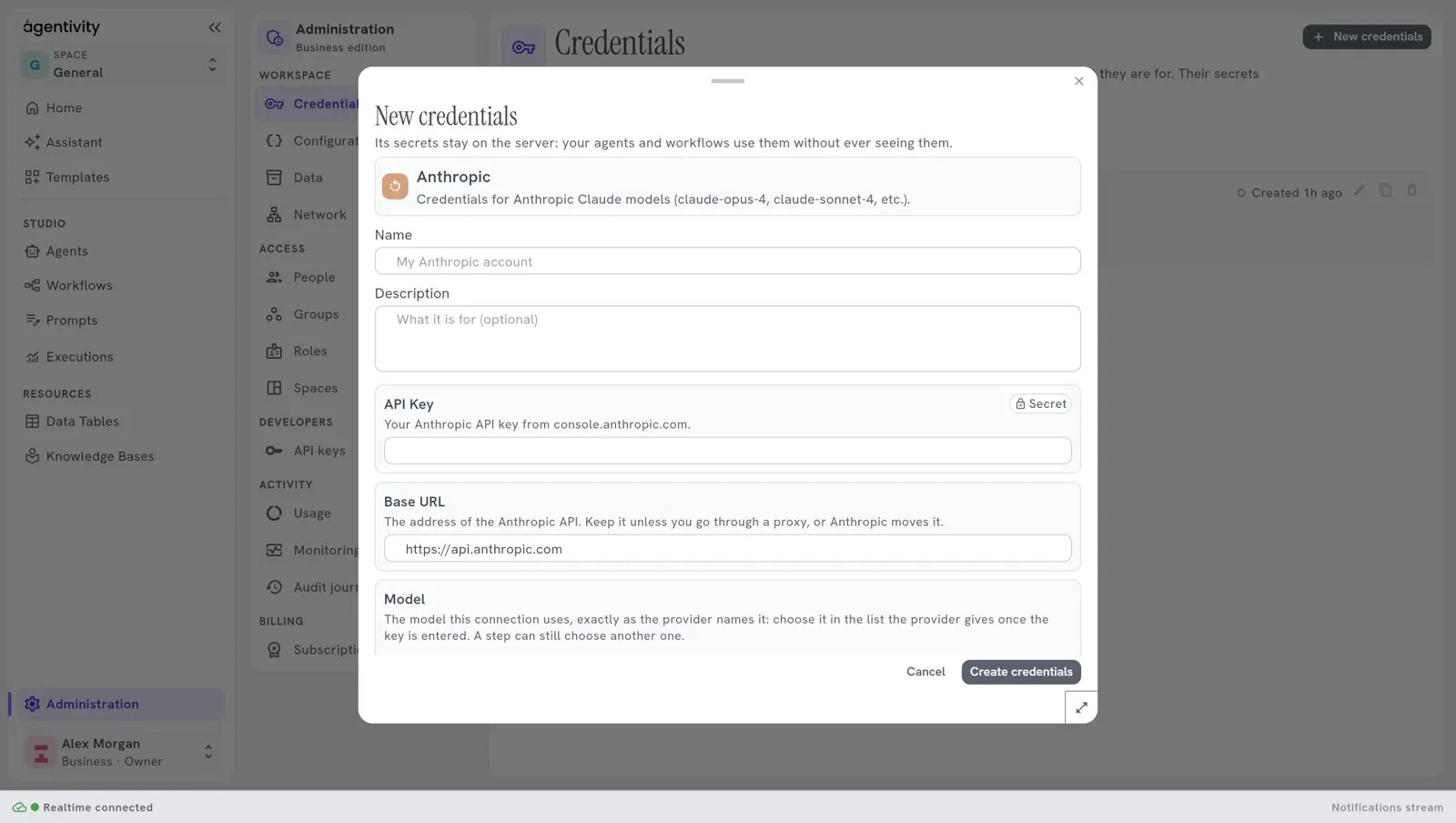
Give the connection a Name that you will recognise, for example
Claude for reminders.Fill in the fields. Each one says whether it is Required or Optional, and whether it is a SECRET. The button with an eye shows what you typed in a secret field.
Select Create credentials.
Leave the optional fields as they are unless you know you need another value.
For a connection to an AI model, two fields need your attention:
- Model is required, and has no default value. Choose it in the list, or type the exact ID that your provider gives. The list shows the models that your key can use: the Studio asks the provider for it as soon as you have typed the key, at no cost, and nothing is saved by this call.
- Base URL is required for Anthropic, OpenAI, Google Gemini, xAI and DeepSeek. It is already filled in with the official address of the provider. Change it only to go through your own proxy, or if the provider moves its API. Agentivity adds only the path of the call.
Each field is checked while you type, and the problem is shown under the field: an address must start with https:// or http://, and a numeric field must hold a number. Without a model, the Studio refuses to save, and names the missing field. See Connect an AI model for the details.
The Assistant opens this same form when it needs a connection. It no longer creates an empty connection to fill in later.
Change a connection or replace a key
Section titled “Change a connection or replace a key”- On the line of the connection, select the pencil. The window Edit credentials opens.
- Change what you need. To replace a secret, type the new value in its field. To keep the secret, leave its field as it is.
- Select Save changes.
Everything that uses this connection uses the new values at its next execution. You do not have to change your agents.
Copy a connection
Section titled “Copy a connection”On the line of the connection, select the button with two sheets. Use a copy to keep two settings of the same service, for example two models. The copy opens in the same form.
Delete a connection
Section titled “Delete a connection”- On the line of the connection, select the bin.
- Read the warning: the connection “will be permanently removed and nodes using it may fail.”
- Select Delete, or Cancel to keep it.
Before you delete a connection, give another one to the agents and steps that use it. See Choose or change the model of an agent.
For developers: the errors of the API
Section titled “For developers: the errors of the API”Creating or changing a connection through the API can answer two errors. credentials_field_required says that a required field is empty, and names it, for example “Fill in ‘Model’”. credentials_field_invalid says that a value does not have the right format, for example an address that does not start with https:// or http://. Both come with the status 400.
To ask which models a key can use, call POST /api/v1/credentials/models with templateId and fields (a list of key and value), and id for a connection that is already saved. The answer has a status, a message and the list models. With a refused key, the status is invalid_key and the message says so. An id that does not exist gives 404. Nothing is saved by this call.
Good to know
Section titled “Good to know”- A saved secret is never shown again, in the Studio or elsewhere. If you lost a key, create a new one at your provider and replace it here.
- In the Community edition there is no login: anyone who can open the Studio can add, change and delete connections. See Keep your Agentivity server private. On a workspace that asks for a sign-in, only the people whose role allows it see Credentials: see Administration, who sees what.
- The credentials are in your backup file. Keep that file safe. See Update Agentivity and back up your data.