
Connect an AI model to Agentivity
Agents need an AI model to think with. Agentivity does not provide one: you bring your own. You add the API key of the provider you use, and your agents run on that model.
What you need
Section titled “What you need”- Agentivity running. If it is not, start with Install Agentivity with Docker.
- An API key from one provider, with credit on the provider’s side. The provider bills you directly for what your agents use.
Where to get a key
Section titled “Where to get a key”| Provider | Model family | Where to create the key |
|---|---|---|
| Anthropic | Claude | console.anthropic.com |
| OpenAI | GPT | platform.openai.com/api-keys |
| Gemini | aistudio.google.com/apikey | |
| xAI | Grok | console.x.ai |
| DeepSeek | DeepSeek | platform.deepseek.com |
Connect your model the first time
Section titled “Connect your model the first time”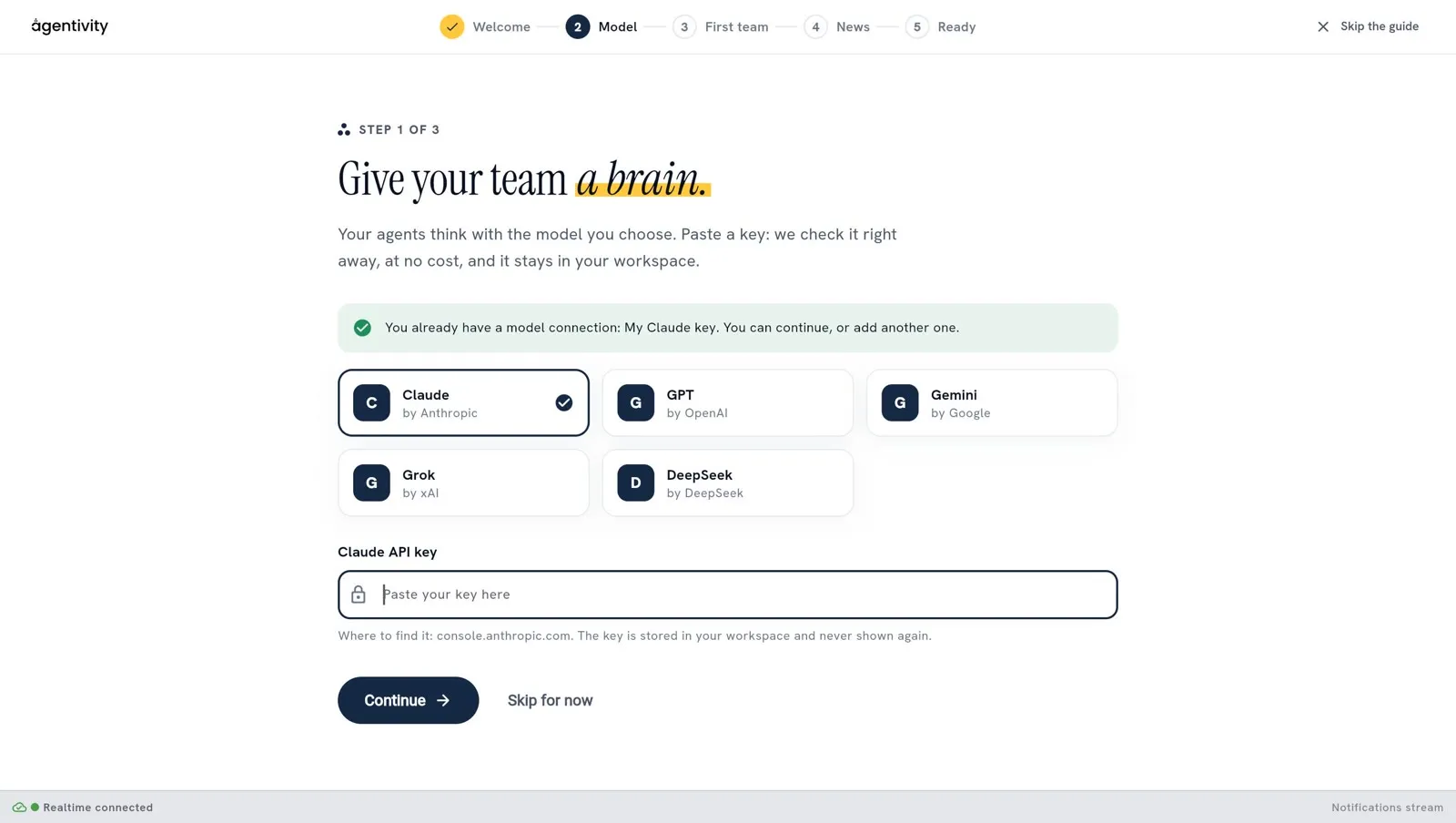
- Open the Studio. In the welcome guide, choose Get started, then the step Connect your AI model.
- Choose your provider.
- Paste your API key, then select Check the key. Agentivity asks the provider whether the key works. This costs nothing, and nothing is saved yet. A key that the provider refuses shows the message of the provider.
- Choose the model. It is required. The list holds the models that your key can use, and you can type in it to filter it. If the list could not be loaded (a network problem, or a limit of your provider), type the ID of the model yourself.
- Select Save. The connection is saved with its key and its model.
How to know it worked: the connection is saved, and the guide lets you continue.
You can change the model later, in Administration > Credentials.
Add another connection later
Section titled “Add another connection later”You can add or change a connection at any time:
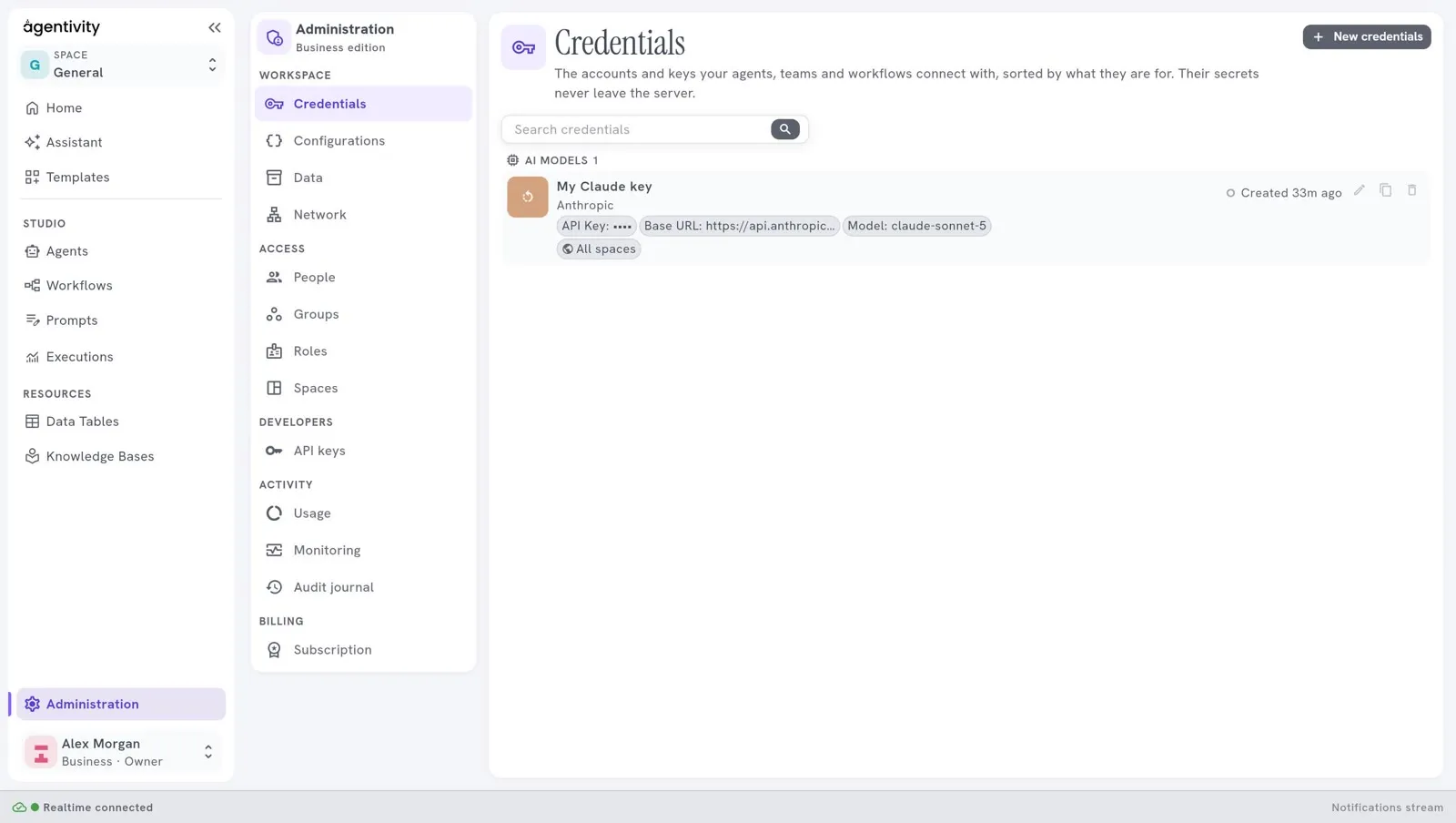
- In the Studio, open Administration, then Credentials.
- Select New credentials. The window New credentials asks “Which service are they for?”
- Select AI models, then your provider.
- Fill in the form and save. The form is the same everywhere: here, when you copy a connection, and when the Assistant asks you for one.
You can keep several connections, for example one per provider, and choose which one your agents run on.
This list has more providers than the welcome guide. For example, it also offers AWS Bedrock and Cohere.
The fields of an AI model connection
Section titled “The fields of an AI model connection”| Field | What to enter |
|---|---|
| Name | A name that you will recognise. |
| Description | Optional. A note to help you tell this connection from another one. |
| API key | The key of your provider. It is a secret. |
| Model | Required. The exact ID of the model, as your provider names it, for example claude-opus-4-5-20251101. There is no default value. |
| Base URL | Required for Anthropic, OpenAI, Google Gemini, xAI and DeepSeek. The address of the API of the provider. It is already filled in with the official address. |
Model is required for Anthropic, OpenAI, Google Gemini, xAI, DeepSeek and AWS Bedrock. For AWS Bedrock, type the ID as text. For the others, as soon as you have typed the key, the Studio asks the provider for the models that the key can use, and shows them in a list. This call is free and saves nothing. If you try to save without a model, the Studio refuses, and the message names the missing field.
Base URL is already filled in with the official address of the provider, for example https://api.anthropic.com for Anthropic, without a path. Change it only to go through a proxy, or if the provider moves its API. The address is used as it is: Agentivity only adds the path of the call at the end. A connection with no address is reported at once, without any call to the provider.
Each field is checked while you type, and the problem is shown under the field:
- an address must start with
https://orhttp://; - a numeric field must hold a number;
- a required field must not be empty.
Your key
Section titled “Your key”- The key is stored on your server and is never shown again after you save it.
- What your agents send goes to the provider you chose, under that provider’s terms.
If it does not work
Section titled “If it does not work”“Paste your API key first.” The key field is empty.
The provider refuses the key. The Studio shows the message of the provider. Check that you copied all of it, that the key is still active, and that your account has credit.
The list of models is empty or does not load. The provider could not be reached at that moment, or a limit was reached. Type the ID of the model yourself, as your provider names it. If you do not know it, look for the list of models in the documentation of your provider.
The Studio refuses to save and names the field “Model”. The model is required: choose it in the list, or type its ID.
A message under a field. The value is not valid: an address must start with
https://orhttp://, and a numeric field must hold a number. Correct the field, and the message goes away.“The model did not answer”, with a message about an SSL connection, when an agent or the Assistant runs. The machine where Agentivity runs cannot make a secure connection to the provider. This happens when an antivirus or a company proxy inspects the internet traffic of that machine. See If an antivirus blocks the connections of Agentivity.
Next step
Section titled “Next step”Build your first team with the Assistant, or try a ready-made solution first.