
Follow the welcome guide in the Studio
The first time you open the Studio, a welcome guide appears. At the top, five stops show where you are: Welcome, Model, First team, News and Ready. Three of them are steps (Step 1 of 3, Step 2 of 3, Step 3 of 3). You can skip any step and come back to it later.
What you need
Section titled “What you need”- Agentivity running, with the Studio open in your browser. If it is not, start with Install Agentivity with Docker.
- For step 1, an API key from an AI model provider. An API key is a secret code that lets Agentivity use your account with that provider.
- For step 2, an internet connection on the machine where Agentivity runs.
Start the guide
Section titled “Start the guide”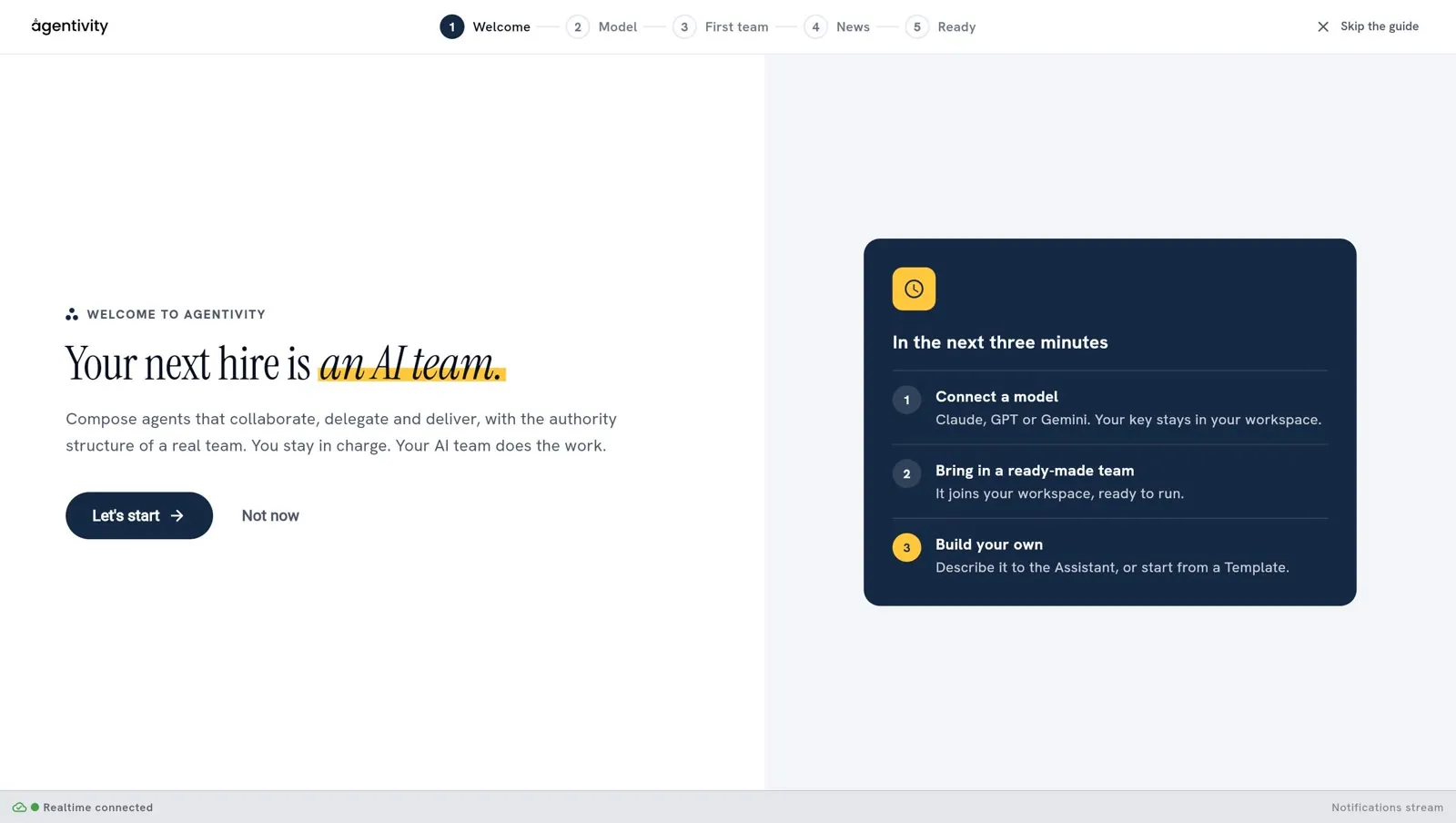
The first screen says what the guide covers, in a card called In the next three minutes: Connect a model, Bring in a ready-made team and Build your own.
- Select Let’s start.
If you prefer to look around first, select Not now, or Skip the guide at the top right. See Open the guide again.
Step 1: give your team a brain
Section titled “Step 1: give your team a brain”Your agents need an AI model to think with.
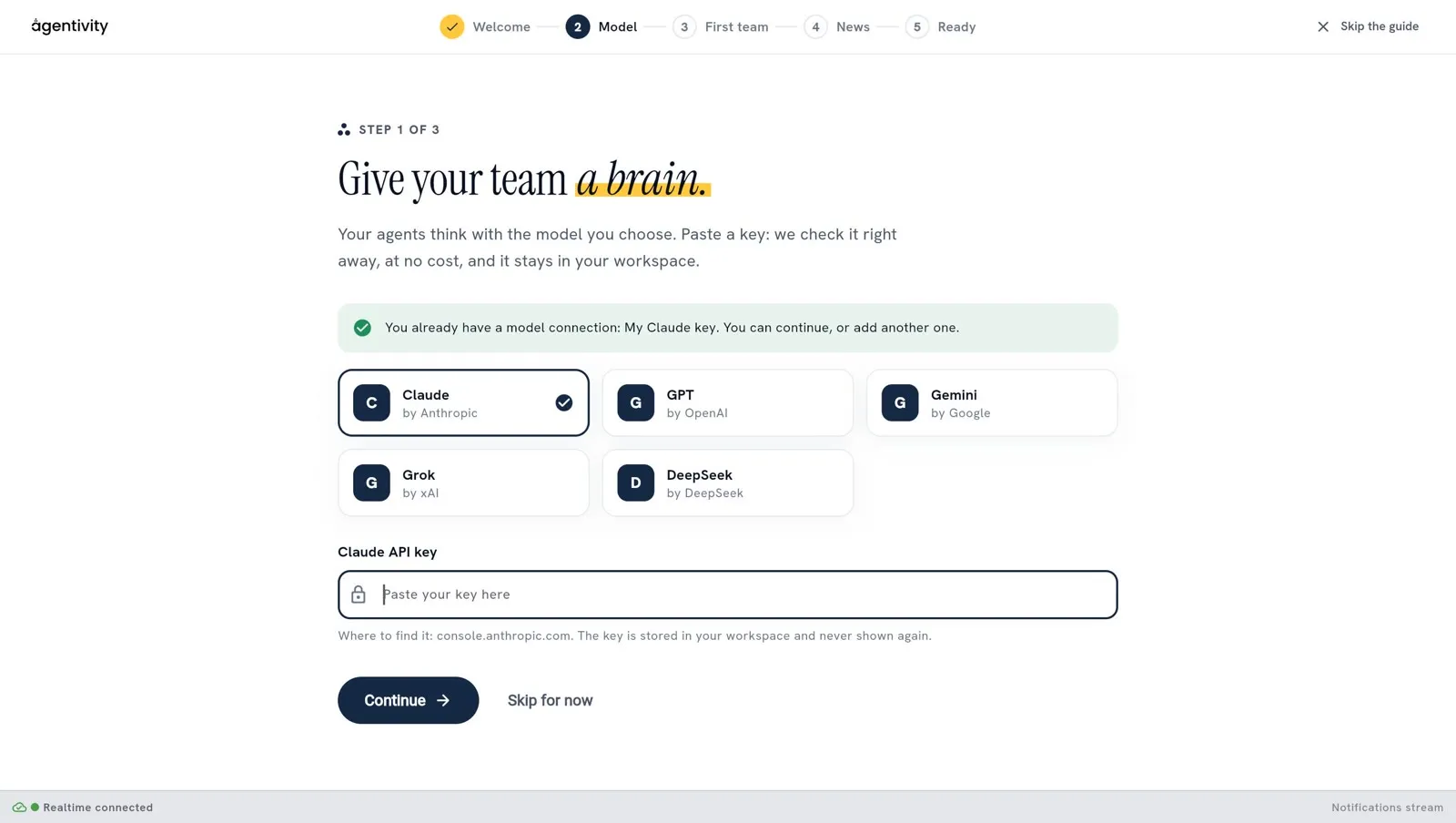
- Choose your provider: Claude, GPT, Gemini, Grok or DeepSeek.
- Paste your API key in the field API key, then select Check the key. Agentivity asks the provider whether the key works, at no cost. Nothing is saved yet. A key that the provider refuses shows the message of the provider.
- Choose the Model. It is required. The list holds the models that your key can use. If the list is not available, type the ID of the model.
- Select Save. The connection is saved with its key and its model, and the guide says “Connected to” your provider. Select Continue. You can change the model later, in Administration > Credentials.
The key is stored in your workspace and is never shown again.
If a model connection already exists, a green line says so (“You already have a model connection”) and you can select Continue, or add another one.
To do this later, select Skip for now. The page Connect an AI model explains this step in detail.
Step 2: start with a ready-made team
Section titled “Step 2: start with a ready-made team”This step offers ready-made solutions, so you can see one work before you build anything. A solution is something you launch to get a need handled from start to finish. Each card says what the solution contains, for example “1 agent · 1 data table”.
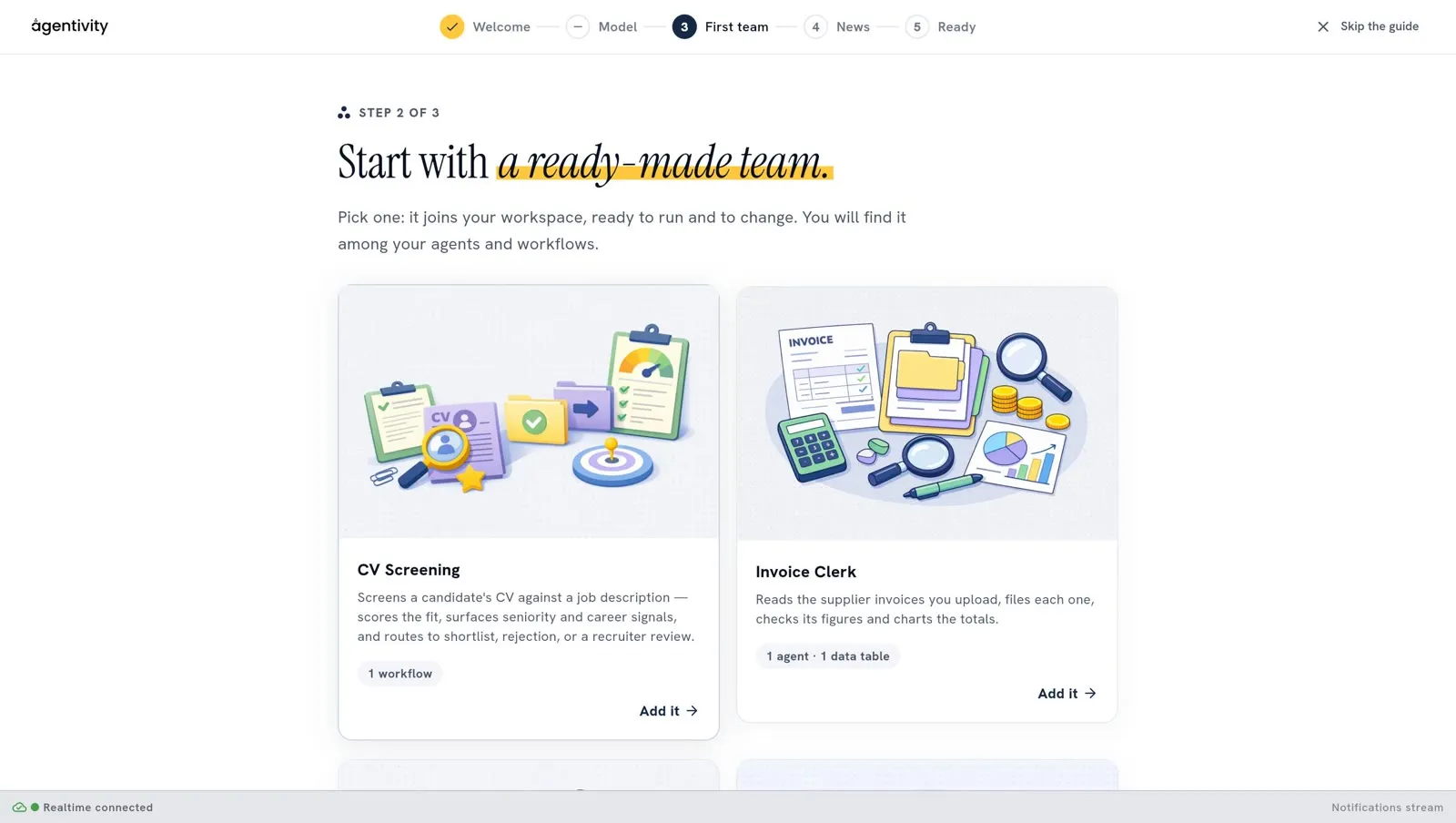
- On the card of the solution you want, select Add it. The window Import a Template opens. A Template is one file that holds a solution and everything it needs.
- Select Import.
- The message Template imported says what was created. Close it: the guide goes on to the next step.
The import creates new copies in your workspace. Nothing you already have is changed. You will find what was imported among your agents and workflows.
The cards are four: CV Screening, Invoice Clerk, Shopping Lab and Trip Manager Team. Scroll to see them all.
The ready-made solutions are downloaded from the Agentivity catalogue of Templates, over the internet. If the catalogue cannot be reached, the guide tells you so and lets you continue. You can import Templates later, in the Templates section.
To skip this step, select Skip for now. For more detail, read Try a ready-made solution.
Step 3: stay in the loop
Section titled “Step 3: stay in the loop”You can receive news from Agentivity: new Templates, releases and what we are building. This step is optional.
- Tick the box I agree to receive news from Agentivity by e-mail. On a workspace where you sign in, the box reads Send the news to and your address: you do not type it.
- Select Subscribe. A message says to check your inbox and click the confirmation link. You receive one confirmation e-mail, and you can unsubscribe at any time.
To pass, select No thanks.
How to know it worked
Section titled “How to know it worked”The guide ends on the screen Your team is ready. When you skipped a step, it says Your workspace is ready. and tells you that what you skipped can wait. A small mark for each stop says whether it was done or skipped.
The screen offers three ways to go on: Describe a team (the Assistant builds it for you), Start from a Template, and Open your agents. Select Open my workspace to go to the Studio. At the top right, Close does the same.
Open the guide again
Section titled “Open the guide again”What you skipped is not lost. In the Studio, open your account menu, at the bottom of the menu on the left: select your name, then Getting started. The guide opens again.
If it does not work
Section titled “If it does not work”- “Paste your API key first.” The key field is empty.
- “This key was refused by” your provider. The Studio shows the message of your provider.
- “Choose the model your agents will use.” Choose a model in the list before you select Save.
- “The marketplace could not be reached.” The machine where Agentivity runs has no access to the catalogue of Templates. Check its internet connection, or skip the step and import a Template later from a file.
Next step
Section titled “Next step”Find your way around the Studio, then build your first team with the Assistant.