
Try a ready-made solution
The fastest way to understand Agentivity is to open a solution that is already built. Agentivity offers showcase solutions as Templates. A Template is one file that holds a solution and everything it needs: its agents, its team or its workflow, and its data tables.
Recorded from the product, played faster.
What you need
Section titled “What you need”- Agentivity running, with the Studio open. See Install Agentivity with Docker.
- An internet connection on the machine where Agentivity runs. The Templates are downloaded from the Agentivity catalogue.
- To run the solution, not only to look at it: a model connection. See Connect an AI model.
The showcase solutions
Section titled “The showcase solutions”| Solution | What it contains | What it does |
|---|---|---|
| Trip Manager Team | 1 team, 13 agents, 2 data tables | A manager and its specialists plan a full trip: flight, hotel, car, dining, transport. The bookings are simulated. |
| Shopping Lab | 1 team, 9 agents, 5 data tables | Compares a product across stores and writes a recommendation. |
| Invoice Clerk | 1 agent, 1 data table | Reads the supplier invoices you upload, files each one and checks its figures. |
| CV Screening | 1 workflow | Compares a CV with a job description and proposes what to do with it. |
Import a solution
Section titled “Import a solution”From the welcome guide:
- Open the welcome guide and go to the step First team.
- On the card of the solution, select Add it. The window Import a Template opens. It shows the name of the Template, its version and author, what you get, and where it goes.
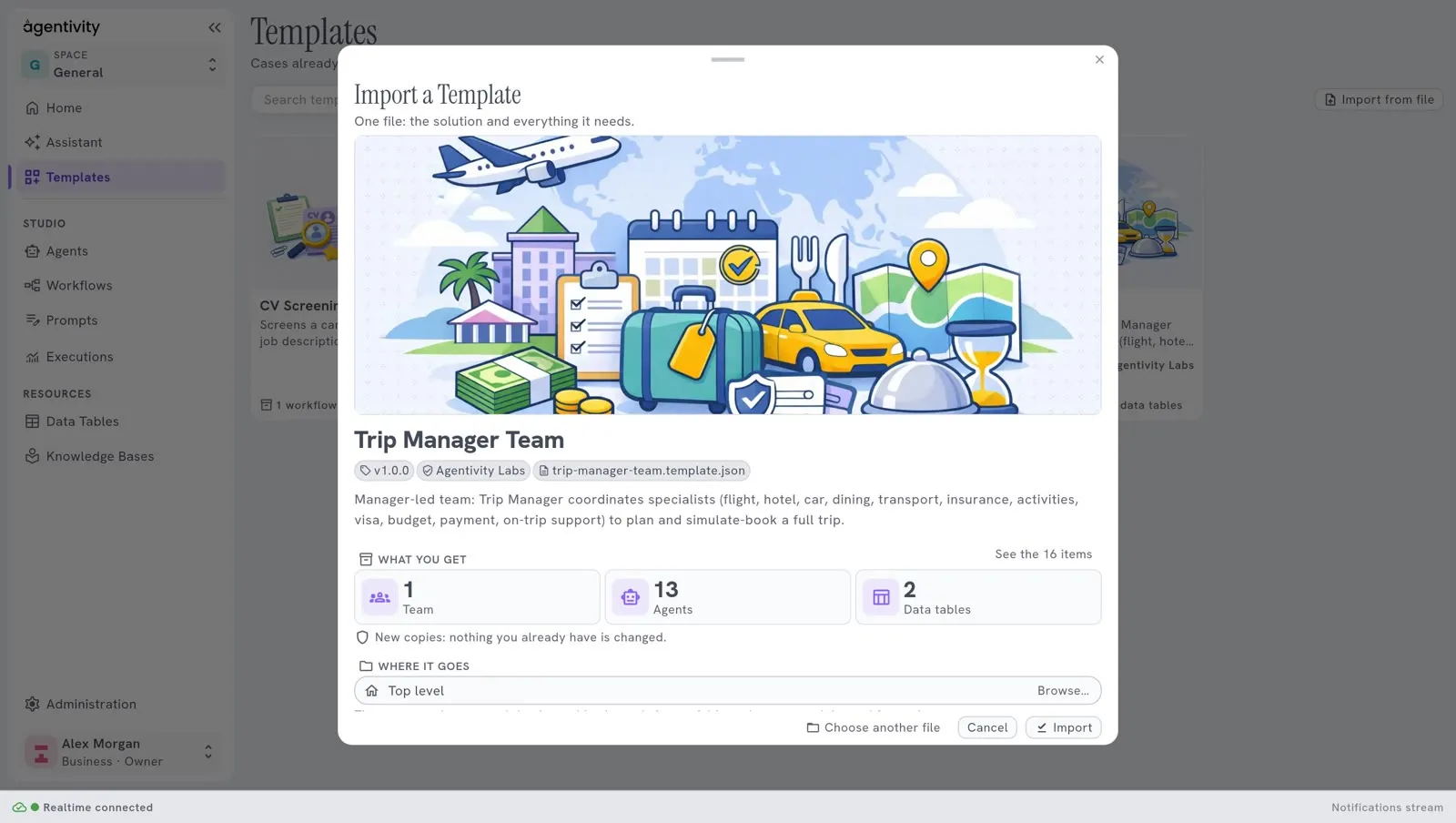
- Select Import.
- Wait for the message Template imported. It says “is in your library” and counts what was created, for example “16 new items, ready to use”: 1 team, 13 agents and 2 data tables.
- Select Open Trip Manager Team, the button of the message, to open it in its editor. In the guide there is only Close: the guide goes on.
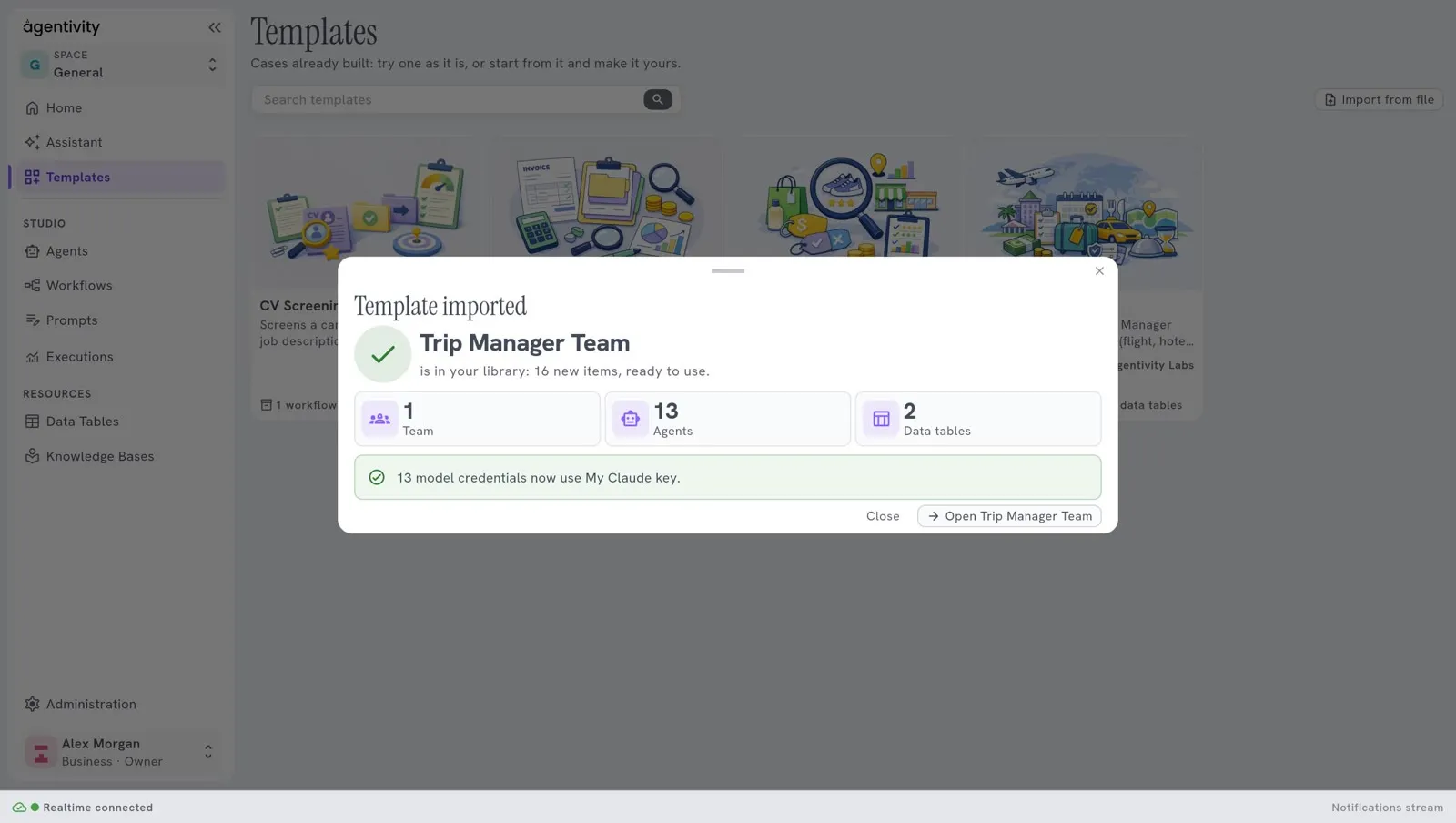
The import always creates new copies. Nothing you already have is changed.
You can also start from the Studio: in the menu on the left, select Templates, or on the home page select the card From a template. The Templates section opens. Select a Template to see what it contains and how it is built, then select Import.
The model of the imported agents
Section titled “The model of the imported agents”The agents of a Template were set up with the model connection of their author. That connection does not exist on your server. So the import replaces it:
- If you have a model connection, the imported agents use yours. The message Template imported says which one, for example “13 model credentials now use” followed by the name of your connection.
- If you have no model connection yet, the import still works, but the agents fail at their first execution. Add a connection in Administration > Credentials. Then go to Studio > Agents, open the menu of the imported item and select Use my default model.
How to know it worked
Section titled “How to know it worked”The solution opens in its editor and you see it drawn on the canvas.
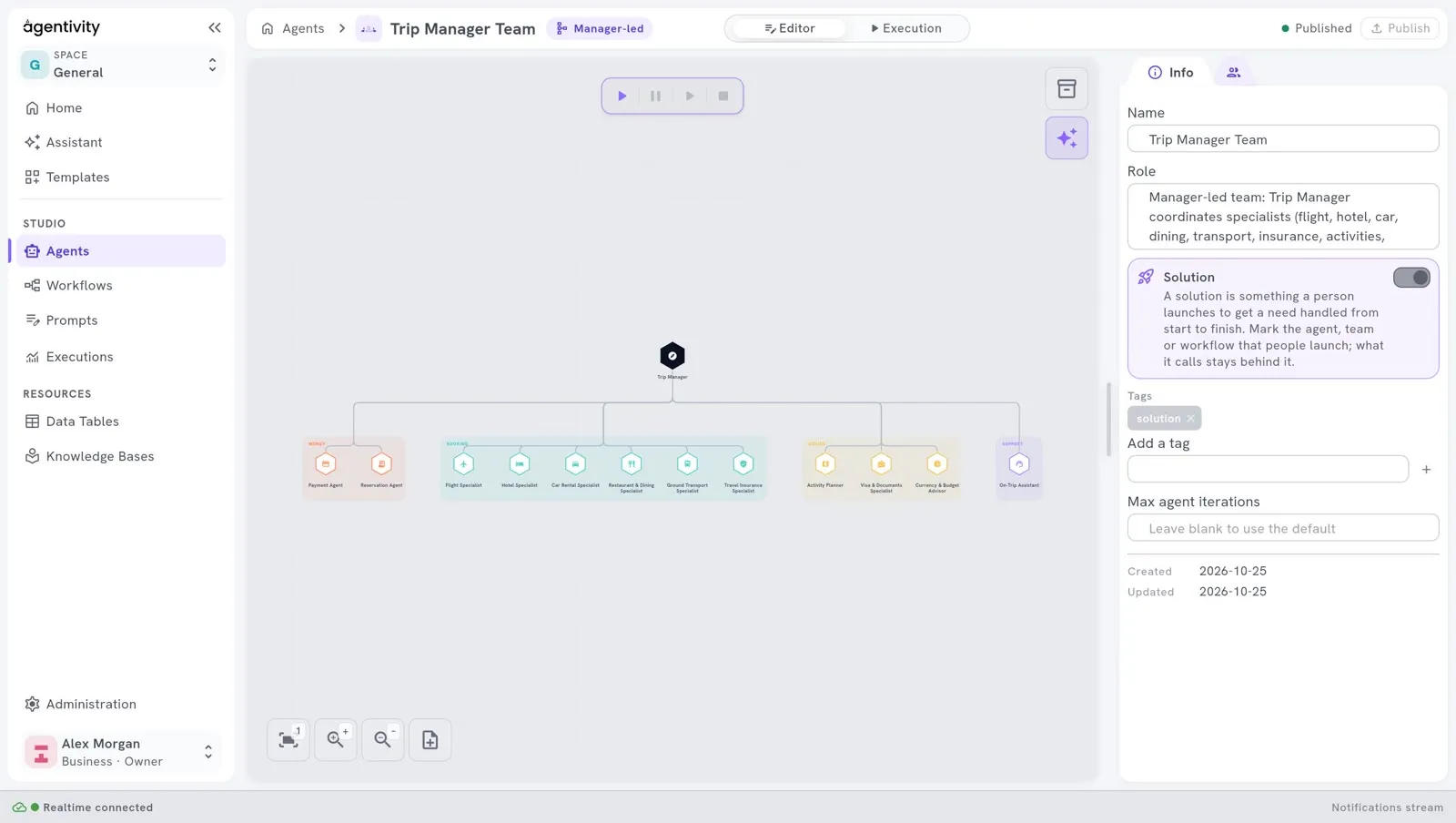
For Trip Manager Team, you see the manager, a larger dark hexagon, at the top and its specialists below, gathered in groups. The imported agents and the team are also in Studio > Agents.
If it does not work
Section titled “If it does not work”- “The marketplace could not be reached.” The machine where Agentivity runs cannot reach the catalogue of Templates. Check its internet connection.
- You received a Template as a file. In the Studio, open Templates, select Import from file and choose the file.
- “This file is not a JSON document.” The file you chose is not a Template.
Read more about each showcase
Section titled “Read more about each showcase”The four showcases and what each one teaches says how each one is built and what to look at.
Next step
Section titled “Next step”Run a team and read its work, with the team you just imported. Or build your own team with the Assistant.