
Look at a Data Table and change its columns
This page shows what you can do with a Data Table in the Studio.
What you need
Section titled “What you need”- A Data Table that has at least one column. See Create a Data Table.
Open a table
Section titled “Open a table”- In the menu on the left, open Resources > Data Tables.
- Double-click the table.
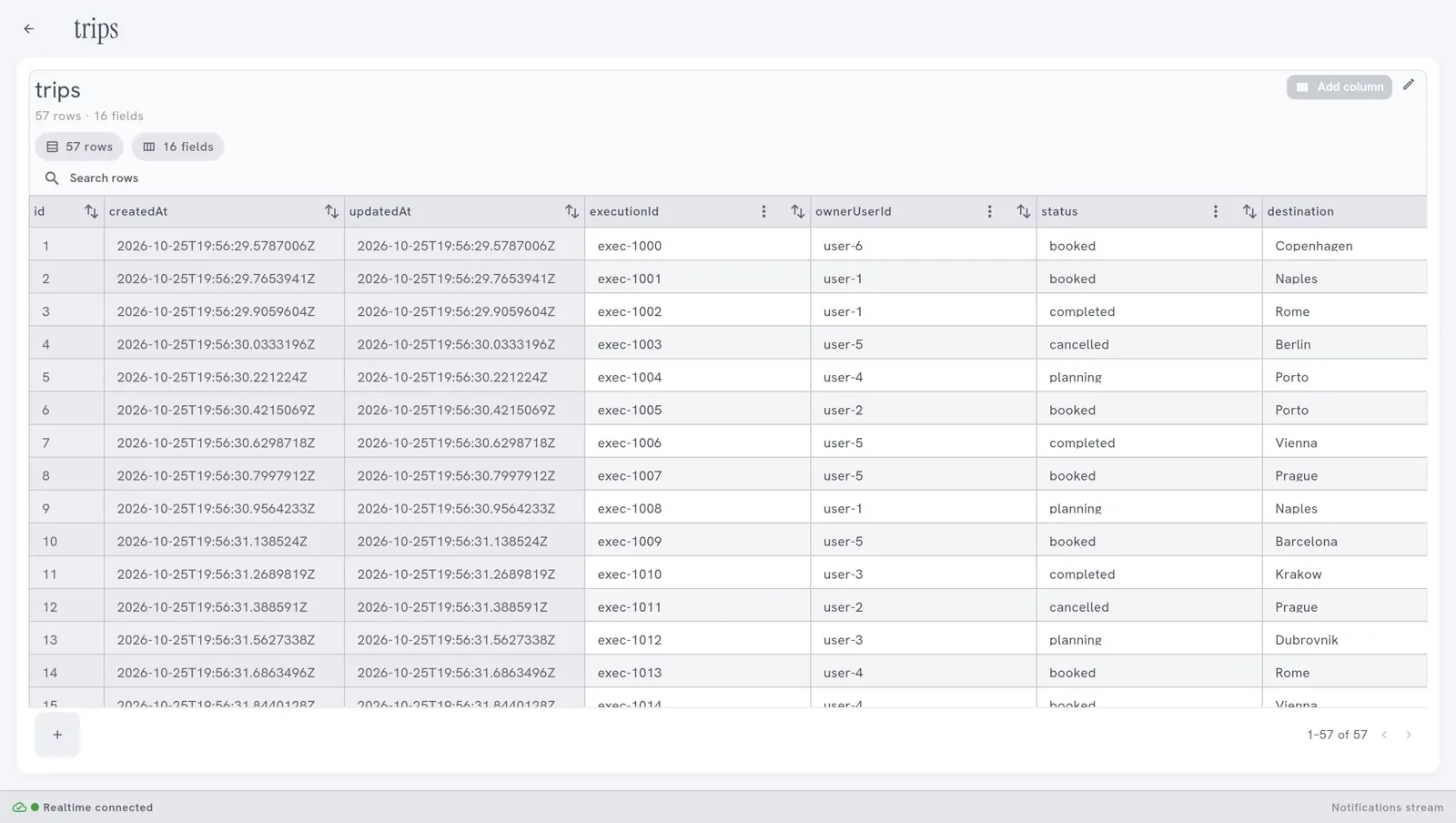
At the top you read the name of the table, and how many rows and fields it has. The arrow at the top left goes back to the list.
Sort and search the rows
Section titled “Sort and search the rows”Each column has two small buttons next to its name: the arrows, which sort the rows by this column, and the three dots, the menu of the column.
- Select the arrows, or the name of the column, to sort the rows by this column. Select again to sort the other way, and a third time to go back to the order of the table.
- Type in Search rows, above the columns, to find the rows that hold a word.
Sorting and searching change only what you see. They do not change the table.
Add a column
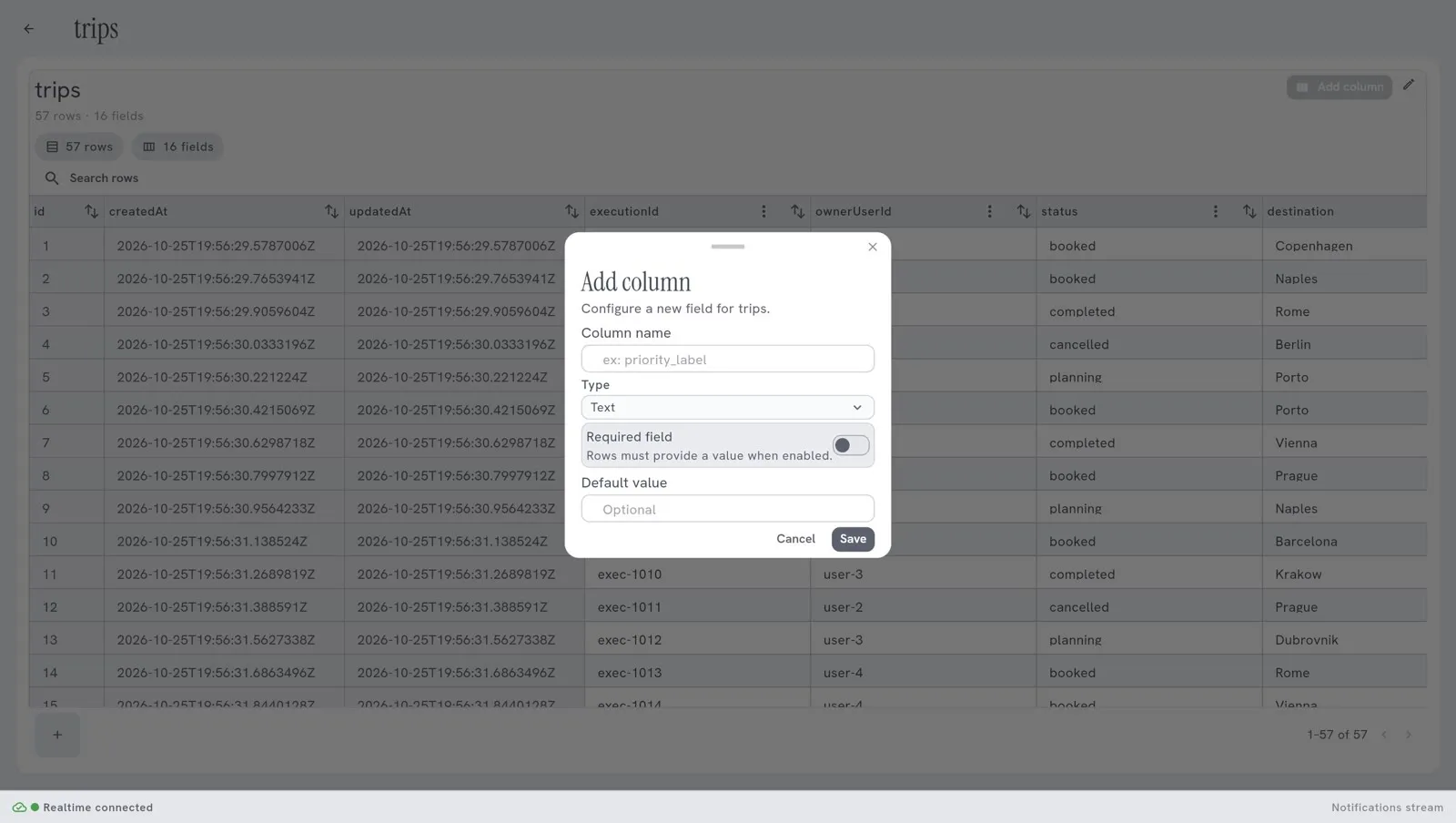
Section titled “Add a column”- Select Add column, at the top right.
- In Column name, type the name. Use lower case and underscores, for example
sent_on. - In Type, choose the kind of value the column holds, for example Text.
- Turn on Required field if every row must have a value in this column.
- If you want, give a Default value: the value a row gets when none is given.
- Select Save.
Change or delete a column
Section titled “Change or delete a column”- Select the three dots next to the name of the column.
- Select Edit column or Delete column.
Deleting a column deletes its values in every row.
The columns id, CreatedAt and UpdatedAt have no menu: they cannot be changed or deleted.
Add a row
Section titled “Add a row”The button with a plus, at the bottom left, adds a row.
In most cases you do not fill a table by hand: a workflow or an agent does it.
Rename or delete the table
Section titled “Rename or delete the table”At the top right, next to Add column:
- the pencil renames the table;
- the bin deletes it. The Studio warns you: “This will permanently delete the Data Table and its rows.”
When the server refuses an action
Section titled “When the server refuses an action”When you add a row or a column, change a cell or delete something, and the server refuses, the Studio shows the message of the server. A column that was refused is not shown as added. Read the message: it says what to correct, for example a value that does not fit the type of the column.
Good to know
Section titled “Good to know”- An agent or a workflow that uses a column by its name stops working if you rename or delete that column. Check what uses a table before you change its columns.
- A table is shared by everything in your workspace. A change is seen at once by every agent and workflow that uses it.