
Let an agent ask a person before it decides
An agent can stop in the middle of its work and ask a person: a missing detail, a choice, or an approval. The execution waits, and continues when the person has answered. For this, the agent needs a channel: the way its question reaches the person.
What you need
Section titled “What you need”- An agent with a model. See Create an agent.
Give the agent a channel
Section titled “Give the agent a channel”The channels are in the Nodes catalog, under AI > Interactions.
| Channel | Where the person answers |
|---|---|
| Chat Channel | In the chat of the execution, inside the Studio or inside an application built on Agentivity. |
| Forms Channel | In a form. |
| Email Channel | By e-mail. |
| Slack Channel | In Slack. |
This page uses Chat Channel, which needs no account elsewhere.
- Drag Chat Channel onto the canvas, below the agent.
- Drag from its diamond to the diamond of the agent named Human Loop Channel.
- Select Publish.
An agent has one channel only.
Tell the agent when to ask
Section titled “Tell the agent when to ask”A channel makes the question possible. The instructions say when to ask. Be precise. For the Reminder Writer:
Before you give your final answer, show the e-mail to the person and ask whether it can be sent. If the person asks for a change, make it and ask again.See Write the role and the instructions of an agent.
Answer the agent
Section titled “Answer the agent”- Run the agent. See Run an agent and read its answer.
- When the agent asks, its question appears in the panel on the right, and the field at the bottom says Type your response…
- Type the answer and send it. The agent continues.
An execution that waits for a person has the label ACTION REQUIRED in the section Executions.
Stop an agent from asking
Section titled “Stop an agent from asking”Sometimes an agent must always give its answer at once, without stopping. For example when it is one step of a workflow that already has its own approval step.
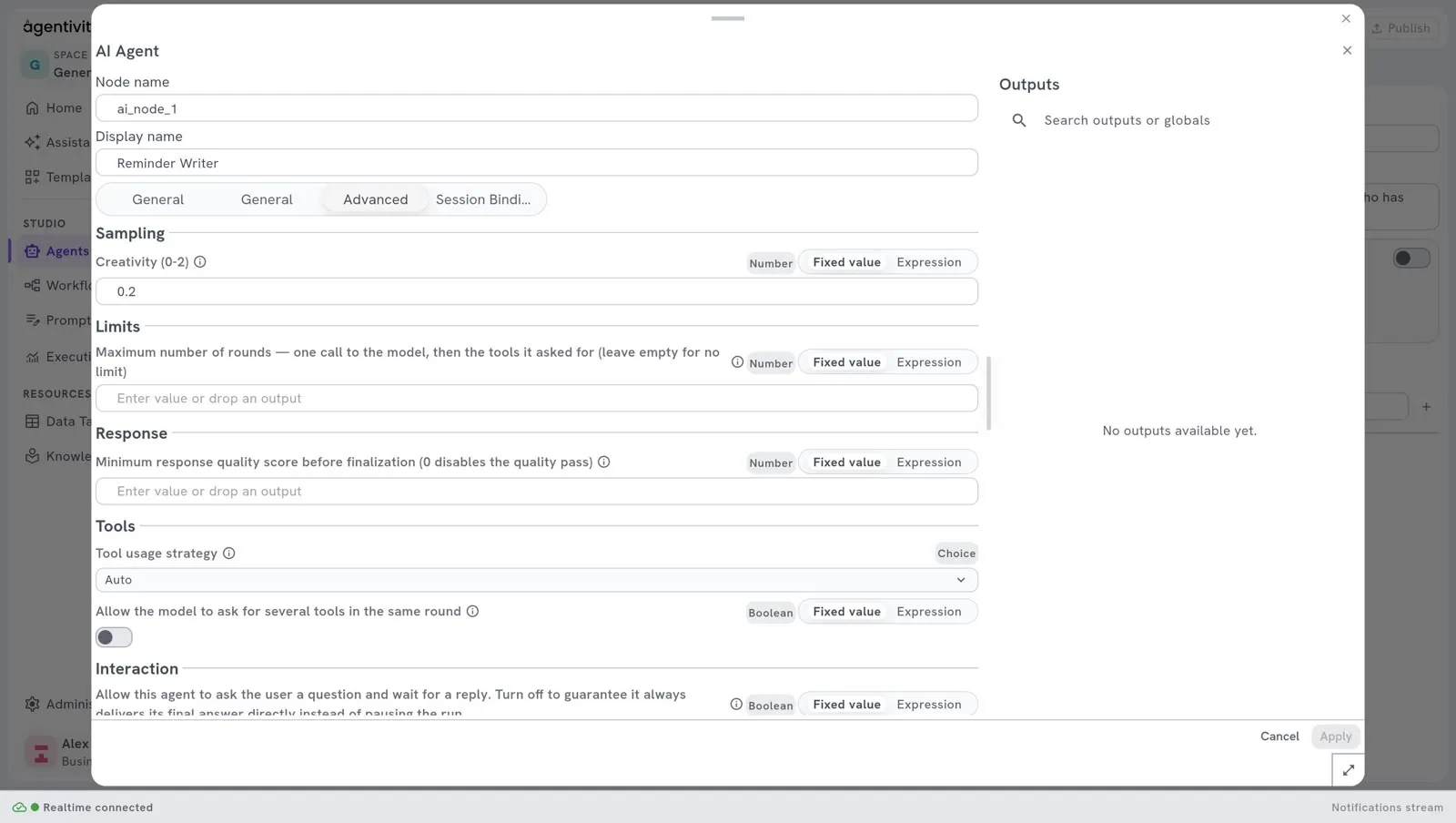
- Right-click AI Agent and select Edit.
- Open the tab Advanced.
- Under Interaction, turn off the setting “Allow this agent to ask the user a question and wait for a reply.”
- Select Apply, then Publish.
This setting is on at the start.
How to know it worked
Section titled “How to know it worked”When you run the agent, it stops, you see its question, and it continues after your answer.
Good to know
Section titled “Good to know”- An agent decides by itself when to ask, from its instructions. If an approval must happen every time, without exception, do not rely on an agent: put the agent in a workflow, with a step that waits for a person. See Ask a person to approve or answer.
- Agentivity has no login, so it does not check who answers.