
Administration, who sees what
Administration is the area of the Studio where you run the workspace itself: who comes in, what they may do, what the workspace uses, and what it costs. It sits at the bottom of the left menu, above your account. Its title shows the edition of the workspace, for example Business edition.
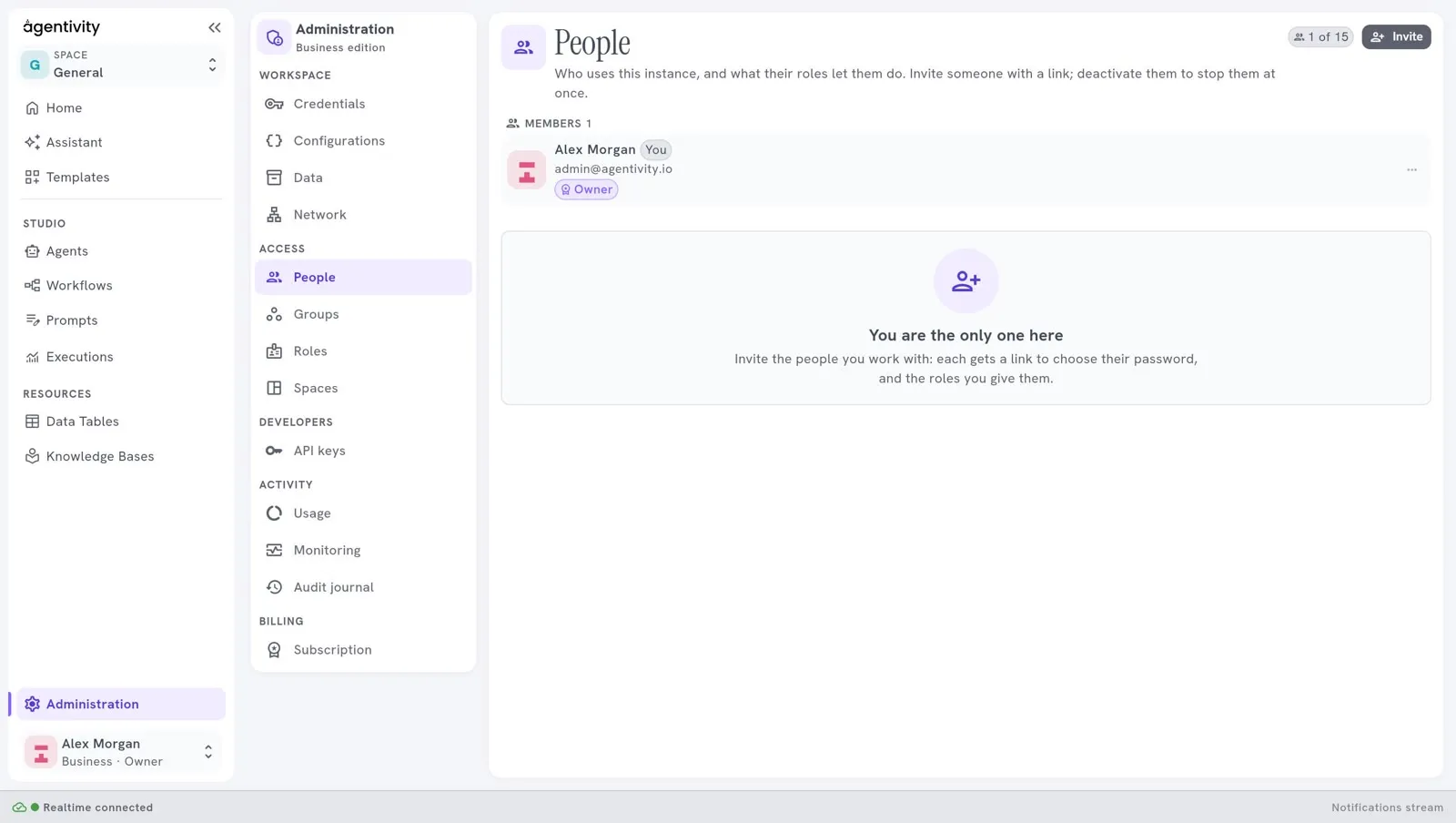
The panes
Section titled “The panes”| Group | Pane | What it is for |
|---|---|---|
| Workspace | Credentials | The keys and accounts your agents connect with. See Workspace panes. |
| Configurations | The settings of the server. | |
| Data | Take everything the workspace holds away in one file, or bring such a file in. | |
| Network | Which addresses your steps and agents may call. | |
| Access | People | Who uses the workspace, and their roles. See People, groups, roles and spaces. |
| Groups | Give roles to a whole team at once. | |
| Roles | What each role lets a person do. | |
| Spaces | Separate the work of different teams. | |
| Developers | API keys | The keys that let a program call the workspace. See Your account and API keys. |
| Activity | Usage | What the workspace uses of its plan. See Usage, monitoring and the audit journal. |
| Monitoring | Send traces, metrics and logs to your own tool. | |
| Audit journal | Who came in and what changed. | |
| Billing | Subscription | Your plan, its payment and its invoices. Hosted workspaces only. See Subscription. |
Your own Profile and your own API keys are not in this list. They are under your name, at the bottom of the left menu.
Who sees what
Section titled “Who sees what”A pane shows only when three things are true:
- The workspace asks for a sign-in. Without it there are no people to manage, so People and Network are not shown. The Community edition has no sign-in, so it shows only the panes that do not need one: Credentials, Configurations and Data. See What the Community edition includes.
- Your role allows it. The panes follow the rights of the roles. The default Administrator role sees them all.
- The plan has the feature. Groups, Audit journal and Monitoring come with the Business plan. Spaces come with Pro and Business. Subscription exists only on a hosted workspace.
| Pane | The right it needs | Plan |
|---|---|---|
| Credentials | Manage credentials | all |
| Configurations | Manage settings | all |
| Data | Being the owner (without sign-in, everyone) | all |
| Network | Manage settings | all, with a sign-in |
| People | Manage people | all, with a sign-in |
| Groups | Manage people | Business |
| Roles | Manage roles | all, with a sign-in |
| Spaces | Manage spaces | Pro, Business |
| API keys (everyone’s) | Manage API keys | all, with a sign-in |
| Usage | Manage settings | all, with a sign-in |
| Monitoring | Manage settings | Business |
| Audit journal | Read the audit journal | Business |
| Subscription | Manage billing | hosted workspaces |
If a pane you expect is missing, ask the owner or an administrator of your workspace.
Good to know
Section titled “Good to know”- The owner is the person who made the workspace, or whom the previous owner chose. The owner can do everything. When the workspace asks for a sign-in, the owner is the only one who sees Data.
- Nothing here is shown to a person who cannot use it: a missing pane is not an error.